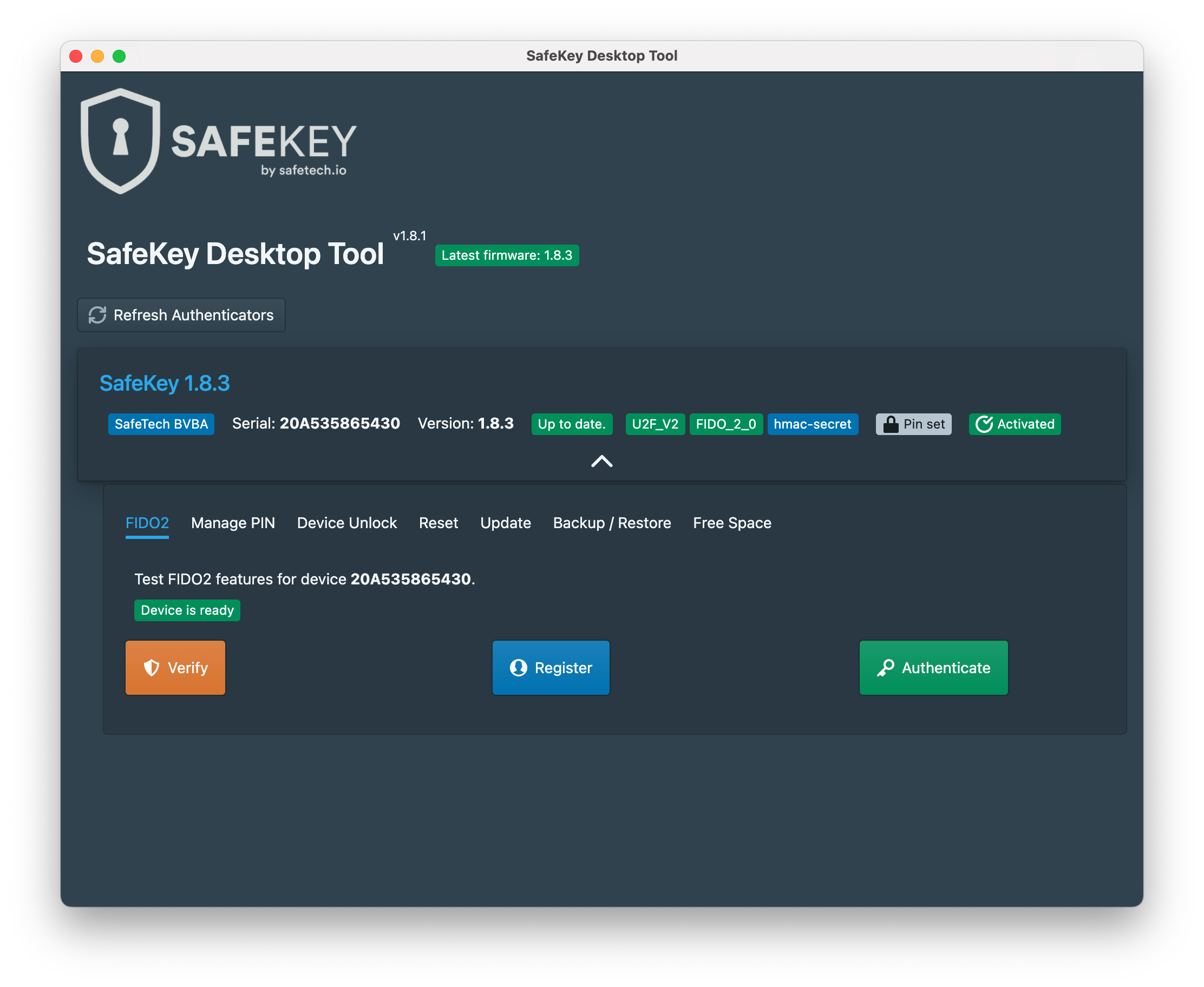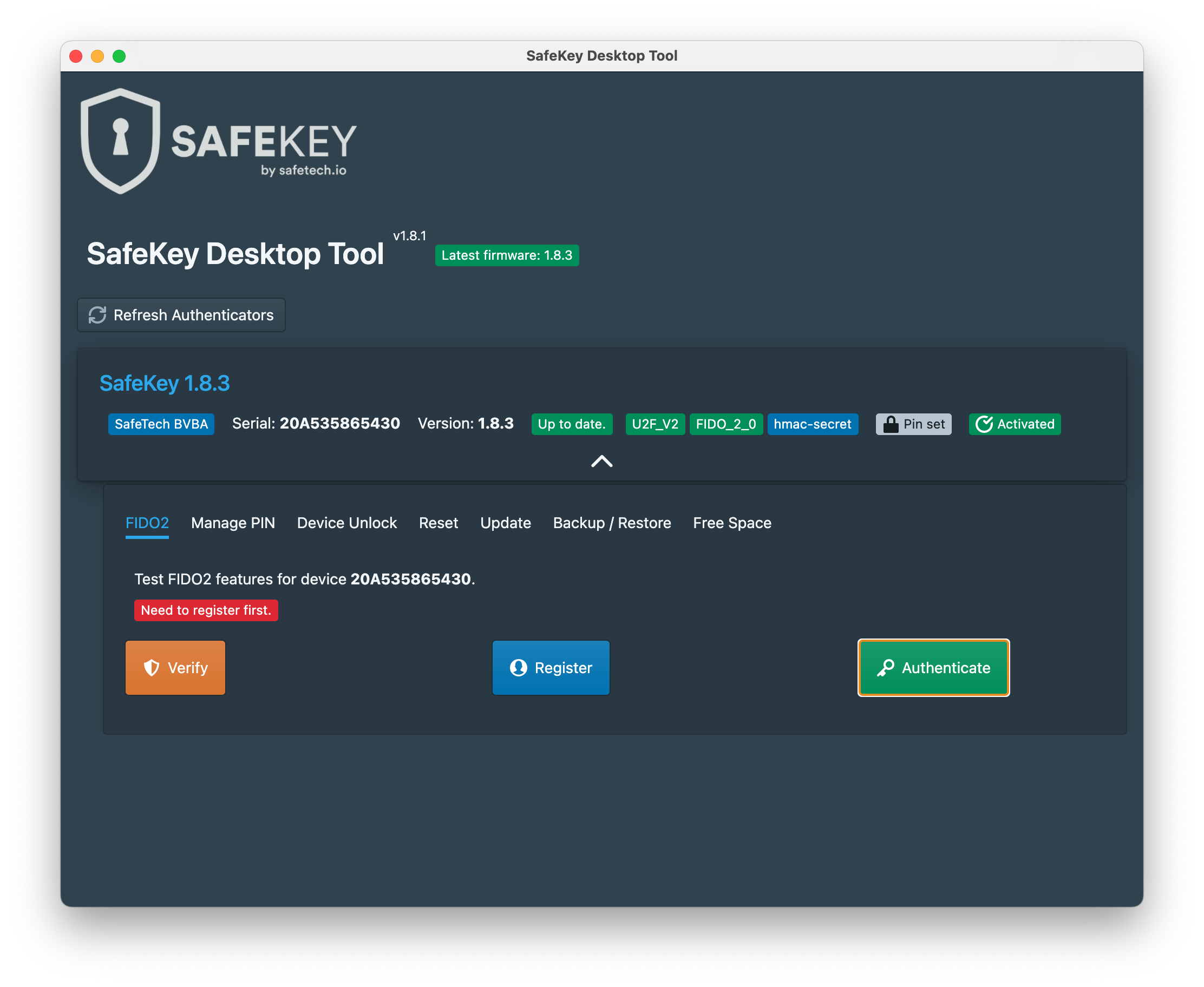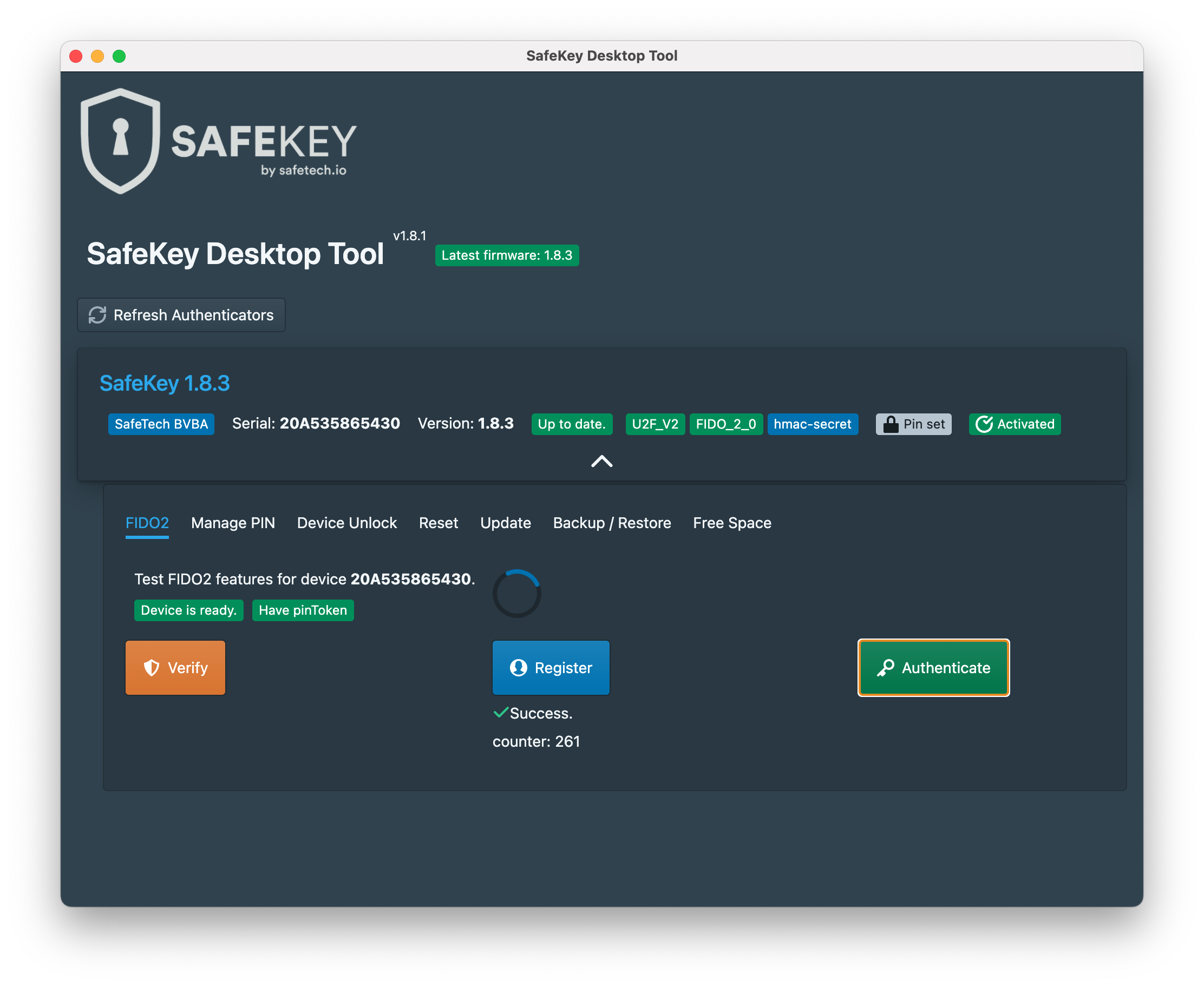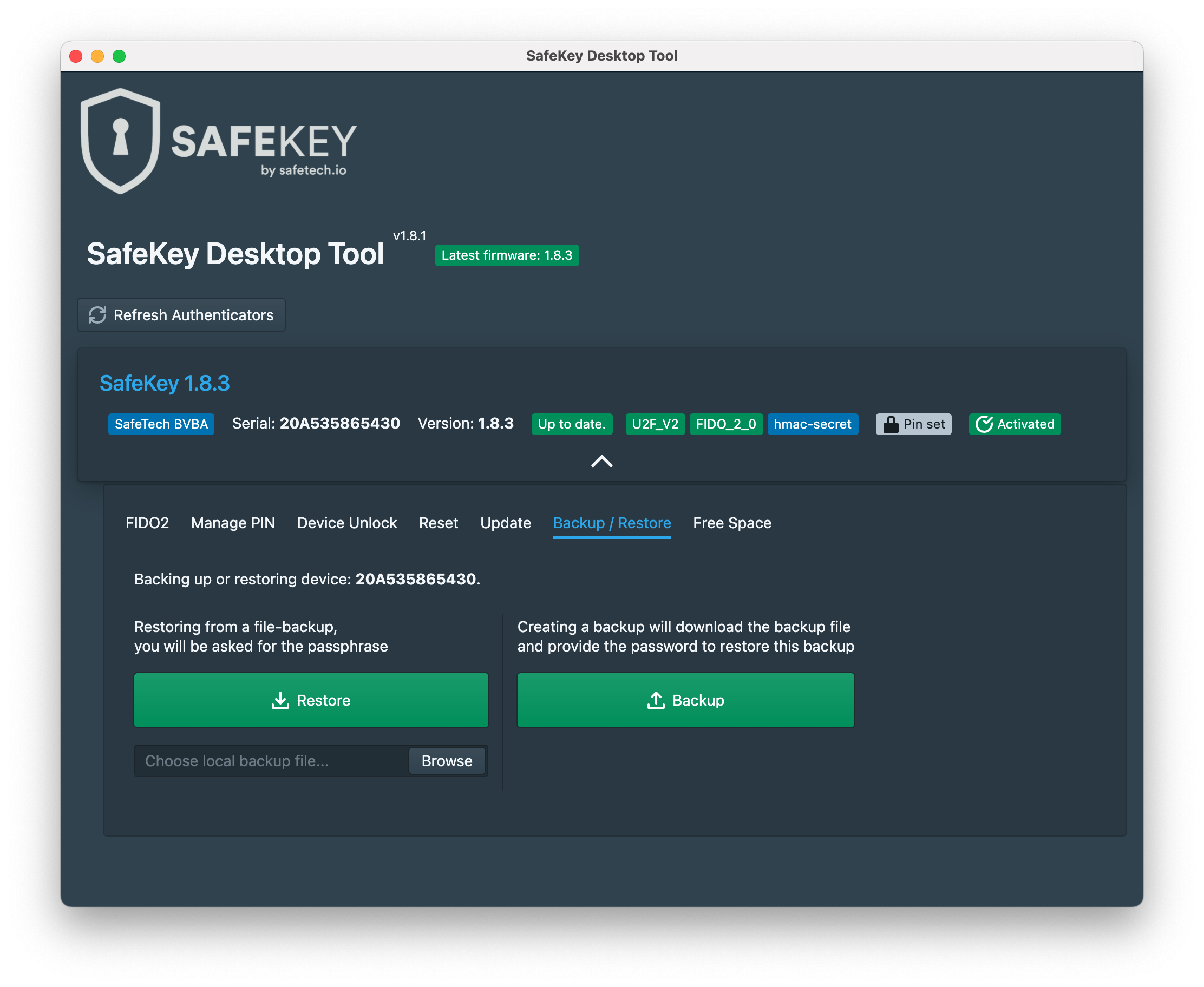
# Introduction To SafeKey

Welcome to the official documentation for SafeKey.

{% hint style="warning" %}
SafeKey is **not** a hardware wallet or a ledger, but it helps you protect them.
{% endhint %}

<figure><img src="https://3973835675-files.gitbook.io/~/files/v0/b/gitbook-x-prod.appspot.com/o/spaces%2FYeTaNjAJ9cNjqtDmTkU1%2Fuploads%2FuSiXPUWZ2y8ftYam48O8%2Fsafekey-visual-3.png?alt=media&amp;token=9e269967-d7d8-461e-830d-a29568c86aea" alt=""><figcaption></figcaption></figure>

## SafeKey One

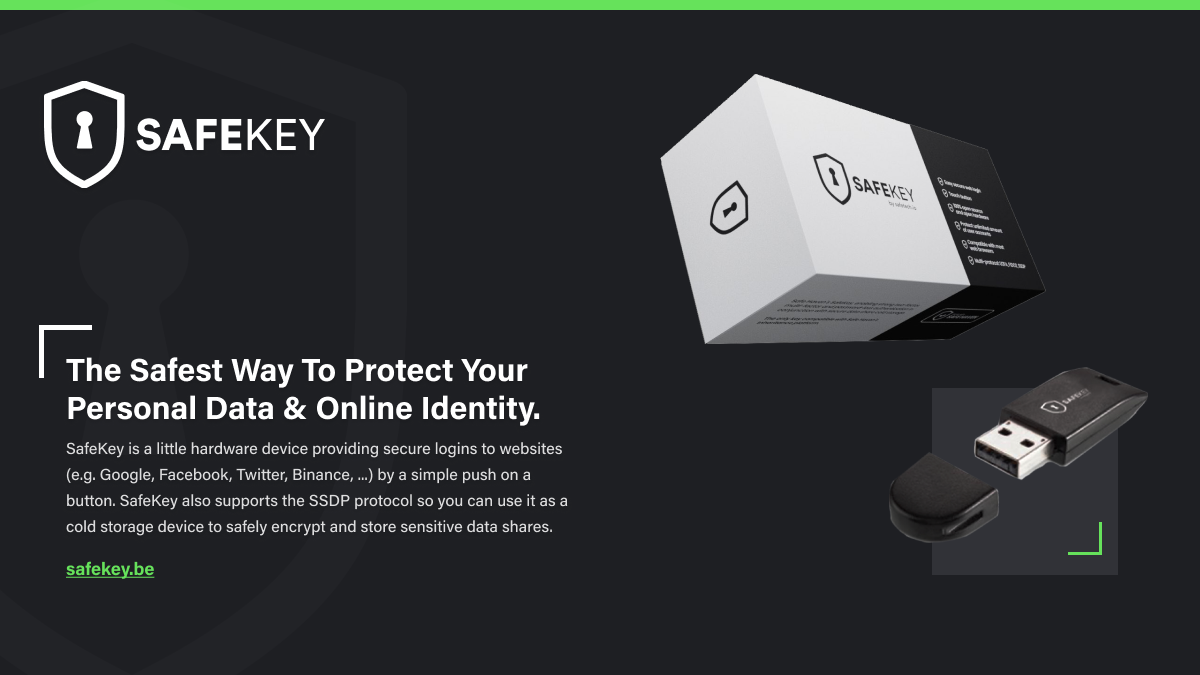
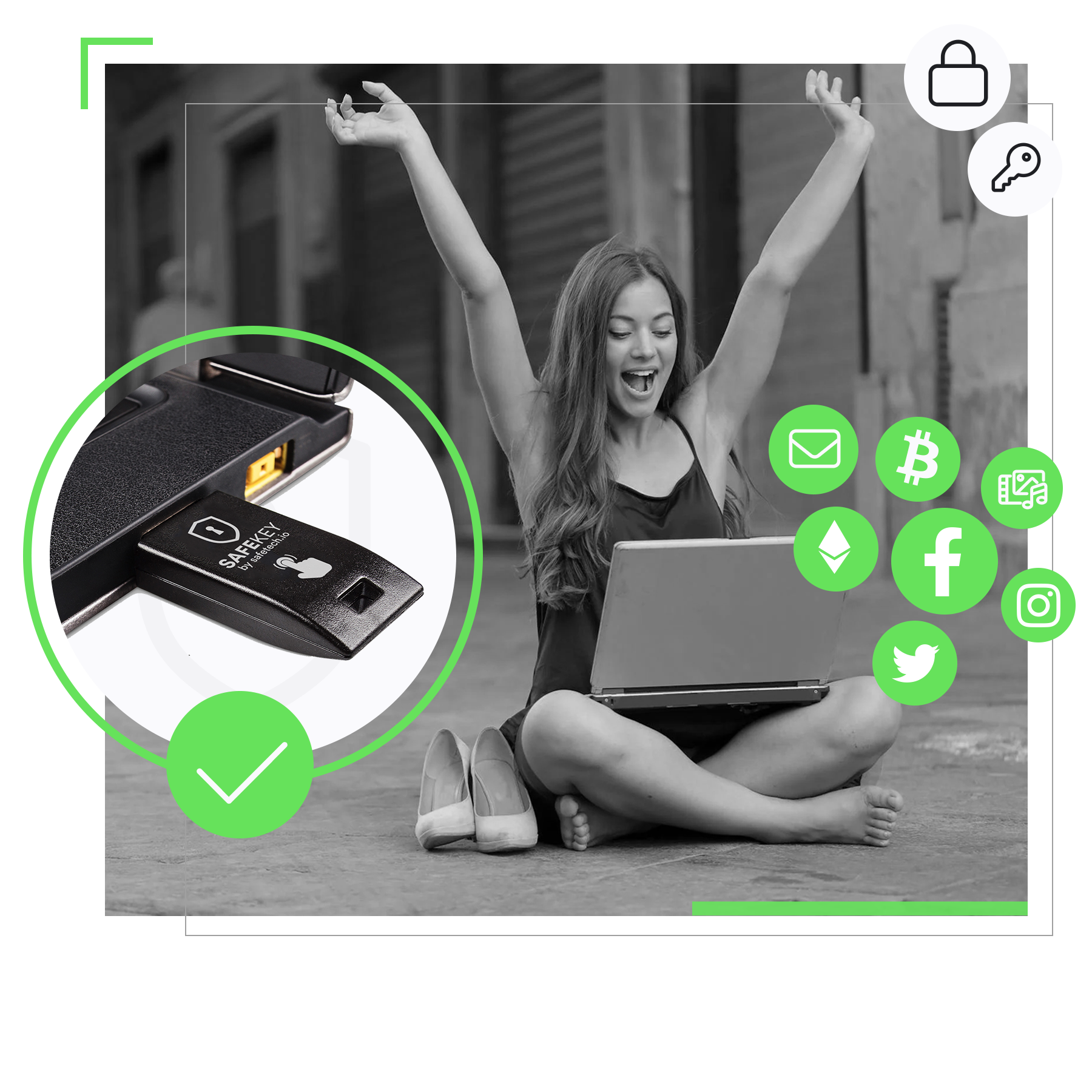
**SafeKey** is a small but powerful USB hardware device providing [stronger two-factor authentication (2FA)](/use-cases/two-factor-authentication) and [passwordless logins](/use-cases/passwordless-logins) to your online accounts simply by touching your SafeKey device.

SafeKey offer secure logins for:

* Social Media
* Crypto Exchanges
* Webmail
* Cloud Storage
* Software
* Apps
* ...

## SafeKey Pro

A **SafeKey Pro** additionally also acts as a secure cold storage device to store the data shares of your protection plans created via [inheriti.com](/tools/inheriti). Possible protection plans are [encrypted backups](/use-cases/decentralized-and-encrypted-backups) and [digital inheritances](/use-cases/digital-inheritance).

SafeKey Pro helps you to protect and control your sensitive data:

* Personal identification information
* Financial account details
* Passwords and logins
* Cryptocurrency wallet information
* Social media account information
* Communication and message history
* Digital assets and property information
* Emergency contact information
* Personal notes and journals
* Contact information for friends and family
* Personal preferences and setting
* Personal identification numbers (PIN)
* Financial records and transactions
* Customer and client information
* Sales and marketing data
* Employee information and records
* Business plans and strategies
* Intellectual property and trade secrets
* Supply chain and logistics data
* Business contacts and network information
* Business registration and legal documents
* ...

## SafeKey Mobile

**SafeKey Mobile** is a mobile app designed for users who need a flexible, secure way to manage their encrypted plan shares from Inheriti®. Unlike SafeKey Pro, which provides cold storage, SafeKey Mobile offers on-the-go access to your encrypted shares via your smartphone.

Connected to your SafeID account, it offers an easy-to-use alternative to SafeKey Pro, while still maintaining robust encryption and security.

SafeKey Mobile is ideal for:

* Users who need immediate access to their encrypted plan shares anytime, anywhere.
* Individuals who prefer a mobile-based solution without relying on a hardware device.

{% hint style="info" %}
If you are looking for the documentation of [Inheriti®](/tools/inheriti), visit [docs.inheriti.com](https://docs.inheriti.com).
{% endhint %}

<figure><img src="https://3973835675-files.gitbook.io/~/files/v0/b/gitbook-x-prod.appspot.com/o/spaces%2FYeTaNjAJ9cNjqtDmTkU1%2Fuploads%2FUlfDl8IJbIqhxvmmCXGj%2Fsafekey-hompage-spotlight.png?alt=media&amp;token=8dd77d83-a3cb-4256-8a0e-abe2a55deebb" alt=""><figcaption></figcaption></figure>


# Choosing Your SafeKey(s)


# Which SafeKey do I need?

Choosing the right SafeKey model depends on what you want to use it for.

{% hint style="info" %}
There are three SafeKey options: **SafeKey One, SafeKey Pro** and the **SafeKey Mobile** ap&#x70;**.**
{% endhint %}

## SafeKey One

<figure><img src="https://3973835675-files.gitbook.io/~/files/v0/b/gitbook-x-prod.appspot.com/o/spaces%2FYeTaNjAJ9cNjqtDmTkU1%2Fuploads%2F3XacdRGbMeb7NNDrbBZr%2FSafeKey%20One%20-%20Logo%20-%20White%20with%20Urus.png?alt=media&amp;token=1dc6314c-19cd-410b-a869-04e83515bca2" alt=""><figcaption></figcaption></figure>

The **main use cases** for the SafeKey One are:

* [Stronger two-factor authentication (2FA)](/use-cases/two-factor-authentication)
* [Passwordless logins](/use-cases/passwordless-logins)

It also has automated [phishing protection](/use-cases/phishing-protection) included.

The **purpose** of using the SafeKey One is to **protect your online accounts** against phishing attacks or hacks. If your account is secured with a SafeKey and someone happens to get access to your password, then they still won't get access to your account because they don't have access to your SafeKey.

SafeKey One acts as **a physical extra security layer** to your authentication processes.

## SafeKey Pro

{% hint style="success" %}
SafeKey Pro is **the only hardware device** that’s compatible with [inheriti.com](/tools/inheriti).&#x20;
{% endhint %}

<figure><img src="https://3973835675-files.gitbook.io/~/files/v0/b/gitbook-x-prod.appspot.com/o/spaces%2FYeTaNjAJ9cNjqtDmTkU1%2Fuploads%2FrRSlLFJjQLyBAOZGTHas%2FSafeKey%20Pro%20-%20Logo%20-%20White%20with%20Urus.png?alt=media&amp;token=8537e378-bc4a-43d3-8941-a723692f61b0" alt=""><figcaption></figcaption></figure>

**SafeKey Pro does everything the SafeKey One does**, so it can be used to protect your online accounts against phishing attacks or hacks.

But, additionally the SafeKey Pro has also been **designed with custom internal storage**. This allows you to **store shares of** [**encrypted backups**](/use-cases/decentralized-and-encrypted-backups) **and** [**inheritance plans**](/use-cases/digital-inheritance) created via [inheriti.com](/tools/inheriti).

The SafeKey Pro does not only protect your accounts, it also **helps you to protect and backup your secret and sensitive data**.

**Think about data such as:**

* Usernames and passwords
* Email accounts
* Social media accounts
* Private keys and seed phrases to access your crypto and NFTs
* Data from all your devices: computers, smartphones, …
* All data stored on your hard drives or in your cloud
* Domain names
* Bank accounts
* Investments
* Family receipts
* Confidential business information
* Your biggest secrets
* …

## SafeKey Mobile (app)

<figure><img src="https://3973835675-files.gitbook.io/~/files/v0/b/gitbook-x-prod.appspot.com/o/spaces%2FYeTaNjAJ9cNjqtDmTkU1%2Fuploads%2FKjC2YXPaRJzRZv4ZEdUy%2Fsafekey-mobile.png?alt=media&amp;token=9844d8cf-6600-40fd-ac98-78081e8d2764" alt=""><figcaption></figcaption></figure>

**SafeKey Mobile** is the mobile alternative to the internal storage of SafeKey Pro.

It enables users to store encrypted shares of their protection plans **directly on their smartphones**, offering a more versatile, on-the-go solution without compromising security.

SafeKey Mobile is integrated with **SafeID**, allowing seamless management of your Inheriti® plan shares. It offers secure **mobile storage** for encrypted plan shares, ensuring they are easily accessible yet protected.

**Use SafeKey Mobile** if you:

* Need immediate access to your encrypted plan shares on your phone.
* Prefer a mobile-based solution rather than a physical hardware key.
* Want an added layer of encryption and convenience for managing shares on-the-go.

### SafeKey Mobile download links

* [**Download in the Apple App Store for iOS**](https://apps.apple.com/us/app/safekey-mobile/id6479244282)
* [**Download in the Google Play Store for Android**](https://play.google.com/store/apps/details?id=be.safekey.mobile)

{% hint style="info" %}
**Note**: SafeKey Mobile does not provide 2FA or passwordless login capabilities. It is focused on the secure storage of Inheriti® plan shares. If you're looking for a combination of 2FA and storing your plan shares, use a SafeKey Pro.
{% endhint %}

{% hint style="warning" %}

### Weaknesses Of Regular Two-Factor Authentication Apps.

While 2FA is very simple to use,  some methods are inherently insecure and exposed to hacks. The most popular implementation, Time-based One-Time Password (TOTP), popularized by its use on Google Auth and crypto exchanges like Binance, transmits the shared secret (master key) over the internet during the setup process.

This weakness has been recognized by major players who created FIDO Alliance and defined new, more secure standards such as Universal 2nd Factor Authentication (U2F), which introduces the use of a hardware device for user authentication, such as the SafeKey.

**Some other weaknesses of regular 2FA are:**

* You have to manually input the code at logging in, adding another step to the process.
* Backup codes are sent online, which is often insecure.
* You and the provider share the same secret. If a hacker gets into a company and gains access to both the password and the secrets database, he will be able to access every account completely unnoticed.
* The secret is displayed in plaintext or QR code. It cannot be provided as a hash or with a cryptographic salt. This also means that the secret is most likely stored in plaintext form, on the servers of the provider.
* The secret can be exposed during the registration, as the provider has to give you a generated secret. By using TOTP, you have to trust the providers to be able to protect the secret.&#x20;

**SafeKey gets you better two-factor authentication** and goes one step further than traditional methods by using the Universal 2nd Factor standard (U2F).

What does that mean?

Well, not only do you need your regular login credentials such as your email address, username and password, it is also necessary to have a physical device as a means of authentication: your SafeKey.

Adding a hardware device to the authentication process gives your account a massive security boost and should easily keep hackers out of your way.

Why?

Because it is impossible that someone who happens to get your password can log in to your account, because logging in also requires your SafeKey.
{% endhint %}

<figure><img src="https://3973835675-files.gitbook.io/~/files/v0/b/gitbook-x-prod.appspot.com/o/spaces%2FYeTaNjAJ9cNjqtDmTkU1%2Fuploads%2F7VEFOF8oCgvXZNna4u6e%2Fsafekey-visual-3.png?alt=media&amp;token=3f2bead9-f99d-475b-8f1e-b4b0fa87d360" alt=""><figcaption></figcaption></figure>


# How many SafeKeys do I need?

The amount of SafeKeys you need depends on what you want to use it for.

## SafeKey One

In case you’re choosing to use the SafeKey One to help you secure your logins to your online accounts, then 1 device is already enough to get you started.

{% hint style="success" %}
We always recommend to **get at least 1 backup SafeKey device** in case something goes wrong with your primary SafeKey.
{% endhint %}

## SafeKey Pro

For SafeKey Pro users it’s a bit different. A lot depends on the data protection plans you want to create and how many shareholders you want to have for it.

In general there are **two types of data protection plans** which both need a different approach:

* [Encrypted backups](/use-cases/decentralized-and-encrypted-backups)
* [Inheritance plans](/use-cases/digital-inheritance)

### Only you as a shareholder

If you’re going to create **personal backup plans** with yourself as the only person that needs access, then 1 SafeKey Pro is enough to get started.

But, as always, we advice you to **get at least 1 extra SafeKey Pro as** [**backup device**](/user-guides/backups) in case your primary SafeKey gets lost or damaged.

### Multiple shareholders and beneficiaries

If you’re going to create **backup plans with multiple shareholders** or want to create an **inheritance plan with multiple beneficiaries**, then you’ll need a few more SafeKey Pros.

**Rule of thumb is to have at least 1 SafeKey Pro device per shareholder, but in the case of setting up an inheritance plan, you as the Plan Owner don't need to have your own SafeKey, only your beneficiaries do.**

{% hint style="success" %}
Preferable you use **multiple extra SafeKey Pro backup devices**, depending on the situation and value of the data you want to secure.
{% endhint %}

{% hint style="warning" %}
**Security Tip**: the more shares and SafeKey Pros you use to decentralize your data backups and inheritances, the safer, more secure and the better protected your data becomes.
{% endhint %}

## SafeKey Mobile

For users opting for **SafeKey Mobile**, the number of mobile devices required depends on how many **beneficiaries** (specifically **shareholders** for backup plans and **heirs** for inheritance plans) are involved in your protection plan.

### Personal Backup Plans (You as the Sole Shareholder)

If you're using SafeKey Mobile for a personal backup plan where you're the sole **shareholder**, you'll need to install the **SafeKey Mobile app** on your phone. This will allow you to securely store your encrypted shares on your mobile device.

You can also choose to keep a backup of your shares in the **Inheriti® Vault**, ensuring recovery in case your phone is lost or reset.

### Multiple Shareholders and Heirs

For plans involving multiple **shareholders** (in backup plans) or **heirs** (in inheritance plans), each **beneficiary** will need to install the **SafeKey Mobile app** on their own phone. This ensures that each person’s shares are securely stored on their individual mobile device.

{% hint style="info" %}
**Backup Tip**: Each mobile user can also opt to back up their shares in the **Inheriti® Vault**, providing an additional layer of security if their phone is lost or compromised.
{% endhint %}


# SafeKey Comparison

Discover all features and technical details of the different SafeKeys and select the one which suits your needs best.

## SafeKey One vs. SafeKey Pro

<table><thead><tr><th width="322">Individual Use Cases</th><th align="center">SafeKey One</th><th align="center">SafeKey Pro</th><th>SafeKey Mobile</th></tr></thead><tbody><tr><td>Two-Factor Authentication (2FA)</td><td align="center"><span data-gb-custom-inline data-tag="emoji" data-code="2705">✅</span></td><td align="center"><span data-gb-custom-inline data-tag="emoji" data-code="2705">✅</span></td><td><span data-gb-custom-inline data-tag="emoji" data-code="26d4">⛔</span></td></tr><tr><td>Phishing protection</td><td align="center"><span data-gb-custom-inline data-tag="emoji" data-code="2705">✅</span></td><td align="center"><span data-gb-custom-inline data-tag="emoji" data-code="2705">✅</span></td><td><span data-gb-custom-inline data-tag="emoji" data-code="26d4">⛔</span></td></tr><tr><td>Online identity protection</td><td align="center"><span data-gb-custom-inline data-tag="emoji" data-code="2705">✅</span></td><td align="center"><span data-gb-custom-inline data-tag="emoji" data-code="2705">✅</span></td><td><span data-gb-custom-inline data-tag="emoji" data-code="26d4">⛔</span></td></tr><tr><td>Secure logins to social media</td><td align="center"><span data-gb-custom-inline data-tag="emoji" data-code="2705">✅</span></td><td align="center"><span data-gb-custom-inline data-tag="emoji" data-code="2705">✅</span></td><td><span data-gb-custom-inline data-tag="emoji" data-code="26d4">⛔</span></td></tr><tr><td>Passwordless logins</td><td align="center"><span data-gb-custom-inline data-tag="emoji" data-code="2705">✅</span></td><td align="center"><span data-gb-custom-inline data-tag="emoji" data-code="2705">✅</span></td><td><span data-gb-custom-inline data-tag="emoji" data-code="26d4">⛔</span></td></tr><tr><td>Encrypted backups of secret data</td><td align="center"><span data-gb-custom-inline data-tag="emoji" data-code="26d4">⛔</span></td><td align="center"><span data-gb-custom-inline data-tag="emoji" data-code="2705">✅</span></td><td><span data-gb-custom-inline data-tag="emoji" data-code="2705">✅</span></td></tr><tr><td>Digital inheritance plans</td><td align="center"><span data-gb-custom-inline data-tag="emoji" data-code="26d4">⛔</span></td><td align="center"><span data-gb-custom-inline data-tag="emoji" data-code="2705">✅</span></td><td><span data-gb-custom-inline data-tag="emoji" data-code="2705">✅</span></td></tr></tbody></table>

<table><thead><tr><th width="324">Crypto Use Cases</th><th align="center">SafeKey One</th><th align="center">SafeKey Pro</th><th>SafeKey Mobile</th></tr></thead><tbody><tr><td>Secure logins to crypto exchanges</td><td align="center"><span data-gb-custom-inline data-tag="emoji" data-code="2705">✅</span></td><td align="center"><span data-gb-custom-inline data-tag="emoji" data-code="2705">✅</span></td><td><span data-gb-custom-inline data-tag="emoji" data-code="26d4">⛔</span></td></tr><tr><td>Encrypted backups of private keys</td><td align="center"><span data-gb-custom-inline data-tag="emoji" data-code="26d4">⛔</span></td><td align="center"><span data-gb-custom-inline data-tag="emoji" data-code="2705">✅</span></td><td><span data-gb-custom-inline data-tag="emoji" data-code="2705">✅</span></td></tr><tr><td>Crypto inheritance plans</td><td align="center"><span data-gb-custom-inline data-tag="emoji" data-code="26d4">⛔</span></td><td align="center"><span data-gb-custom-inline data-tag="emoji" data-code="2705">✅</span></td><td><span data-gb-custom-inline data-tag="emoji" data-code="2705">✅</span></td></tr><tr><td>Decentralized data backups</td><td align="center"><span data-gb-custom-inline data-tag="emoji" data-code="26d4">⛔</span></td><td align="center"><span data-gb-custom-inline data-tag="emoji" data-code="2705">✅</span></td><td><span data-gb-custom-inline data-tag="emoji" data-code="2705">✅</span></td></tr><tr><td>Self-custody protection</td><td align="center"><span data-gb-custom-inline data-tag="emoji" data-code="26d4">⛔</span></td><td align="center"><span data-gb-custom-inline data-tag="emoji" data-code="2705">✅</span></td><td><span data-gb-custom-inline data-tag="emoji" data-code="2705">✅</span></td></tr><tr><td>Web3 asset protection</td><td align="center"><span data-gb-custom-inline data-tag="emoji" data-code="26d4">⛔</span></td><td align="center"><span data-gb-custom-inline data-tag="emoji" data-code="2705">✅</span></td><td><span data-gb-custom-inline data-tag="emoji" data-code="2705">✅</span></td></tr></tbody></table>

<table><thead><tr><th width="325">Professional Use Cases</th><th align="center">SafeKey One</th><th align="center">SafeKey Pro</th><th>SafeKey Mobile</th></tr></thead><tbody><tr><td>Passwordless workspaces</td><td align="center"><span data-gb-custom-inline data-tag="emoji" data-code="2705">✅</span></td><td align="center"><span data-gb-custom-inline data-tag="emoji" data-code="2705">✅</span></td><td><span data-gb-custom-inline data-tag="emoji" data-code="26d4">⛔</span></td></tr><tr><td>Keep sensitive data safe</td><td align="center"><span data-gb-custom-inline data-tag="emoji" data-code="26d4">⛔</span></td><td align="center"><span data-gb-custom-inline data-tag="emoji" data-code="2705">✅</span></td><td><span data-gb-custom-inline data-tag="emoji" data-code="2705">✅</span></td></tr><tr><td>Secure employee user accounts</td><td align="center"><span data-gb-custom-inline data-tag="emoji" data-code="2705">✅</span></td><td align="center"><span data-gb-custom-inline data-tag="emoji" data-code="2705">✅</span></td><td><span data-gb-custom-inline data-tag="emoji" data-code="26d4">⛔</span></td></tr><tr><td>Store encrypted data shares</td><td align="center"><span data-gb-custom-inline data-tag="emoji" data-code="26d4">⛔</span></td><td align="center"><span data-gb-custom-inline data-tag="emoji" data-code="2705">✅</span></td><td><span data-gb-custom-inline data-tag="emoji" data-code="2705">✅</span></td></tr><tr><td>Protect employees against phishing attacks</td><td align="center"><span data-gb-custom-inline data-tag="emoji" data-code="2705">✅</span></td><td align="center"><span data-gb-custom-inline data-tag="emoji" data-code="2705">✅</span></td><td><span data-gb-custom-inline data-tag="emoji" data-code="26d4">⛔</span></td></tr><tr><td>Manage privileged accessibility</td><td align="center"><span data-gb-custom-inline data-tag="emoji" data-code="2705">✅</span></td><td align="center"><span data-gb-custom-inline data-tag="emoji" data-code="2705">✅</span></td><td><span data-gb-custom-inline data-tag="emoji" data-code="26d4">⛔</span></td></tr><tr><td>Protect your workspace</td><td align="center"><span data-gb-custom-inline data-tag="emoji" data-code="2705">✅</span></td><td align="center"><span data-gb-custom-inline data-tag="emoji" data-code="2705">✅</span></td><td><span data-gb-custom-inline data-tag="emoji" data-code="26d4">⛔</span></td></tr></tbody></table>

<table><thead><tr><th width="323">Supported</th><th align="center">SafeKey One</th><th align="center">SafeKey Pro</th><th>SafeKey Mobile</th></tr></thead><tbody><tr><td>SSDP (Secure Share Distribution Protocol)</td><td align="center"><span data-gb-custom-inline data-tag="emoji" data-code="26d4">⛔</span></td><td align="center"><span data-gb-custom-inline data-tag="emoji" data-code="2705">✅</span></td><td><span data-gb-custom-inline data-tag="emoji" data-code="2705">✅</span></td></tr><tr><td>FIDO2</td><td align="center"><span data-gb-custom-inline data-tag="emoji" data-code="2705">✅</span></td><td align="center"><span data-gb-custom-inline data-tag="emoji" data-code="2705">✅</span></td><td><span data-gb-custom-inline data-tag="emoji" data-code="26d4">⛔</span></td></tr><tr><td>FIDO U2F</td><td align="center"><span data-gb-custom-inline data-tag="emoji" data-code="2705">✅</span></td><td align="center"><span data-gb-custom-inline data-tag="emoji" data-code="2705">✅</span></td><td><span data-gb-custom-inline data-tag="emoji" data-code="26d4">⛔</span></td></tr><tr><td>Browsers: Mozilla Firefox, Google Chrome, Safari, Microsoft Edge, Chromium, Opera</td><td align="center"><span data-gb-custom-inline data-tag="emoji" data-code="2705">✅</span></td><td align="center"><span data-gb-custom-inline data-tag="emoji" data-code="2705">✅</span></td><td>N/A</td></tr><tr><td>Operating systems: Windows, macOS, Linux</td><td align="center"><span data-gb-custom-inline data-tag="emoji" data-code="2705">✅</span></td><td align="center"><span data-gb-custom-inline data-tag="emoji" data-code="2705">✅</span></td><td>N/A</td></tr><tr><td>WebAuthentication (WebAuthn)</td><td align="center"><span data-gb-custom-inline data-tag="emoji" data-code="2705">✅</span></td><td align="center"><span data-gb-custom-inline data-tag="emoji" data-code="2705">✅</span></td><td>N/A</td></tr><tr><td>With touch button</td><td align="center"><span data-gb-custom-inline data-tag="emoji" data-code="2705">✅</span></td><td align="center"><span data-gb-custom-inline data-tag="emoji" data-code="2705">✅</span></td><td>N/A</td></tr><tr><td>USB 1.1, Type A</td><td align="center"><span data-gb-custom-inline data-tag="emoji" data-code="2705">✅</span></td><td align="center"><span data-gb-custom-inline data-tag="emoji" data-code="2705">✅</span></td><td>N/A</td></tr></tbody></table>


# Orders & Shipment

## SafeKey One and SafeKey Pro

Both **SafeKey One** and **SafeKey Pro** are [available via our online store](https://shop.safekey.be/).

SafeKeys get shipped from our HQ in Brussels, Belgium. Shipping time can vary from 1-5 working days (Europe) to 2-4 weeks (US and the rest of the world).

Once you received your SafeKey(s), you can start using it right away since it’s a plug and play device.

A box contains your SafeKey only, nothing else.

## SafeKey Mobile

**SafeKey Mobile** is not a physical product, but a mobile application that you can easily download from the [**Apple App Store**](https://apps.apple.com/us/app/safekey-mobile/id6479244282) (iOS) or [**Google Play Store**](https://play.google.com/store/apps/details?id=be.safekey.mobile) (Android).&#x20;

Once downloaded and installed, you can immediately start using **SafeKey Mobile** to securely store your encrypted shares from Inheriti® protection plans.&#x20;

### SafeKey Mobile download links

* [**Download in the Apple App Store for iOS**](https://apps.apple.com/us/app/safekey-mobile/id6479244282)
* [**Download in the Google Play Store for Android**](https://play.google.com/store/apps/details?id=be.safekey.mobile)


# First Time Using Your SafeKey


# Best Practices

## Only use a trusted SafeKey

To know if your SafeKey is **legit** and **not a manipulated or fake one**, use [SafeKey Desktop Tool](/tools/safekey-desktop-tool) to **check the authenticity** of your device.

## Always get a backup SafeKey

If you lose your SafeKey and you **become locked out of your online accounts**, you might need to contact support of all the services you’ve connected your SafeKey with, in order to disconnect that lost SafeKey.

If you have **a second SafeKey device** ([your backup SafeKey](/user-guides/backups/identical-safekey-devices)) connected to your accounts, you can still use that one to get access.

For the SafeKey Pro you also **depend on the settings you configured while making your data protection plan**. As long as there are more SafeKeys available than the minimum required amount you set to open a plan, you should be good. If you can’t reach the minimum required amount because multiple SafeKeys are lost, **the encrypted data can become unrecoverable forever**.

So, either you’re using a SafeKey One or SafeKey Pro, it’s always recommended to get one or more backup devices to avoid future disasters.

## Use a safe PIN code

If you’re going to use your **SafeKey Pro** with inheriti.com to store encrypted shares, a PIN code will act as **an additional security layer to access the internal storage** of your SafeKey device.

Make sure your PIN code isn’t too easy and only you have knowledge about it.

{% hint style="info" %}
**Setting your PIN code**

You can set the PIN code of your SafeKey Pro via the [SafeKey Desktop Tool](/tools/safekey-desktop-tool)**.** If your SafeKey doesn’t have a PIN code at the moment you’re using it with [inheriti.com](https://inheriti.com), you’ll be able to set your PIN code during the process of setting up a protection plan. Without the correct PIN code the internal storage of your SafeKey will not be accessible.
{% endhint %}

## Do not talk about your SafeKeys

In general, it is better to keep quiet about your wealth or secret data and whatsoever. Talking too much on social media or in the pub where others can read or hear it can be very dangerous.

If you tell someone that you own a lot of crypto and that your private key and all other related passwords are stored on a few SafeKeys, some bad actors might get a hold of that info.

Once it’s out there, you’ll never gain back control over how far the story will reach. If it comes to the ears of the wrong people, they can then try to steal your funds using a variety of tactics and even physical violence.

You really don’t want this to happen.


# SafeKey as Security Key

{% hint style="success" %}
Both SafeKey One and SafeKey Pro are **plug and play devices**, so there’s not much you need to do and you can start using it without having to install any additional software or drivers.
{% endhint %}

To start using your **SafeKey One or SafeKey Pro as a security key** for [stronger two-factor authentication (2FA)](/use-cases/two-factor-authentication) and [passwordless logins](/use-cases/passwordless-logins), you need to go to your preferred services and check if FIDO2/WebAuthn is supported so you can connect your SafeKey as a security key.

This option can mostly be found via your account settings of the service you're using.

If they don't support it yet, get in touch with them and ask to integrate support for security keys so you can add an additional security layer to your account.


# SafeKey as Secure Storage Device for Encrypted Data

## SafeKey Pro

{% hint style="success" %}
SafeKey Pro is a **plug and play device**, you can start using it right away, without any additional software or drivers.
{% endhint %}

To use your **SafeKey Pro as a storage device for encrypted backups and inheritance plans** of [inheriti.com](/tools/inheriti) (which is impossible with a SafeKey One), you need to **additionally protect your SafeKey with a** [**PIN code**](/user-guides/pin-code-management). This can be done via the [SafeKey Desktop Tool](/tools/safekey-desktop-tool).

Another way to do it is to plug in your SafeKey Pro to your computer when asked by [Inheriti®](/tools/inheriti). This will happen during the configuration of a backup or inheritance plan that you want to store on your device.

If no PIN code has been set to the used SafeKey earlier, you’ll be able to set it at this point.

## SafeKey Mobile

**SafeKey Mobile** offers a convenient and secure option to store encrypted shares of your protection plans created via **Inheriti®**, directly on your mobile device. Unlike **SafeKey Pro**, which requires a physical connection to your computer, **SafeKey Mobile** allows you to manage your shares through the **SafeKey Mobile** app, without the need for any external hardware.

Once you’ve downloaded the app and connected it to your **SafeID** account, you can use **SafeKey Mobile** to claim and store your encrypted shares during the configuration of your backup or inheritance plans. There’s no need for additional software or drivers, and all data is further protected with your **SafeID** login credentials and a unique **PIN code** set up within the app.


# Glossary

## 2FA

2FA or two-factor authentication is when you protect your account with two factors or locks, creating an additional layer of security.

**In SafeKey's context, a factor is split into two different categories:**

* Something you know (eg. username and password)
* Something you own (eg. SafeKey)

Other, **less secure**, 2FA verification methods are:

* Authenticator apps (eg. Google Authenticator)
* Mobile phone (eg. SMS)
* Email

{% hint style="success" %}
**The most safe and secure 2FA verification method is using a SafeKey device**

Your SafeKey acts as a physical security layer which is impossible to hack from a distance or over the internet. You literally have to physically touch a button on your SafeKey device in order to verify your authentication process.
{% endhint %}

## FIDO (Alliance)

FIDO (Fast IDentity Online) is an open industry association that aims to provide a standard for secure and easy-to-use authentication methods based on public-key cryptography.

FIDO's mission is to change the nature of online authentication by developing specifications for authentication methods that are stronger, simpler, and less dependent on passwords.

These methods include the use of security keys (such as SafeKey) as well as passwordless authentication.

## FIDO2 (Protocol)

**FIDO2** supports passwordless, two-factor, and multi-factor authentication and enables users to authenticate to online services using an external authenticator such as the SafeKey.

## FIDO U2F (Protocol)

**FIDO Universal Second Factor** (U2F) provides a standard means for interfacing a second-factor hardware authenticator such as the SafeKey. This interface is mainly used by web browsers to allow applications to interact with a user’s hardware authenticator.

The U2F protocol is designed to enable online services to augment their traditional password-based authentication with the second factor of authentication that is presented via your SafeKey.

## FIDO U2F Device (Hardware)

**A U2F device is a hardware authenticator** (eg. SafeKey) that connects via USB and acts as a second factor of authentication to online services.

## SSDP

Secure Share Distribution Protocol (SSDP) is a patented protocol which was invented and designed by Jürgen Schouppe, CEO of SafeTech.

SSDP makes use of minimum a 3-layer topology to securely distribute and store encrypted shares that are part of one bigger secret. Examples of those layers are:

* Distributed Ledger Technology (DLT): It refers to a type of database architecture where multiple copies of a ledger are maintained across a network of computers, rather than being controlled by a central authority. This enables multiple parties to have access to the same information, and allows for secure, transparent and tamper-proof record-keeping. Blockchain is a widely-known type of distributed ledger technology, which is used for a various range of use cases, such as digital currencies and smart contracts.
* Cloud Storage
* Cold Storage (ex: SafeKey Pro as a cold storage hardware device)
* Mobile Storage (ex: SafeKey Mobile)

This protocol is unique and superior to every software and app-only solutions because SSDP is technically quantum-proof, hacker proof, 100% decentralized and stores majority of the encrypted shares offline on a secure tamper-proof hardware device.

Each individual share is worthless on its own until the shares are put together.

{% hint style="success" %}
**How we use SSDP to safely decentralize secret data**

In simple words: [Inheriti®](/tools/inheriti) encrypts and splits data into secret shares utilizing different methodes such as [Shamir’s Secret Sharing algoritm](#sss).

Those shares are then stored on multiple SafeKey devices, in combination with recovery shares stored on secure cloud and blockchain storage.

In order to reveal the secret data, the shares (SafeKey Pro and/or SafeKey Mobile) have to be brought back together via [Inheriti®](/tools/inheriti).
{% endhint %}

## SSO

Single Sign-On (SSO) is a solution that allows a user to authenticate once and gain access to all applications/resources supported by that SSO system, without having to sign in separately to each application/resource.

An example of this is SafeID, which can be used to access multiple apps in the Safe Haven ecosystem, such as [Inheriti®](/tools/inheriti) and SafeKey Mobile.

## Shamir's Secret Sharing (SSS)

Shamir's Secret Sharing (SSS) is an efficient secret sharing algorithm for distributing private information (the "secret") in such a way that no individual holds intelligible information about the secret.

The secret can only be decrypted when most or all of the shares in the plan are brought together.

This algorithm is an essential part of our patented solution including [Inheriti®](/tools/inheriti) and SafeKey Pro.

## WebAuthn (Web Standard)

Web Authentication, or WebAuthn, is an effort by the World Wide Web Consortium (W3C) to standardize public-key authentication of users to web-based applications and services.

The FIDO Alliance is also contributing to this effort as WebAuthn is built on top of FIDO2 and it's the most recent version of the FIDO protocol. It extends the reach of FIDO to include web-based applications and browser-based services and is supported by most modern web browsers.

The goal of WebAuthn is to increase security for the authentication process by removing or complementing password-based authentication, while remaining convenient and easy to use for end-users.

{% hint style="info" %}
WebAuthn defines a standard web API that is implemented by web browsers to enable web applications to use FIDO Authentication. Currently it is supported by Firefox and Chrome and enabled by default.
{% endhint %}


# Two-Factor Authentication

{% hint style="info" %}
SafeKey provides an extra layer of security for your online accounts by making it impossible for hackers to access your data from a distance and over the internet. It operates as a physical security layer, which is more secure than traditional 2FA methods such as Time-based One-Time Passwords (TOTP) or authenticator apps.
{% endhint %}

Two-factor authentication (2FA) is an important security measure that can help protect your online accounts from unauthorized access. It works by requiring you to provide two different forms of authentication in order to verify your identity when you log in to an account. This helps to ensure that the person attempting to access the account is really who they claim to be, and can prevent unauthorized access, such as hacking or phishing attacks.

SafeKey is a hardware security key that can be used as a second factor for 2FA. It uses a technology called Universal 2nd Factor (U2F) to enable 2FA, which eliminates the need to enter a separate code or use a third party app to complete the 2FA process.

Instead, you simply insert your SafeKey into your computer and touch it to authenticate. This is more convenient and secure than any other 2FA method, as it eliminates the need to manually enter a code and reduces the risk of your data being transmitted over the internet.

To use SafeKey for 2FA, you will need to connect it to your online account you want to protect, like Twitter, YouTube, Google, .... Once your SafeKey is linked, you will be able to use it to authenticate whenever you log in to your account. To do so, simply insert your SafeKey into your computer and touch it when asked. This will complete the 2FA process and allow you to log in to your account.

With SafeKey, the shared secret is never transmitted over the internet, eliminating the vulnerability that exists with other 2FA methods.


# Passwordless Logins

{% hint style="info" %}
Passwordless login can be compared to two-factor authentication (2FA), which is another method of adding an extra layer of security to the login process. Like 2FA, passwordless login requires the user to provide multiple forms of authentication in order to verify their identity. However, 2FA typically includes a password as one of the authentication factors, whereas passwordless login eliminates the need for a password.
{% endhint %}

Passwordless login is a method of accessing your online account without the need to enter a password. Instead, you authenticate your identity using a different form of verification, such as a SafeKey.

The goal of passwordless login is to improve the user experience by eliminating the need to remember and manage passwords, as well as to increase security by eliminating the risk of weak or reused passwords being compromised.

SafeKey is a device that uses a technology called Universal 2nd Factor (U2F) to enable passwordless login. To use SafeKey for passwordless login, you insert your SafeKey into your computer and touch it to authenticate your identity. This eliminates the need to manually enter a password and reduces the risk of your password being transmitted over the internet, making it a more convenient and secure authentication process.


# Phishing Protection

SafeKey offers built-in phishing protection to help protect against unauthorized access to your accounts. Phishing is a common method used by hackers to gain access to sensitive information, such as login credentials and passwords, by creating fake emails and websites that appear to be from legitimate companies or organizations.

To provide phishing protection, SafeKey includes a feature that checks the domain of the website being accessed to ensure it is legitimate. This makes it much more difficult for hackers to create fake websites that can be used to trick users into revealing their login information.

In addition to checking the domain of the website, SafeKey also requires the user to authenticate their identity with a physical action, such as inserting the key into the computer and touching it. This added step makes it much harder for hackers to gain access to your accounts, even if they have obtained your password.

SafeKey's built-in phishing protection helps to ensure the security and integrity of your accounts, making it a valuable tool for protecting against unauthorized access.


# Decentralized and Encrypted Backups

**SafeKey Pro** has been designed with custom internal storage that allows shares of data to be stored offline. This means that you can use multiple SafeKey Pro devices to create decentralized backups of your important data, such as private keys, passwords, and other sensitive data.

Alternatively, **SafeKey Mobile** provides a flexible and secure mobile solution. You can securely store encrypted shares of your backup plans directly on your phone, offering on-the-go access without compromising security. It seamlessly integrates with Inheriti® and provides a user-friendly option for those who prefer mobile storage instead of, or in addition to, **SafeKey Pro**.

The most secure solution is to create your own decentralized data backup plans through Inheriti® in combination with **multiple SafeKey Pro devices** or a mix of **SafeKey Pro** and **SafeKey Mobile**. This 100% decentralized solution utilizes the unique **Secret Shares Distribution Protocol (SSDP)**, which has multiple patents around the world.

Simply said: Inheriti® encrypts and splits data into secret shares. Those shares are then stored on **multiple SafeKey Pro devices or mobile phones with the SafeKey Mobile app**, and have to be brought back together in order to reveal the data.

{% hint style="info" %}
Important to note here is that you never directly store your passwords, private keys or seed phrases on your SafeKeys. Instead you leave encrypted shares which are useless and unreadable on their own. No one will ever have access to your data or will be able to read it, not even SafeKey or Inheriti®.

You’re the only one that knows what data gets encrypted.
{% endhint %}

{% hint style="info" %}
**As an extra security layer, Inheriti® uses a Plan Trigger for backup plans**. This activation method ensures that only you, or authorized individuals, can access the data at a designated time or under specific conditions. The Plan Trigger requires an explicit action from you, such as logging in or providing a unique code, to authorize the opening of the backup plan.

The encrypted shares remain securely stored and inaccessible unless the correct Plan Trigger conditions are met. As long as you fulfill the required action (which signifies your approval to access the plan), the encrypted data remains protected and inaccessible. This added layer of control ensures that no unauthorized party can gain access to your backup plan, even if they obtain the necessary shares.
{% endhint %}

## Example Data For Your Encrypted Backups

* Personal identification information
* Financial account details and passwords (bank account information, ...)
* Social media account information and login (usernames, passwords, ...)
* Cryptocurrency wallet or exchange information (private keys, seed phrases, ...)
* Important messages and communication history
* Digital property and assets
* Emergency contact information
* Personal notes and journals
* Contact information for friends and family
* Personal preferences and settings
* Personal identification numbers (PIN)
* Financial records and transactions
* Customer and client information
* Sales and marketing data
* Employee information and records
* Business plans and strategies
* Intellectual property and trade secrets
* Business contact information
* Business registration and legal documents
* ...

<figure><img src="https://3973835675-files.gitbook.io/~/files/v0/b/gitbook-x-prod.appspot.com/o/spaces%2FYeTaNjAJ9cNjqtDmTkU1%2Fuploads%2FuQx0yjjjdqtxT7S9GNcs%2Ftwitter-trustless-solution.png?alt=media&amp;token=097b00f2-0a37-410f-844f-8d695ee6d355" alt=""><figcaption></figcaption></figure>


# Digital Inheritance

Generational wealth starts with a digital inheritance plan.

We live in a digital age where our online presence often holds just as much value as our physical possessions. But what happens to all of that digital property like passwords, private keys, crypto wallets, NFTs and other secret data when we die?

Traditionally, we've relied on intermediaries like notaries to handle the transfer of physical assets, but these methods aren't foolproof when it comes to digital property. Hackers can easily gain access to accounts, and even if we leave detailed instructions in a physical document, there's no guarantee that it will be followed to the letter.

**That's where SafeKey Pro and SafeKey Mobile come in.**

SafeKey Pro is a hardware device that allows you to create a decentralized digital inheritance plan using Inheriti®. However, if you or your beneficiaries prefer a more mobile solution, SafeKey Mobile provides a secure, app-based alternative to store encrypted plan shares directly on your phone.

With SafeKey Mobile, your beneficiaries can securely access and manage their shares, no matter where they are.

**How does it work? It's simple.**

First, you set up your digital inheritance plan using Inheriti® in combination with your SafeKey Pro devices or SafeKey Mobile app. You can choose multiple beneficiaries to share ownership of the inheritance, and each one will receive their own SafeKey Pro or has to install SafeKey Mobile, to store their encrypted data shares.

When it's time to activate the inheritance plan, the beneficiaries will need to bring their SafeKey Pro devices or use SafeKey Mobile to merge the shares via Inheriti® in order to decrypt the data.

Only then will the secret data be revealed. Until then, the data stays encrypted, decentralized, and secure, known only to you as the owner of the inheritance plan.

{% hint style="info" %}
**Enhanced Security with the Dead Man Switch (DMS)**

Inheriti® incorporates an additional layer of protection through its Dead Man Switch (DMS) mechanism, ensuring that no one can access your data prematurely. The critical part of this security is the validator share, which is stored in a smart contract on the blockchain.

If you, as the plan owner, fail to respond within a designated timeframe, the validator share is released, allowing the remaining encrypted shares to be merged. This ensures that the digital inheritance plan proceeds only when you are no longer able to intervene. As long as you respond to the activation methods (confirming you're still alive), the validator share remains securely locked, and your data stays encrypted.
{% endhint %}

## &#x20;Example Data For Your Digital Inheritance Plans

* Personal identification information
* Cryptocurrency wallet or exchange information (private keys, seed phrases, ...)
* Social media account information and login (usernames, passwords, ...)
* Financial account details and passwords (bank account information, ...)
* Emergency contacts
* Personal notes and journals
* Personal preferences and settings
* Personal identification numbers (PIN)
* Contact information for friends and family
* Family receipts / secrets
* Guidelines for your heirs and beneficiaries
* ...


# SafeKey Desktop Tool

SafeKey management made easy.

The Safekey Desktop Tool is an open-source tool utilized for managing settings and firmware of your SafeKey devices.

## Use Cases

* [SafeKey Settings](/user-guides/safekey-settings)
* [Firmware Update](/user-guides/firmware-update)
* [SafeKey Authenticity Check](/user-guides/safekey-authenticity-check)
* [PIN Code Management](/user-guides/pin-code-management)
* [Registration Test](/user-guides/registration-test)
* [Login Test](/user-guides/login-test)
* [Factory Reset](/user-guides/factory-reset)
* [Backups](/user-guides/backups)

## Download

### Windows (.exe)

{% embed url="<https://github.com/safetechio/SafeKey_Desktop/releases/download/V1.8.1/safekey-desktop.Setup.1.8.1.exe>" %}

### MacOS (.dmg)

{% embed url="<https://github.com/safetechio/SafeKey_Desktop/releases/download/V1.8.1/safekey-desktop-1.8.1.dmg>" %}

### Linux (.AppImage)

{% embed url="<https://github.com/safetechio/SafeKey_Desktop/releases/download/V1.8.1/safekey-desktop-1.8.1.AppImage>" %}

### Other SafeKey Desktop Tool releases (via our GitHub)

{% embed url="<https://github.com/safetechio/SafeKey_Desktop/releases>" %}

## Links

**Website:** <https://safekey.be>

**Webshop:** [https://shop.safekey.be](https://shop.safekey.be/)

**Twitter:** <https://twitter.com/SafeKeyU2F>

**Part of the Safe Haven ecosystem:** <https://safehaven.io/product/safekey/>&#x20;


# Inheriti®

Inheriti.com is a dApp that, together with SafeKey Pro, helps you to safely manage, store and transfer your digital assets or other secret data like private keys, seed phrases, passwords, ...

## Use Cases

Thanks to the SafeKey Pro and Inheriti® compatibility, you can use your SafeKey Pro with Inheriti® for following use cases:

* [Decentralized and Encrypted Backups](/use-cases/decentralized-and-encrypted-backups)
* [Digital Inheritance](/use-cases/digital-inheritance)

## SafeKey Pro Compatibility

SafeKey Pro and Inheriti® both have the patented [Glossary](/getting-started/glossary#ssdp)protocol integrated, making them compatible and also making SafeKey Pro the first and only hardware device in the world that's compatible with Inheriti®.

## Links

**Website:** [https://inheriti.com](https://inheriti.com/)

**dApp:** [https://app.inheriti.com](https://app.inheriti.com/)

**Docs:** [https://docs.inheriti.com](https://docs.inheriti.com/)

**Twitter:** <https://twitter.com/Inheriti_com>

**Part of the Safe Haven ecosystem:** <https://safehaven.io/product/inheriti/>


# SafeKey Mobile

Your secure mobile storage solution for Inheriti® plan shares.

{% hint style="info" %}
SafeKey Mobile is the third SafeKey option available, but unlike SafeKey One and SafeKey Pro, it isn’t a physical hardware device. Instead, it’s a mobile app designed to serve as a secure alternative to the internal storage of SafeKey Pro.

Since it functions as an app, we’ve added it to the **Tools** section to ensure you have all the relevant information on how to use it as a mobile storage solution for your encrypted plan shares.
{% endhint %}

<figure><img src="https://3973835675-files.gitbook.io/~/files/v0/b/gitbook-x-prod.appspot.com/o/spaces%2FYeTaNjAJ9cNjqtDmTkU1%2Fuploads%2FUCwQmCf25Kfq84ssdcq9%2Fsafekey-mobile-presentation.png?alt=media&amp;token=c07fa318-8281-423c-8358-36ea9d99bc7d" alt=""><figcaption></figcaption></figure>

## What is SafeKey Mobile?

**SafeKey Mobile is a secure mobile application** that allows you to store, claim, and manage encrypted shares of your protection plans, created through Inheriti®. As a versatile alternative to SafeKey Pro, it offers portability and flexibility, allowing you to safeguard your digital assets directly on your smartphone.

SafeKey Mobile is seamlessly integrated with your SafeID account for easy and secure access.

### SafeKey Mobile download links

* [**Download in the Apple App Store for iOS**](https://apps.apple.com/us/app/safekey-mobile/id6479244282)
* [**Download in the Google Play Store for Android**](https://play.google.com/store/apps/details?id=be.safekey.mobile)

## How Does SafeKey Mobile Work?

When setting up a protection plan via Inheriti®, your data is encrypted and split into secure shares. SafeKey Mobile offers a reliable way for you and your beneficiaries (shareholders or heirs) to store those encrypted shares on mobile devices, making it accessible yet completely secure.

Each beneficiary simply needs to download the SafeKey Mobile app and link it to their SafeID account to claim their shares.

## Why Choose SafeKey Mobile?

* **Mobile Security**: SafeKey Mobile lets you securely store and access your encrypted shares from your phone, offering convenience without sacrificing security.
* **SafeID Integration**: Log in with ease, thanks to SafeKey Mobile’s direct integration with SafeID, allowing for a unified and secure login experience.
* **Always Accessible**: Carry your encrypted plan shares with you wherever you go. Whether you're at home or traveling, your plan shares are always within reach.

## Use Cases for SafeKey Mobile

* [**Backup Plans**](/use-cases/decentralized-and-encrypted-backups): Safely store your encrypted backup shares, like private keys, passwords, and other sensitive data, directly on your phone.
* [**Inheritance Plans**](/use-cases/digital-inheritance): Designate heirs who can securely manage their shares through the SafeKey Mobile app until the time comes to merge them.

## Key Features

* Available for iOS and Android
* Seamlessly integrated with your SafeID account
* Securely claim, store, and release plan shares
* End-to-end encryption for all plan shares
* Additional layer of security with a unique PIN code

With SafeKey Mobile, you get the flexibility of mobile storage while maintaining the high-security standards that Inheriti® and SafeKey are known for.

<figure><img src="https://3973835675-files.gitbook.io/~/files/v0/b/gitbook-x-prod.appspot.com/o/spaces%2FYeTaNjAJ9cNjqtDmTkU1%2Fuploads%2FMAofMrMRU6LBMu24vQdP%2Fsafekey-mobile-screenshots.png?alt=media&amp;token=cbd91abd-d1fd-4828-8729-3c904383655f" alt=""><figcaption></figcaption></figure>


# Changelog

## SafeKey Mobile

**Version 1.0 - Initial Release**

**Release Date**: TBA

The first release of SafeKey Mobile is here, offering users a secure and convenient way to manage their Inheriti® plan shares directly on their mobile devices.

Here’s what you can expect in this initial version:

* **Connect with SafeID**: Seamless integration with your SafeID account for secure login and access.
* **Claim Inheriti® Plan Shares**: Securely claim encrypted plan shares assigned to you.
* **Store Shares Locally**: Safely store your Inheriti® plan shares directly on your phone for on-the-go accessibility.
* **Release Plan Shares**: Easily release your shares when needed for merging.
* **Inheriti® Vault Backup**: Option to leave a backup of your mobile share in the Inheriti® Vault as a contingency measure.
* **Notifications**: Receive notifications when a share needs to be claimed or released, ensuring you stay on top of important tasks.
* **Merge Initiation**: Initiate the merging process directly from your phone when the time comes.
* **End-to-End Encryption**: Full end-to-end encryption for all mobile shares, safeguarding them from unauthorized access.
* **Local Encryption with PIN**: Extra security layer with local encryption of shares using your own unique PIN.

SafeKey Mobile is designed to give you flexibility, security, and ease of access to your encrypted Inheriti® plan shares — all from the convenience of your smartphone.


# SafeKey Settings

{% hint style="info" %}
**SafeKey Desktop Tool for SafeKey One and SafeKey Pro**

In order to **open the settings of your SafeKey**, you need to download and install [**SafeKey Desktop Tool**](/tools/safekey-desktop-tool).
{% endhint %}

1\) Open SafeKey Desktop Tool.

<figure><img src="https://3973835675-files.gitbook.io/~/files/v0/b/gitbook-x-prod.appspot.com/o/spaces%2FYeTaNjAJ9cNjqtDmTkU1%2Fuploads%2FvykGncJ7X7pZuRkYP8Jd%2Fsafekey-desktop-tool.png?alt=media&amp;token=662e3be3-5020-4a0e-91a1-95680607426f" alt=""><figcaption><p>SafeKey Desktop Tool app interface</p></figcaption></figure>

2\) Plug your SafeKey hardware device into your computer and click **"Refresh Authenticators"** to show the connected SafeKey device(s) in SafeKey Desktop Tool.

<figure><img src="https://3973835675-files.gitbook.io/~/files/v0/b/gitbook-x-prod.appspot.com/o/spaces%2FYeTaNjAJ9cNjqtDmTkU1%2Fuploads%2FZnyA41KliHqYaTW9k5Qd%2Fsafekey-listing-devices.png?alt=media&amp;token=91d4034f-a517-4780-9acd-d37d46935498" alt=""><figcaption><p>SafeKey Desktop Tool scanning for connected SafeKey devices</p></figcaption></figure>

3\) If all went well, the SafeKey Desktop Tool should display your connected SafeKey device.

<figure><img src="https://3973835675-files.gitbook.io/~/files/v0/b/gitbook-x-prod.appspot.com/o/spaces%2FYeTaNjAJ9cNjqtDmTkU1%2Fuploads%2FgHcNLht1YcPfpUDQno4y%2Fsafekey-desktop-tool-is-ready.png?alt=media&amp;token=8645f86d-be8a-493b-90dd-c1e6fa1dd3fa" alt=""><figcaption><p>SafeKey Desktop Tool has found 1 connected SafeKey device with firmware 1.8.3 installed.</p></figcaption></figure>

4\) Click on the **arrow down** to open the settings of your connected SafeKey device.

<figure><img src="https://3973835675-files.gitbook.io/~/files/v0/b/gitbook-x-prod.appspot.com/o/spaces%2FYeTaNjAJ9cNjqtDmTkU1%2Fuploads%2Fgq8OcvjCALEq5DXLaf8i%2Fsafekey-settings-closed.png?alt=media&amp;token=a8a529ef-c5ea-443e-af0d-5cd33664c32e" alt=""><figcaption><p>SafeKey settings closed</p></figcaption></figure>

5\) You can now see your SafeKey settings.

<figure><img src="https://3973835675-files.gitbook.io/~/files/v0/b/gitbook-x-prod.appspot.com/o/spaces%2FYeTaNjAJ9cNjqtDmTkU1%2Fuploads%2FRPpTMzKwSAHnIojwjclo%2Fsafekey-settings-opened.png?alt=media&amp;token=df34f032-e23b-45bd-8007-3d589fec0f2c" alt=""><figcaption><p>SafeKey settings opened</p></figcaption></figure>


# Firmware Update

{% hint style="info" %}
**SafeKey Desktop Tool for SafeKey One and SafeKey Pro**

In order to **update the firmware of your SafeKey**, you need to download and install [**SafeKey Desktop Tool**](/tools/safekey-desktop-tool).
{% endhint %}

## Open SafeKey Desktop Tool

<figure><img src="https://docs.safekey.be/img/tools1.png" alt=""><figcaption><p>SafeKey Desktop Tool app interface.</p></figcaption></figure>

## SafeKey Desktop Tool Version

Vx.x indicates the version of the SafeKey Desktop tool you have installed.

<div align="left"><figure><img src="https://docs.safekey.be/img/tools4.png" alt=""><figcaption></figcaption></figure></div>

## Latest Available Stable Firmware Version

Indicates the latest stable firmware version that's available to install on your SafeKey device.

<div align="left"><figure><img src="https://docs.safekey.be/img/tools2.png" alt=""><figcaption></figcaption></figure></div>

## Detect Your SafeKey Device

Click the **Refresh Authenticators** button in order to detect your SafeKey and proceed to the next steps.

<div align="left"><figure><img src="https://docs.safekey.be/img/tools3.png" alt=""><figcaption></figcaption></figure></div>

## SafeKey Firmware: Out Of Date?

If the **version of the firmware on the SafeKey** is older than the **latest available firmware version**, SafeKey Desktop Tool will suggest you to **update your SafeKey device**.

<figure><img src="https://docs.safekey.be/img/tools5.png" alt=""><figcaption><p>Installed SafeKey firmware is out of date.</p></figcaption></figure>

<figure><img src="https://docs.safekey.be/img/tools7.png" alt=""><figcaption><p>SafeKey Desktop Tool is updating the firmware of the connected SafeKey.</p></figcaption></figure>

## SafeKey Firmware: Up To Date?

If your SafeKey device already contains **the latest available firmware** version, SafeKey Desktop Tool will show that the device is **up to date**.

<figure><img src="https://docs.safekey.be/img/tools8.png" alt=""><figcaption><p>Installed SafeKey firmware is up to date.</p></figcaption></figure>


# SafeKey Authenticity Check

{% hint style="info" %}
**SafeKey Desktop Tool for SafeKey One and SafeKey Pro**

In order to **check the authenticity of your SafeKey**, you need to download and install [**SafeKey Desktop Tool**](/tools/safekey-desktop-tool).
{% endhint %}

{% hint style="info" %}
**SafeKey Settings**

If you don't know how to open your SafeKey settings, [read this first](/user-guides/safekey-settings).
{% endhint %}

## Verification Process

1\) Click the **orange "Verify" button** to start the verification of the connected SafeKey device.

<div align="left"><figure><img src="https://3973835675-files.gitbook.io/~/files/v0/b/gitbook-x-prod.appspot.com/o/spaces%2FYeTaNjAJ9cNjqtDmTkU1%2Fuploads%2F6y2OhYDsFJoJiS6Oip0j%2Fverify-button.png?alt=media&amp;token=af15ca4c-911d-46d2-a1c7-9ee3b1094e3b" alt=""><figcaption></figcaption></figure></div>

2\) **Touch your SafeKey** to verify the connected device.

<figure><img src="https://3973835675-files.gitbook.io/~/files/v0/b/gitbook-x-prod.appspot.com/o/spaces%2FYeTaNjAJ9cNjqtDmTkU1%2Fuploads%2FrbKRRaCjVYUp07HeDEO2%2Fpress-button-to-verify.png?alt=media&amp;token=c413d99f-c55d-4c3b-97c4-05155d2251ec" alt=""><figcaption></figcaption></figure>

3\) If the **verification process is ready** and your SafeKey is an authentic device, SafeKey Desktop Tool should show the message **"Device is authentic SafeKey"**.

<div align="left"><figure><img src="https://3973835675-files.gitbook.io/~/files/v0/b/gitbook-x-prod.appspot.com/o/spaces%2FYeTaNjAJ9cNjqtDmTkU1%2Fuploads%2FMsKC7mQnRoi2l8DpMyTM%2Fdevice-is-authentic.png?alt=media&amp;token=1e0ab8a7-7ac6-47fc-82e8-c9c29e3e80ed" alt=""><figcaption></figcaption></figure></div>

{% hint style="danger" %}
If you don't get the message "Device is authentic SafeKey", please reach out to our support.
{% endhint %}


# PIN Code Management

{% hint style="info" %}
**SafeKey Desktop Tool for SafeKey One and SafeKey Pro**

In order to **manage the PIN code of your SafeKey**, you need to download and install [**SafeKey Desktop Tool**](/tools/safekey-desktop-tool).
{% endhint %}

{% hint style="info" %}
**SafeKey Settings**

If you don't know how to open your SafeKey settings, [read this first](/user-guides/safekey-settings).
{% endhint %}

## First Time Setting Your PIN Code

If you open the settings of your SafeKey for the first time, you'll be prompted with the message **"This key has no PIN, please set on".** Click on the green **"Continue"** button.

<figure><img src="https://3973835675-files.gitbook.io/~/files/v0/b/gitbook-x-prod.appspot.com/o/spaces%2FYeTaNjAJ9cNjqtDmTkU1%2Fuploads%2FxWQ4rCngb94LWrHynkpO%2Fthis-key-has-no-pin.png?alt=media&amp;token=ee38d9b0-dce8-431b-9fd4-d2a8698e0802" alt=""><figcaption></figcaption></figure>

1\) Click on the **"Manage PIN"** tab and then on the green **"Set PIN"** button.

<figure><img src="https://3973835675-files.gitbook.io/~/files/v0/b/gitbook-x-prod.appspot.com/o/spaces%2FYeTaNjAJ9cNjqtDmTkU1%2Fuploads%2FGLQnJ1CR7luqZjuv70oo%2Fset-first-pin.png?alt=media&amp;token=9e0925da-34a2-47ef-85bd-c786383f1fae" alt=""><figcaption></figcaption></figure>

2\) You'll then be asked to **enter a new PIN to be set**. Make sure your PIN code is **at least 4 characters** long.

3\) Click on the green **"Continue"** button if you're ready.

<figure><img src="https://3973835675-files.gitbook.io/~/files/v0/b/gitbook-x-prod.appspot.com/o/spaces%2FYeTaNjAJ9cNjqtDmTkU1%2Fuploads%2FAoA0lxI4bjFod7OuTDL3%2Fpin-too-short.png?alt=media&amp;token=d64d49e8-28cc-482f-91d5-891364867da4" alt=""><figcaption></figcaption></figure>

4\) Your PIN code is now set and you should see the message below.

5\) Click on the green **"Continue"** button to finish the process.

<figure><img src="https://3973835675-files.gitbook.io/~/files/v0/b/gitbook-x-prod.appspot.com/o/spaces%2FYeTaNjAJ9cNjqtDmTkU1%2Fuploads%2FVUkrJVLTZSokbbzYL6CZ%2Fpin-updated.png?alt=media&amp;token=4a598f97-2c81-4b72-970b-eb4a4fbc9e34" alt=""><figcaption></figcaption></figure>

## Changing Your PIN Code

If you already have set a PIN code in the past, you're also able to change it with the SafeKey Desktop Tool.

1\) Click on the **"Manage PIN"** tab and then on the green **"Change PIN"** button.

<figure><img src="https://3973835675-files.gitbook.io/~/files/v0/b/gitbook-x-prod.appspot.com/o/spaces%2FYeTaNjAJ9cNjqtDmTkU1%2Fuploads%2FKuazfwwjzC1AB9q80WAh%2Fchange-pin.png?alt=media&amp;token=97bee1bb-393b-4bcb-9ee4-4bf16704a5b5" alt=""><figcaption></figcaption></figure>

2\) You'll then be asked to **enter your current PIN + a new PIN to be set**. Make sure your PIN code is **at least 4 characters** long and confirm it by entering it a second time.

3\) Click on the green **"Continue"** button if you're ready.

<figure><img src="https://3973835675-files.gitbook.io/~/files/v0/b/gitbook-x-prod.appspot.com/o/spaces%2FYeTaNjAJ9cNjqtDmTkU1%2Fuploads%2FbCDzc6aDPPS8sRt1qsBk%2Fset-new-pin.png?alt=media&amp;token=646a03ca-fe85-4262-92ca-68e239bb7e94" alt=""><figcaption></figcaption></figure>

4\) Your new PIN code is now set and you should see the message below.

5\) Click on the green **"Continue"** button to finish the process.

<figure><img src="https://3973835675-files.gitbook.io/~/files/v0/b/gitbook-x-prod.appspot.com/o/spaces%2FYeTaNjAJ9cNjqtDmTkU1%2Fuploads%2FGVPxqC9Am6R0gzMHBtPT%2Fpin-updated.png?alt=media&amp;token=14ed7510-d672-4cc3-94c9-f0e2d8c83d3c" alt=""><figcaption></figcaption></figure>


# Registration Test

{% hint style="info" %}
**SafeKey Desktop Tool for SafeKey One and SafeKey Pro**

In order to **check the registration feature of your SafeKey**, you need to download and install [**SafeKey Desktop Tool**](/tools/safekey-desktop-tool).
{% endhint %}

{% hint style="info" %}
**SafeKey Settings**

If you don't know how to open your SafeKey settings, [read this first](/user-guides/safekey-settings).
{% endhint %}

## Start Registration Test

1\) Click the **blue "Register" button** to start the registration test of the connected SafeKey device.

<figure><img src="https://3973835675-files.gitbook.io/~/files/v0/b/gitbook-x-prod.appspot.com/o/spaces%2FYeTaNjAJ9cNjqtDmTkU1%2Fuploads%2FohNTQN8ouZKxFSRM9JYV%2Fdevice-ready.png?alt=media&amp;token=8addbc71-2ccd-4e72-b7e2-53ab225d5fab" alt=""><figcaption></figcaption></figure>

2\) **Touch your SafeKey** to verify the connected device.

<figure><img src="https://3973835675-files.gitbook.io/~/files/v0/b/gitbook-x-prod.appspot.com/o/spaces%2FYeTaNjAJ9cNjqtDmTkU1%2Fuploads%2Fv72hDQmIA55jrXlaRYx7%2Ftouch-device.png?alt=media&amp;token=c26caa0e-c541-4a18-a74f-d27ca343b021" alt=""><figcaption></figcaption></figure>

3\) If you've already [set a PIN code](/user-guides/pin-code-management) for your device, you'll have to enter it first.

<figure><img src="https://3973835675-files.gitbook.io/~/files/v0/b/gitbook-x-prod.appspot.com/o/spaces%2FYeTaNjAJ9cNjqtDmTkU1%2Fuploads%2FKmWiGPfiS9ozaZzh2kPk%2Fenter-pin.png?alt=media&amp;token=69e4bf98-ebeb-437b-9fe7-456a4d683131" alt=""><figcaption></figcaption></figure>

4\) If the **registration test is ready** and your SafeKey is working as expected, SafeKey Desktop Tool should show the message **"Success"** below the "Register" button.

<figure><img src="https://3973835675-files.gitbook.io/~/files/v0/b/gitbook-x-prod.appspot.com/o/spaces%2FYeTaNjAJ9cNjqtDmTkU1%2Fuploads%2FnmMQ2HcgsnyAEoyEVaSv%2Ftest-register-success.png?alt=media&amp;token=223b8908-0ce4-4aad-a1b3-d6523053ac84" alt=""><figcaption></figcaption></figure>


# Login Test

{% hint style="info" %}
**SafeKey Desktop Tool for SafeKey One and SafeKey Pro**

In order to **check the login / authentication feature of your SafeKey**, you need to download and install [**SafeKey Desktop Tool**](/tools/safekey-desktop-tool).
{% endhint %}

{% hint style="info" %}
**SafeKey Settings**

If you don't know how to open your SafeKey settings, [read this first](/user-guides/safekey-settings).
{% endhint %}

## Start Login Test

{% hint style="warning" %}
Before you can start, you need to successfully complete the [registration test](/user-guides/registration-test).
{% endhint %}

1\) Click the **green "Authenticate" button** to start the login test of the connected SafeKey device.

<figure><img src="https://3973835675-files.gitbook.io/~/files/v0/b/gitbook-x-prod.appspot.com/o/spaces%2FYeTaNjAJ9cNjqtDmTkU1%2Fuploads%2FpAjZ3HmYdmxyxKgerrGm%2Fstart-login-test.png?alt=media&amp;token=aa989bdd-df12-42f0-94bd-aac0e281146e" alt=""><figcaption></figcaption></figure>

2\) If you didn't complete the [registration test](/user-guides/registration-test) yet, you'll be asked to do that first.

<figure><img src="https://3973835675-files.gitbook.io/~/files/v0/b/gitbook-x-prod.appspot.com/o/spaces%2FYeTaNjAJ9cNjqtDmTkU1%2Fuploads%2Fla54pf9stYyoZtDbKxU1%2Fregister-first.png?alt=media&amp;token=94f924f3-2387-405a-b8f1-6c976a2d7b45" alt=""><figcaption></figcaption></figure>

3\) If you did successfully complete the [registration test](/user-guides/registration-test) already, clicking the **green "Authenticate" button** will work and **the login test will start**.

<figure><img src="https://3973835675-files.gitbook.io/~/files/v0/b/gitbook-x-prod.appspot.com/o/spaces%2FYeTaNjAJ9cNjqtDmTkU1%2Fuploads%2FMURoMQTPEQqfzXMZ08yb%2Fregister-success.png?alt=media&amp;token=cf72b216-cad8-4147-8ef2-4215b791d1c1" alt=""><figcaption></figcaption></figure>

4\) **Touch your SafeKey** to verify the connected device.

<figure><img src="https://3973835675-files.gitbook.io/~/files/v0/b/gitbook-x-prod.appspot.com/o/spaces%2FYeTaNjAJ9cNjqtDmTkU1%2Fuploads%2FYXXujwfisHhvHosSCG1M%2Fauthenticate.png?alt=media&amp;token=2d4a83db-cd83-46ff-ab0f-a33090c53935" alt=""><figcaption></figcaption></figure>

5\) If the **login test is ready** and your SafeKey is working as expected, SafeKey Desktop Tool should show the message **"Success"** below the "Authenticate" button.

<figure><img src="https://3973835675-files.gitbook.io/~/files/v0/b/gitbook-x-prod.appspot.com/o/spaces%2FYeTaNjAJ9cNjqtDmTkU1%2Fuploads%2FiQeJQzdxnjAECM0uqACQ%2Fauthenticate-success.png?alt=media&amp;token=64096eed-eb71-44a4-a832-fc1cf3a834c4" alt=""><figcaption></figcaption></figure>


# Factory Reset

{% hint style="info" %}
**SafeKey Desktop Tool for SafeKey One and SafeKey Pro**

In order to **do** **a factory reset of your SafeKey**, you need to download and install [**SafeKey Desktop Tool**](/tools/safekey-desktop-tool).
{% endhint %}

{% hint style="info" %}
**SafeKey Settings**

If you don't know how to open your SafeKey settings, [read this first](/user-guides/safekey-settings).
{% endhint %}

## Reset SafeKey To Factory Settings

1\) Click on the **"Reset"** **tab** and then on the **red** **"Reset"** **button**.

<figure><img src="https://3973835675-files.gitbook.io/~/files/v0/b/gitbook-x-prod.appspot.com/o/spaces%2FYeTaNjAJ9cNjqtDmTkU1%2Fuploads%2F7m8Fexvgfb6dGMewJAyV%2Freset-tab.png?alt=media&amp;token=4f7ac614-90ec-4f81-9aad-e618d41f0459" alt=""><figcaption></figcaption></figure>

2\) You'll be prompted with a message asking **"Are you sure?"**. Make sure to take notice that resetting your SafeKey device will **permanently delete all your credentials and PIN code(s)**.

There's no way back.

Click on the **green "Yes, Continue" button** if you're sure to **start the resetting process**.

<figure><img src="https://3973835675-files.gitbook.io/~/files/v0/b/gitbook-x-prod.appspot.com/o/spaces%2FYeTaNjAJ9cNjqtDmTkU1%2Fuploads%2FJ9WwuZ7wtNjDBFIVlvD6%2Fare-you-sure.png?alt=media&amp;token=69258ddd-d3da-4819-91b5-8ba2b9975020" alt=""><figcaption></figcaption></figure>

3\) **Touch your SafeKey** to verify that you want to reset your device.

<figure><img src="https://3973835675-files.gitbook.io/~/files/v0/b/gitbook-x-prod.appspot.com/o/spaces%2FYeTaNjAJ9cNjqtDmTkU1%2Fuploads%2FzJAq3sohHVNfksNRZhSu%2Ftouch-device-to-delete.png?alt=media&amp;token=a7a4b93d-bf1b-4699-bdd8-c20c390e3396" alt=""><figcaption></figcaption></figure>

4\) Your SafeKey device has now been **successfully reset** to its factory settings.

<figure><img src="https://3973835675-files.gitbook.io/~/files/v0/b/gitbook-x-prod.appspot.com/o/spaces%2FYeTaNjAJ9cNjqtDmTkU1%2Fuploads%2FkcNMjdWoJadN7IC4iESH%2Freset-succesfull.png?alt=media&amp;token=2600eb34-2c6f-4a98-ab52-738e02d4f6bf" alt=""><figcaption></figcaption></figure>


# Backups


# Create Backups

{% hint style="info" %}
Before you **create a backup of your primary SafeKey**, it's best to get one or multiple backup SafeKeys so you can create identical devices.
{% endhint %}

{% hint style="danger" %}
**Warning if you generate a backup file with SafeKey Desktop Tool!**

Be aware that if you generate a backup file of your SafeKey device with the SafeKey Desktop Tool, you're only creating a backup of the internal storage and your encrypted shares (SSDP - only available on a SafeKey Pro) that are stored on it.

Connections for two-factor authentication and passwordless logins (FIDO2 - available on SafeKey One and SafeKey Pro) will not be included in a backup file generated with the SafeKey Desktop Tool.

To have a backup of your connections, you always need a second SafeKey device and manually connect it to all your preferred services as well. There's no way to automatically duplicate your connections.

Best practice is to always have at least two SafeKeys connected to a service for your two-factor authentication or passwordless logins.
{% endhint %}

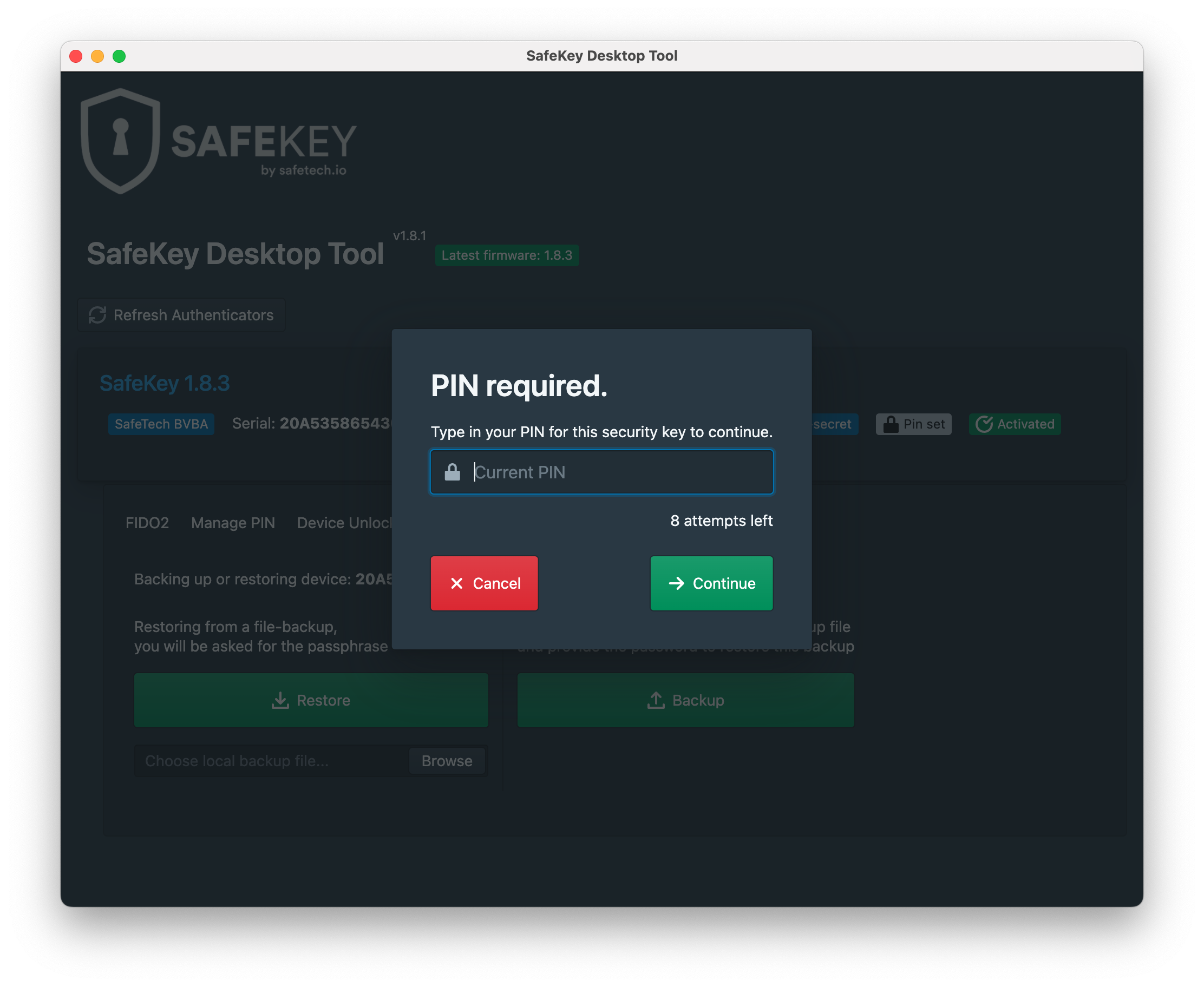
1\) Click on the **"Backup/Restore"** **tab** and then on the **green** **"Backup"** **button**.

<figure><img src="https://3973835675-files.gitbook.io/~/files/v0/b/gitbook-x-prod.appspot.com/o/spaces%2FYeTaNjAJ9cNjqtDmTkU1%2Fuploads%2FxmCqw1hPFxO07ol6ujaW%2Fbackup-tab.png?alt=media&amp;token=4cdbf4c9-3bc8-443a-afcd-9ef694bc857f" alt=""><figcaption></figcaption></figure>

2\) If you've already [set a PIN code](/user-guides/pin-code-management) for your device, you'll have to enter it first.

<figure><img src="https://3973835675-files.gitbook.io/~/files/v0/b/gitbook-x-prod.appspot.com/o/spaces%2FYeTaNjAJ9cNjqtDmTkU1%2Fuploads%2FbaZWsRjjzj7Rt2vrpL6Z%2Fpin-code.png?alt=media&amp;token=458bd927-eb44-41b4-8f6f-6e6dcc939af9" alt=""><figcaption></figcaption></figure>

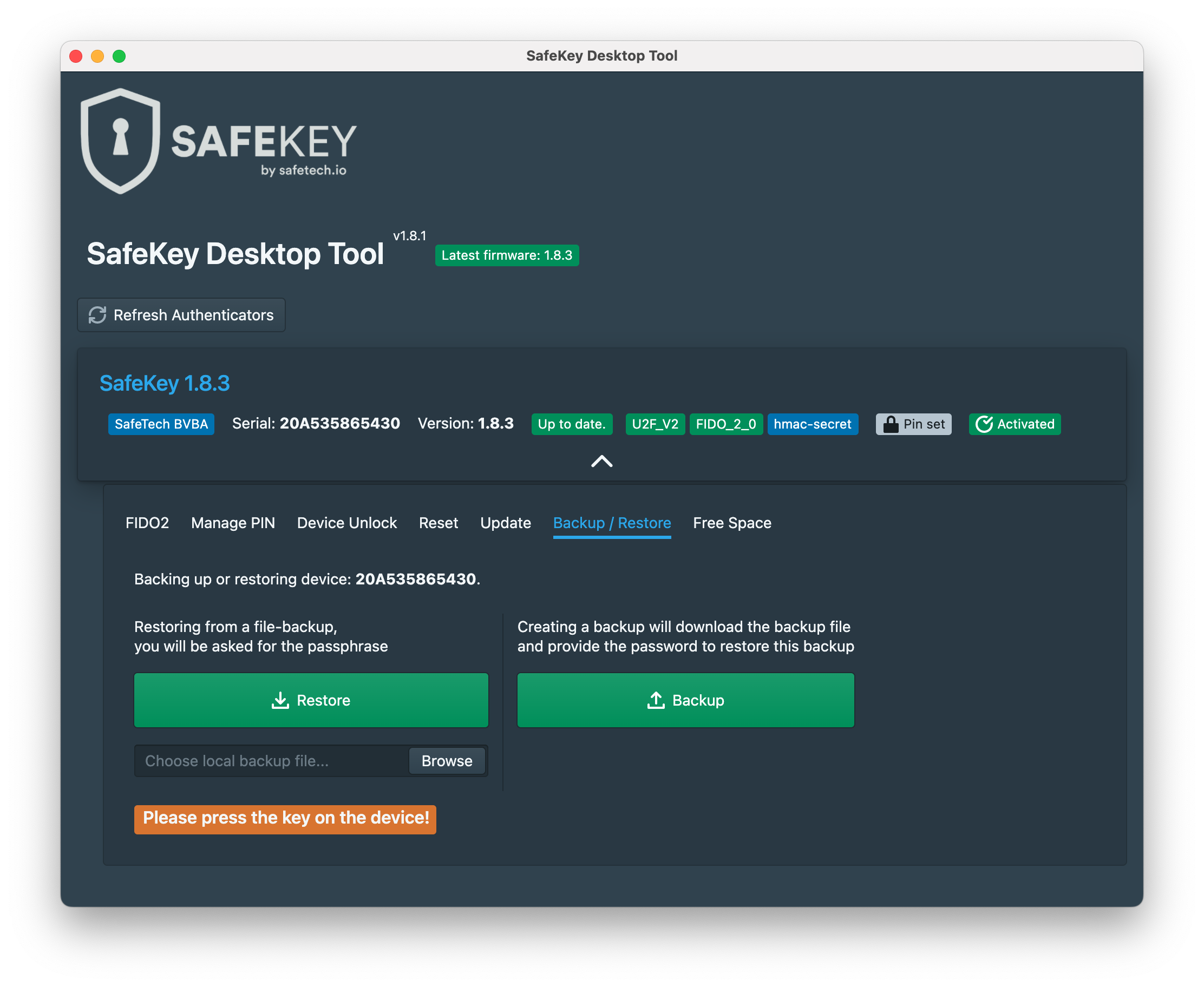
3\) **Touch your SafeKey** to verify the connected device.

<figure><img src="https://3973835675-files.gitbook.io/~/files/v0/b/gitbook-x-prod.appspot.com/o/spaces%2FYeTaNjAJ9cNjqtDmTkU1%2Fuploads%2FoGCcQcMA9PDm2Yx390kx%2Ftouch-device.png?alt=media&amp;token=7e1b7ce4-4b6d-4bb2-a1ca-6b4102ead9f4" alt=""><figcaption></figcaption></figure>

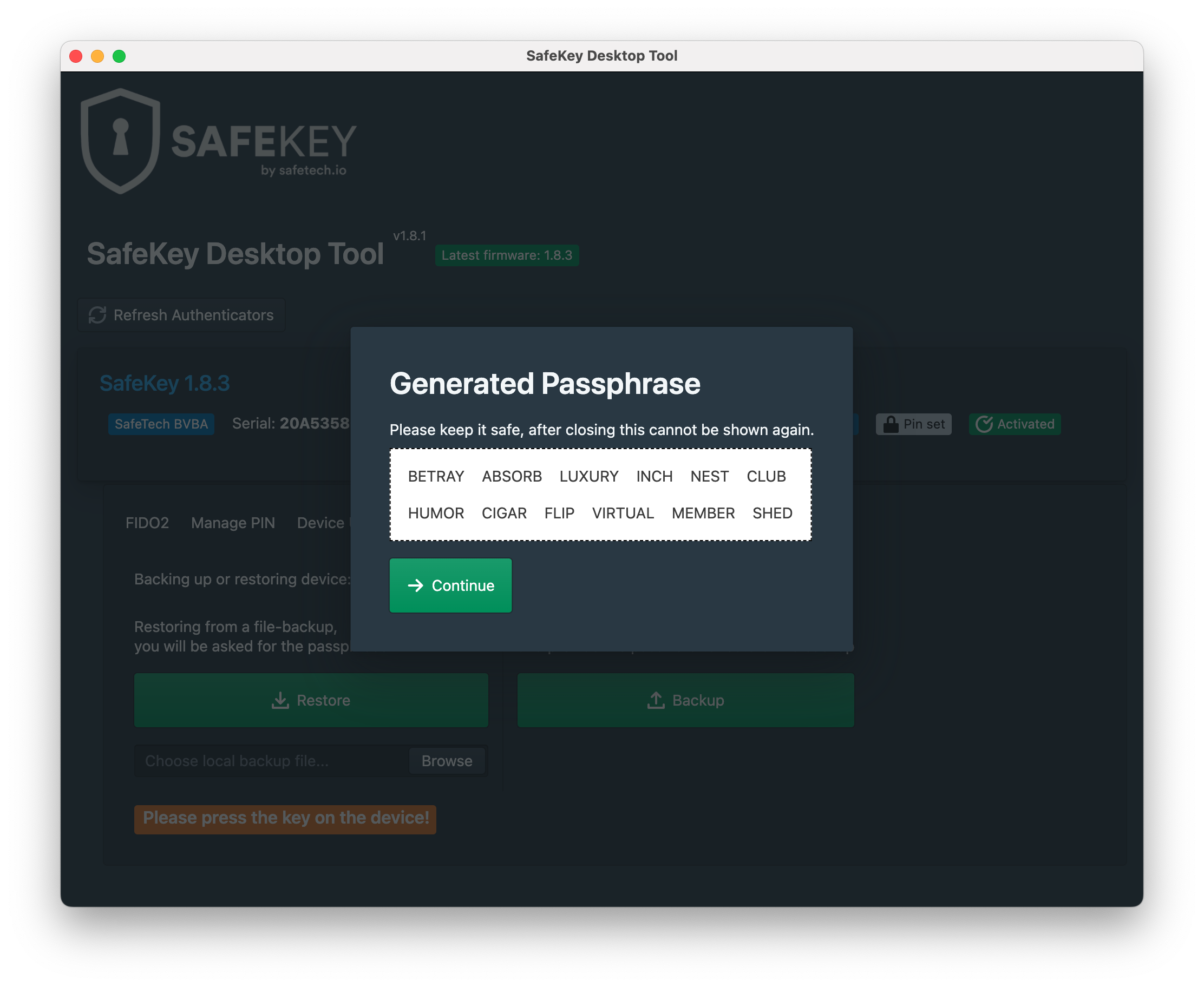
4\) You'll be prompted a **generated passphrase**.

This passphrase, consisting of 12 secret words, is used to protect your backup file that will be exported in the next step.

Please keep the generated passphrase safe since it will only be shown once and you'll need this passphrase to restore the backup on a later moment.

Click on the **green "Continue" button** if you've safely stored the passphrase.

<figure><img src="https://3973835675-files.gitbook.io/~/files/v0/b/gitbook-x-prod.appspot.com/o/spaces%2FYeTaNjAJ9cNjqtDmTkU1%2Fuploads%2FGXfy6n8BGROqbCwdfq0s%2Fimage.png?alt=media&amp;token=79da1d4d-72e0-441d-b60e-6cb3e3d4cfef" alt=""><figcaption></figcaption></figure>

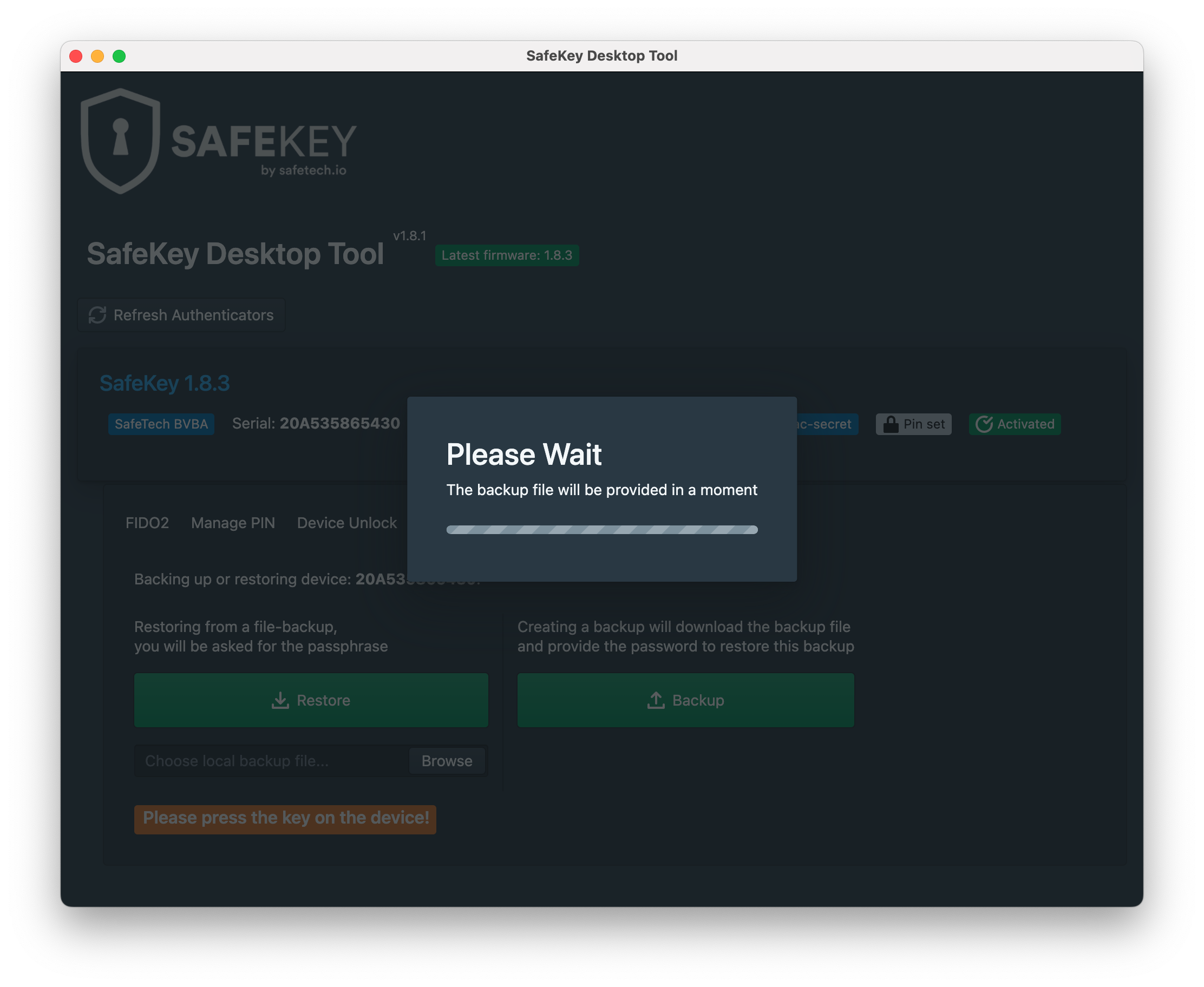
5\) Your **backup** file (a .dat-file) is **being generated**.

<figure><img src="https://3973835675-files.gitbook.io/~/files/v0/b/gitbook-x-prod.appspot.com/o/spaces%2FYeTaNjAJ9cNjqtDmTkU1%2Fuploads%2FBMZiUgb62vB59rEVXXY4%2Fgenerating-backup.png?alt=media&amp;token=d4dd617f-2157-4007-8e1f-e1a6f3678093" alt=""><figcaption></figcaption></figure>

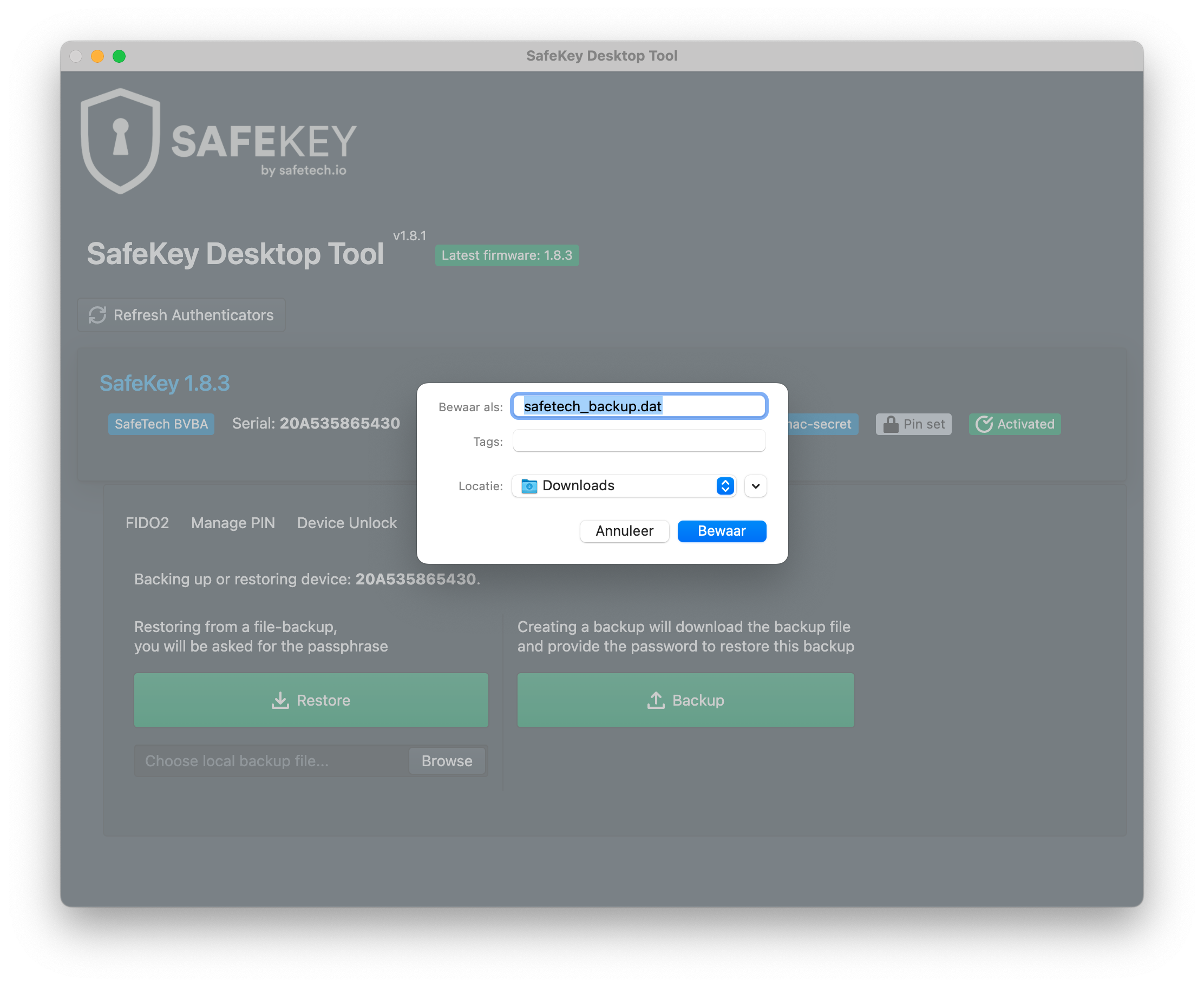
6\) Once your **backup is ready**, you'll be asked to **save the .dat-file on your computer** or another storage device.

This .dat file contains your backup, protected by the generated passphrase, and **can be used to restore your SafeKey device** in the future.

<figure><img src="https://3973835675-files.gitbook.io/~/files/v0/b/gitbook-x-prod.appspot.com/o/spaces%2FYeTaNjAJ9cNjqtDmTkU1%2Fuploads%2FOtu2MFhG8DGLGYHplSxq%2Fstore-dat-file.png?alt=media&amp;token=132ad099-40af-4f4b-bbd4-a7f24cd0996b" alt=""><figcaption></figcaption></figure>


# Restore Backups

1\) Click on the **"Backup/Restore"** **tab**&#x20;

<figure><img src="https://3973835675-files.gitbook.io/~/files/v0/b/gitbook-x-prod.appspot.com/o/spaces%2FYeTaNjAJ9cNjqtDmTkU1%2Fuploads%2FKnNJ8YnGVY43s2vdlOTZ%2Frestore-tab.png?alt=media&amp;token=faaf8d0b-7fb4-408d-9548-c4bec613e819" alt=""><figcaption></figcaption></figure>

2\) Click "Browse" to **select your backup file** (.dat-file) you want to restore and then on the **green** **"Restore"** **button**.

<figure><img src="https://3973835675-files.gitbook.io/~/files/v0/b/gitbook-x-prod.appspot.com/o/spaces%2FYeTaNjAJ9cNjqtDmTkU1%2Fuploads%2F1a7E2NwnPPSCwAk9AYVT%2Fselect-backup-file.png?alt=media&amp;token=004ceea9-42a1-4fcd-84b6-578e48dc2e6b" alt=""><figcaption></figcaption></figure>

3\) If you've already [set a PIN code](/user-guides/pin-code-management) for your device, you'll have to enter it first.

<figure><img src="https://3973835675-files.gitbook.io/~/files/v0/b/gitbook-x-prod.appspot.com/o/spaces%2FYeTaNjAJ9cNjqtDmTkU1%2Fuploads%2Fv6JxfcmI9F9eW1cMWt51%2Fenter-pin.png?alt=media&amp;token=d3167aef-ce47-4bb5-8d80-d3c6c84dc660" alt=""><figcaption></figcaption></figure>

4\) Next, you'll have to **enter the passphrase that protects the backup file**.

This passphrase was generated while you created the backup-file. You should've stored it safely.

<figure><img src="https://3973835675-files.gitbook.io/~/files/v0/b/gitbook-x-prod.appspot.com/o/spaces%2FYeTaNjAJ9cNjqtDmTkU1%2Fuploads%2Fm0f4kPUycNcZD6Tcf877%2Fenter-passphrase.png?alt=media&amp;token=6077fc62-b925-4823-9e1c-fd0ae8f50eae" alt=""><figcaption></figcaption></figure>

<figure><img src="https://3973835675-files.gitbook.io/~/files/v0/b/gitbook-x-prod.appspot.com/o/spaces%2FYeTaNjAJ9cNjqtDmTkU1%2Fuploads%2F529MR2arjgWRiROeyIQE%2Fpassphrase-entered.png?alt=media&amp;token=ea4165d5-dea8-4594-a574-2faa9f004928" alt=""><figcaption></figcaption></figure>

5\) **Touch your SafeKey** to verify that your **backup will be restored** to the connected SafeKey device.

<figure><img src="https://3973835675-files.gitbook.io/~/files/v0/b/gitbook-x-prod.appspot.com/o/spaces%2FYeTaNjAJ9cNjqtDmTkU1%2Fuploads%2FJb1TxFU9M9mAYydrsn3d%2Ftouch-safekey.png?alt=media&amp;token=e3d28db4-f9ba-4a61-9408-e3bf4ad95226" alt=""><figcaption></figcaption></figure>

6\) Once the **backup is restored**, you'll see the message **"Operation Completed Successfully"**.

<figure><img src="https://3973835675-files.gitbook.io/~/files/v0/b/gitbook-x-prod.appspot.com/o/spaces%2FYeTaNjAJ9cNjqtDmTkU1%2Fuploads%2FCPY0QUxsdY3PpJT9giYb%2Foperation-completed.png?alt=media&amp;token=4f91a97f-8314-482f-bb4b-1f36fc3f0404" alt=""><figcaption></figcaption></figure>


# Identical SafeKey Devices

Explanation of the workflow to create two or more identical SafeKey devices.

## SafeKey One (FIDO2)

SafeKey One is a security key which can be used to connect to your online accounts. It is used to protect those accounts via two-factor authentication and passwordless logins.

Those FIDO2 connections for two-factor authentication and passwordless logins will not be included in a backup file generated with the SafeKey Desktop Tool.

To have a backup of your FIDO2 connections, you always need a second SafeKey device and manually connect it to your online accounts as well.

There's no way to automatically duplicate your connections.

Best practice is to have at least two SafeKeys connected to an online account, that way you always have at least one backup of your 2FA and passwordless logins in case you lose one device.

## SafeKey Pro (FIDO2 + SSDP)

To create two or more identical SafeKey Pro devices, you'll have to work in two steps and you should understand that FIDO2 and SSDP are two different features. Only the internal custom storage of the SafeKey Pro (SSDP) is included in the backup file.&#x20;

**1)** Duplicate the FIDO2 connections by connecting all your devices to the same online accounts (see the explanation for SafeKey One above)

**2)** Generate a backup file with SafeKey Desktop Tool and restore the same backup file to your other SafeKey Pro devices to duplicate the settings and the custom storage of your main SafeKey.


# Metadata

## SafeKey Fido2 CTAP2

```
{
    "description": "SafeKey Secp256R1 FIDO2 CTAP2 Authenticator",
    "aaguid": "",
    "alternativeDescriptions": {
    },
    "protocolFamily": "fido2",
    "authenticatorVersion": 2,
    "upv": [
        {
            "major": 1,
            "minor": 0
        }
    ],
    "assertionScheme": "FIDOV2",
    "authenticationAlgorithm": 1,
    "publicKeyAlgAndEncoding": 260,
    "attestationTypes": [
        15879
    ],
    "userVerificationDetails": [
        [
            {
                "userVerification": 1
            },
            {
                "userVerification": 4
            }
        ]
    ],
    "keyProtection": 2,
    "matcherProtection": 4,
    "cryptoStrength": 128,
    "attachmentHint": 2,
    "isSecondFactorOnly": false,
    "tcDisplay": 0,
    "attestationRootCertificates": [
"MIIBnzCCAUWgAwIBAgIUXJrjIBBrej2rkAZRT7JMhynfE/gwCgYIKoZIzj0EAwIw
HTEbMBkGA1UEAwwSU2FmZVRlY2ggUm9vdCBDQSAxMB4XDTE5MDkwNjE2NDkzNVoX
DTM5MDkwMTE2NDkzNVowHTEbMBkGA1UEAwwSU2FmZVRlY2ggUm9vdCBDQSAxMFkw
EwYHKoZIzj0CAQYIKoZIzj0DAQcDQgAEPcix9tFx+mbWEwwdD6cqirtHH7ljnl94
40FkTD+nrDcuhuTHT8dH0Wjp1rUWp/Ik/EBfO0snlGdxe5xZi8QT5qNjMGEwHQYD
VR0OBBYEFOELtRHYJpU+LeTVMYItRtU0+vKPMB8GA1UdIwQYMBaAFOELtRHYJpU+
LeTVMYItRtU0+vKPMBIGA1UdEwEB/wQIMAYBAf8CAQEwCwYDVR0PBAQDAgIEMAoG
CCqGSM49BAMCA0gAMEUCIAzmMK4fsoJ2VwLhq1teuBDUT6XVhn9bO2w92/Qm24Io
AiEAjERYyLUwbRQOS+vlY1wZy87ht8h3XFJuHTbn8lln+kM="
    ],
    "icon": "data:image/png;base64,iVBORw0KGgoAAAANSUhEUgAAAQ4AAAEOCAYAAAB4sfmlAAAABGdBTUEAALGPC/xhBQAAACBjSFJNAAB6JgAAgIQAAPoAAACA6AAAdTAAAOpgAAA6mAAAF3CculE8AAAABmJLR0QA/wD/AP+gvaeTAAAAB3RJTUUH5AEKDhIVDGuD0gAAGiJJREFUeNrt3XtYVPedBvD3zI0BHWQAEcEwpAZEEKogeE1EY73EaKOJmra7TZ9tTNs0SS/Ptt1m091t03Z7eZqNSdt92lzaZpumzc02qfdESYwCClG5KDe5D8MA4gDDMBfmnP2DYJOGAwzMmTMp7+d58tfcvueY83LO7woQEREREREREREREREREREREREREREREREREREREREREREREREREREREREREREREREREREREREREREREREREREREREREREREREREREREREREREREREREREREREREREREREREREREREREZG6BLUL+EckSdJ+AA+pXQcBABwAVguCcFntQv6RaNQugIg+ehgcRBQwBgcRBYzBQUQBY3AQUcB0ahdA4cflcqHDakV//wCiZkUhKSkJ0dHRapdFYYTBQQCAoaEhtLe14d3yd3Hs2FE01Ddg0OlEZGQkUiwWbNz0CRQUFCDFYoHJZFK7XFIZg2MG8/l8aGluxoXz51F8phgXzp9HR0cH3G43BEGAIAjo7e1Fe3s7zp09i8TERCzJzsbqNauxLC8PCxcuhNFoVPswSAUcAKaAcB4ANjw8jO6uLly+fBnHjx1DSXEx7J12eDweSJIEjUa+2UsSRUgADAYD4uPjkZuXh81btiD74zlITEyEwWBQ+/DG4gAHgAUdg0MB4RYckiShu7sbFRcvouzcOZwtKUV9fT0GBwcBYNywGO87JUmC0WjEjTfeiPyCAiwvyMey3FwkJiZCq9WqfdijHGBwBB2DQwHhEBySKMI5OIgrDQ04fvQYSkpK0NTYiP7+foiiOKWwkDP6fVFRUbBYLMgvKMAnNm9CZmYWTNGmoP7WFDjA4Ag6BocC1AoOSZLgdDrRUF+Ps6VnUXbuLKoqq9DV1XX94hYE5f7JR+9CAMBsNiNzSRby8/ORX1CAjMWLERMTo+jvy3CAwRF0DA4FhDo4PB4PbB02nHjzTZx+5x3U1taiu6sLPp/veiNngPVfDwAA0/oOnU4Hc2ws0tLSsGrNamzcuBEpFgsiIyNDdXocYHAEHYNDAaEIDo/HA6vVisqKCrxz6hTKy8rR3tYOn887pTuL94dFdHQ0Um9MhSU1FbYOG640NMDhcECSpGmFiFarxbzERCxbtgxrb7kZH1+6FCkpKYiKilLyVDnA4Ag6BocClAoOv9+Pnp4evFtejreL3sKF8+dhtVrhdDoBTK2RUxRFAEBERASSFyzAipUrccu6W5CZlYX4+Hj0OfpQW1uDU2+fwpnTp9HS0oIh1xCA6YVIZGQk5s+fjyU52Vi3rhDL8/MxP2k+dLqgjxBwgMERdAwOBQQzOPx+P3q6u1FXV4eS4hK8VVSE5uZmuFwuYBp3AKIoXr94F2cuxs3r1mHlqlVISkqCXq8fs47u7m6cKz2LoqIiVFdWor29HS6Xa9qPQ0ajEQsWLMCam9dizdq1yMjIQOL8oIWIAwyOoGNwKCAYwdHf34/KigqUlpTibGkpGurr4XA4IIritC5UjUaDuQkJyM3NxcpVq5CXvxwWiwWzZs2a9He53W5Y29tRXl6O0uISlJ07B5vNhuHh4WnVJgjC9cek/IICrFixEkuXLUNsXOx0GlUdYHAEHYNDAVMJDkmSMOh0oqmpGeVlZTh54gQqKyowMDAAv98/7baFmJgYpKWno2BFAdZv2ID0RYuC0kDp8XjQ3NSEopNFKCk+g5rLNejt7Z12w6xGo8GsWbOQkZGB9Rs2YHlBPtLS0mCKjg70kcwBBkfQMTgUEEhweDweNNTXo7S0FOXnylBVWQmbzQafzzfl7tPRdovZs2cja0kWVqxchdy8XGRmZiEuPk6RLlFJktDX14famhqcL38XpaUlqKiohOPatek1qooSNFoN5ibMRVbWEuTm5WHFyhXIzMqabPA5wOAIOgaHAiYbHDU1NXj26adx+tQ76Onpgc/nAzD1Rk5BEDBr1izMT0rCihUrsHHzJixZsgQxMTEhHYQlSRIG+gdQW1uDN46/gTOnT6OttRVOp3PKg88+0L1rNiM3Lw+f33cv8pYvnyiQHGBwBB2DQwGTCQ6bzYZv/es3cOrttyEIwpQvJlEUYTQakZKSgtzleVi9Zg2yc3KwYMECJXooplSjzWZDVUUlSktKcPbsWTQ1NsI1OAhM8bhFUYQkScjJycFj+/dj4U0Lx3u7AwyOoFP//6wZqrmpCZcvXwr4cWT0MUSv1yN+7lxkZWXhttu3jcwRmTcPEWE2W1UQBCQlJSEpKQnrb92A7q4uVFVW4dDBg7hw/jzs9pEJdsDk77RG31dbW4uGhvqJgoMUwOBQybDfD0mUJvXe0TsLvV7/XvdpJgpWrMDK1auw8GMLERkVslGY06LX65GUnIyk5GQUbliPluZmlJaWorS4BNXV1bC2t8PrnfwANlEU4ff71T6sGYnBoRIBAMa5ON7fuxATE4P0RYtQuL4Qa9auvb6YjgrzPoLGYDAgLT0dN6WlYeeuXbC2W1FSUoyiEydRXVWF3t7eKfcmkfIYHGHKZDIhY3EGluXmYfWa1Vi6dClM/4DL94026KYvSkf6onTctXs3LlVfwul3TuHd8nJUV1+C49o1tcukv8PgCEN+vx937NyJB77yEMxmczitbaG4qKgoLM9fjty8XDgcDvzphRfw5P4n4PF4eOcRRrjKeZhKTk5GfHz8jAqN99NoNIiNjYUlNRXaMOgdog9icFBYG5nPMrlGZAodBgcRBYzBQUQBY3AQUcAYHEQUMAYHEQWMwUFEAWNwEFHAGBxEFDAOyaMPkCQJjmsOtLS04OrVHuh0OsybNw83pKQEtC4p/WNjcBCAkcBoamzE4cOHcfLNE2htbUWfwwGtVovYuDikL0rH1q23Yd36QiQkJKhdLqmMwUHw+/148/hx/PLnv8Cly5fg8/5tvVO/348OqxXW9naUFpdg9Zo1+OrXv46sJVlql00qYnAQ3jpZhEe/9yis7e3QaDQfmlg3uuKW2+3Gm2+8gf6+Pnz/v3+ItPR0tUsnlbBxdIZrbWnBz598Eh1W64RL942ujVpWVob//cUv0d/Xr3b5pBIGxwwmiiIOvPoqKisqAl7roqioCOXlZWofAqmEwTGD2e12vHH8jYDX7RQEAY5r13DyxIkP7GpPMweDYwbrsHagy26f0spakiShuqoa/f18XJmJGBwz2LXeXni8nil9VhAE9PX1wXHNofZhkAoYHDOYVqed1jqeGo0GGi3/F5qJ+K8+g82dOxdRkVFT+qwkSUhISEB8XJzah0EqYHDMYMkLFiDFYrm+O1wgtFot8gvyERk1teChjzYGxwxmNpux445PBrwTnCRJSEpOxi2FhWofAqmEwTHDbdm6FRs23DrpbtXRHeN37tqFrCwOO5+pGBwznNlsxv0PPoD8goIJ3ytJEgwGA3bu2oV7PncPDAaD2uWTShgchMzMTDz6gx/g9h07oJPZ/EiSJJhMJuz7wn34xre+iVg2is5oDA4CAKSlp+HBrzyE1NTUMRtLRb+I/IICfOnLX0ZcfHzoCpvwCYrbQqqBwaESvV4vO6lMkiSIKgzl1ut08jVhpG0j1FtSipIoGx5arRY63czcIlNtDA6VzJo1G3q9HpAJCO8UR3ROR1tbG7q7u8ccFKbRaNDe3o7eq1dDWtPw8PCYISpJEoxGI1clUwmDQyV6gx5arVb2Tnxw0BXymtpa2zAwMDBmcAiCAFtHB9pa20Jak8fjgSgzCU+n1yMiIiLk54kYHKrR63SyvRKCIMDlGgx41up0SJKE5uZmDA8Pj1OTC41NjSE9T+4hN/x+/5hhptNqZRtzSVkMDpUYIiIQFSk/8Mrtdoc0ONxuN5qbmsb9Ta/Xi9aWlimNNJ1yXZ6xz8No17AxMrDBaxQcDA6V6PV6GMa5zfZ5fSFd66K7uxv1dXXQjDPpTZIktLW1wT00FLK6fF6vbFAZDAZEGo0hq4X+hsGhkpG1PeVPv2/YBymEf9mt7e2wd3VBGGf5QEmS0NLcgmsOR8jqknt0AkZm9+r0+pDVQn/D4FCJIAjjXqQetxv+EAZHzeUaeD3j9+QIggB7Zye67PaQ1CRJErxen+xrgqCZcJ1UUgbPukr0ej0iDGM/qgiCgIEBZ8jaOERRRH193bh/3UfrcjgcsFqtIavL5Rq7d0nA+GNhSFk86yoxGAyIjIyUHcfhdDonvJCDxeFwoLmpeVLv9fl8qKutC0ldw8PD6O/rG/tFQUBUVBR7VVTC4FDJSOOoQXYch394OGS9Fz3dPbDZOia1Gpgoiqivm/juJBhEUYTb45Z9PSoqCroQj2SlEQwOlWg1mnFnl/qGfRgKUe+F1Wqd9B4pgiCgsbERnTab4nVJogiPW77dJSIiAhoGhyoYHCoRNBqYTCbZUZruIXfIFgK2WtsxODg4qTsOQRDQabOhva1d8bq8Ph+6u7pk6zIajSGfO0MjGBwqiouLk70o3G43+vocitfg9/vR0twy6UcPQRDg8XjQ1NykeG3OgQH09ffJvh49Zw7XBFEJg0NFpujocYPDEYLxEi6XCw319QH14Ph8PjQ3Nik+QM1ut2PINSR7VzZ79mzecaiEwaGixMRE2e5Ev98Px7VritdwtacHLS0tAW2TMDqvxTngVLa2q73wyIwt0el0iI2Lndb2DjR1DA4VJSbOR/ScOR/6yy0IAvx+P3q6exTvWbHbu9Dd1RXweIjW1lZcUzjY7J02DA19+I5jdJ7K/PnzFf19ksfgUFFsXCzi4uLGvOX3+4fR1dWleLdnbU0N3G53QJ8RBAG9vVdht3cqVpckSbDb7bKPUIaICCQkzFP03JA8BoeKYmPlg0MUJXR2diraJev3+1Fx8eKUNp3u7+uHrUO5LlmPx4MOa8eYr0mShGiTCWZzjGK/T+NjcKjIaDTK3m4LgoC2tjZc61XucaC3txeNjVNbX8Pr9aK2tlax2vr7+tHa2jrma5IkYU5MDMyxsYr9Po2P43VVpNVqkWJJGbNnQBAE9PT0wGazIfXGVEV+3+12wzU4smBQoD0koijCbrdDFEVF5ovYu+zo7u6SXYo4MTER0dHRipwXmhiDQ2UpFgv0ej18vg/OAhUEAa7BQVy50oBVq1cp8tuJ8+bh/gcfwIXz5wP7oAToDQZs2bpFsUlmto6OkQFwMuufLs1dxnkqKuKZV5nFYoE5Nhb2zs4P9R54vV7UXLoMv9+vyHgFvcGA7Tt2YNvttwf8WUEQFAsNSZLQ0NAwZo8KAERGRiInJ0eR36bJYRuHyuYnJWFeQsKYjwqCIKCyogI93d2K/b4gCNBqtQH/p+R09iHXECouXPzQXRgw8oiUkJCAxER2xaqJwaGymJgYpKSmjvmaIAhobW1FTU2N2mWGVFeXHTWXL8sO7lqQcgPi4rmTnJoYHCqLjIxEZubiMWd5CoKAwcFBVFy8GNL1R9VWdq4Mdrtddn+XjIzFmM39VFTF4AgDy/MLEB0dPWY4DA8Po7ysHL29vWqXGRJutxunTr0Nt9s95ojRWbNmYemypdCyYVRVDI4wcFPaTVi8ePGYw8sFQcCl6mo01NerXWZINDY2ouJixZirrUuShLkJc7EoI0PtMmc8BkcYmDNnDlatXj1m9+LI8O5eFJ0sCul+JmqQJAmlxSXotNlkF3JesiQbycnJapc64zE4wsTKVSsRHx8/5uOKJEo4fPAg6utCs9anWnp7e3H86FHZGbFGoxGbt26BkXupqI7BESYWLrwJGYsXj90tqxFgtVpx5NDhkO7uFmpFJ4tQUVExZqOoKIpIT0/H0mXL1C6TwOAIG+ZYMwrXF8quaCWKIo4cOYKmKc4tCXednZ340wsvwOVyjb1PrE6Hwg0bMG8eZ8SGAwZHGLmlsBApFotsI+mVhga89pfXQrZtQqiIooijR46gurp6zIFlI42iCbj5lpu5j0qY4L9CGElNTcXOXTtl52D4/X689OKLKDlTrHapQVVfV4cX//jHcfekXbN2DbKystQuld7D4AgjgiBg05YtuCktTfauw97Ziad+/Wt0diq3iE4oOZ1OPPWrX6O2pnbMRxRJkjB37lzs3rOHO9OHEQZHmElNTcX2Hdtl2zo0Gg3OlpbiD79/Hl6vV+1yp8Xv9+OVl1/G0SNHZEfGajQabNu+HR9fulTtcul9GBxhRqvVYtv27VicmSk7bsPr9eL53/8ehw4e/EgPRT9bWorfPP2MbIOoKIq48WMfw6677uQ2CGGGwRGGUlJScO++fTCbzbKzZq/19uLJ/ftx5vRptcudkuqqavz0xz9Ba2ur7CNKREQE7rzrTmRwpGjYYXCEqfW3bsC222+X7UXQaDRobmrGT3/0Y1RVVqpdbkCam5vxkx/9CBcvXJA9PkmSsG59IXbv2cO9U8IQgyNMRUVF4Z/vuQdLsrNlH1kEQUBFRQW+/93vobqqSu2SJ6WttRU/+8lPceb0adlp86Io4mMLF2LffV9AbBynz4cjBkcYS0tPwwMPPYj58+fLhodGo0FZWRm+/71HUVUZ3uHR1NSEH37/B+M2hkqSBJPJhHv37cPSZUvVLplkMDjCXGFhIT6/bx9MJtO4DaGlJSV45OGHUVpSEpaT4WouX8aj3/0ujh87Jlvf6EZLn/rMZ/DJnXfwESWMMTjCnFanw+69e7B7717odLpxuy0rKyrwn498B0ePHAmb0aWSJKH4zBk88vDDeOtk0bjvFQQBW2+7DffuuxeRHLMR1rgaykeAyWTCAw8+gP6+Pvzlz3+WnegmCALq6urwX//xn+js7MRdu3fDZDKpVrfb7caxI0fxxOOPo7GxccLh4mvWrsVDX/sq4ufOVa1mmhwGx0dEjNmMr3zta3ANuXDk0GHZ92k0GnR3deHxnz2GKw1XcN8X7kOKxRLyenu6u/Hc757DC88/j6tXr44bGpIkYfWa1fj37zyCVJn1Vym8MDg+QpIXJOPhRx6BJAHHjx6F3++XXZfT6XTiTy+8gIb6enzla19FfkFBSPYhEUURl6qr8cT+/Xi76C34fL4J7zQKVhTg4UceQfqiRaqdWwqMMP2voL8nSdJ+AA8p9f3Wdiv+57Gf4fX3ZsrKdWsCIxfyDSkp+PRnPo27du9GXHy8Ysc9MDCAQwcP4rfPPIu69xYdkqtNkiRoNBqsKyzEN//tW0qGhgPAakEQLit24DMQg0MBSgcHAFy9ehVP7t+Pl/704pgL+76fKIowGo1YV1iIL97/JSzJzg5qj4UkSbhy5Qqe+tWvcPjgITidzgkfTXQ6HTZu+gS+9e1vIyUlRclT5QCDI+gYHAoIRXAAQH9/P37/3HP47bO/QU9Pz4QXqyRJsKSmYu/dd+OTO++Q3fA6EL29vThy6BD+8PzzqLlcA0mSJgwxk8mE3Xv34r4vfgEJCQlKnyYHGBxBx+BQQKiCAwB8Xi+OHjmKxx97DE1NTeNetO/VBoPBgKXLluJf7r0XN99yy5TW8PT5fHi3vBxPP/UUis8UwzU4OGFbhiiKSJg3D1+8/0vYvWcPZoVmbxQHGBxBx+BQQCiDAxhZzLis7Bx+/sSTKCkunrDdAxi5iM1mM7Zs3Yo7d9+F7Jwc6PX6CX/L7/ejvr4ef37lVbz2l7+g8709b8f7vdG7kJyP5+D+Bx7E+g3rQzm4ywEGR9AxOBQQ6uAY1WHtwLPPPIOXXnwRA/39E94BjF7QyQsWYOttt2Hvp+6GxWKRXb7P3tmJAwcO4M+vvIrGxkaIojipgIqMjMTWbdvwxfu/hIULF074mSBzgMERdAwOBagVHAAw5HLh8OHDePbpZ1BbUzOpi3s0QNLS07Fz1y5s3rIZC264AVqt9npgnHjzBF55+WVUVVZOqot1dISrxWLBP332s7hz912YM2eOGqfEAQZH0DE4FKBmcAAjf+Vra2vx22eexeFDE/dyvP9zERERWJSRgR2f3IGb163D+XffxYFXXkVlRQVcLldA31O4fj0+/95ktVCMIZHhAIMj6BgcClA7OEa5XC68/tpr+L/fPTfpuw/gbxd+bFws+hx911fomuydiyU1FXv27sWevXtgjo1V+zQ4wOAIOgaHAsIlOICREKivq8NLL76Iv772Oux2OzQazaQCZPRxYzKBIYki5sTEYNPmzbj7059Cdk6OmncZ7+cAgyPoGBwKCKfgGOX1elF85gx+++xvUHbuHAYn0X06GaODy5ZkZ+Ozn7sHt27cGG4zWx1gcARdWPxJIOUZDAasKyzEkiXZOH78GF55+WVUXLg4qYbOsYw+lizOzMQdu3Zi27ZtSOJm0DMG7zgUEI53HH9XHzptNhw4cACvvvQyWtta4R/2T/rxRaPRIDExEbdv347de/ci9cbUcN5hzQHecQQdg0MB4R4co/x+P+rr6nDwrwdx+OBBtLS0yDagjrZ3zE9KwqZNm3D7ju2THjSmMgcYHEHH4FDARyU4Rvl8PlxpaMCBVw/gr6+/ji67/QOLBWk0GsTGxmLDxlux9+67sTgzc0rD1FXiAIMj6BgcCvioBccon8+HyopKHDt6BNVVVXA6BxFpNCItPR2btmxGbl5euDV8ToYDDI6gY+MoXafX65Gbl4vsnGw4nU74fD7odDrMnj2bO6nRBzA46EP0ej3MZrPaZVAYC9umcCIKXwwOIgoYg4OIAsbgIKKAMTiIKGAMDiIKGIODiALG4CAiIiIiIiIiIiIiIiIiIiIiIiIiIiIiIiIiIiIiIiIiIiIiIiIiIiIiIiIiIiIiIiIiIiIiIiIiIiIiIiIiIiIiIiIiIiIiIiIiIiIiIiIiIiIiIiIiIiIiIiIiIiIiIiIiIiIiIiIiIiIiIiIiIiIiIiIiIiIiIiIiIiIiIiIiIiIiIiIiIiIiIiIiIiIiIiIiIiIiIiIiIiIiIiIiIiIiIiIiIiIiIiIiIiIiIiIiIiIiIiIiIiIiIiIiIiIiIiIiIiIiIqL3+X99x2J7vsSGJQAAACV0RVh0ZGF0ZTpjcmVhdGUAMjAyMC0wMS0xMFQxNDoxODoyMSswMTowMI/ZUpEAAAAldEVYdGRhdGU6bW9kaWZ5ADIwMjAtMDEtMTBUMTQ6MTg6MjErMDE6MDD+hOotAAAAV3pUWHRSYXcgcHJvZmlsZSB0eXBlIGlwdGMAAHic4/IMCHFWKCjKT8vMSeVSAAMjCy5jCxMjE0uTFAMTIESANMNkAyOzVCDL2NTIxMzEHMQHy4BIoEouAOoXEXTyQjWVAAAAAElFTkSuQmCC"

}
```

## SafeKey FIDO2 U2F

```
{
    "description": "SafeKey Secp256R1 U2F Authenticator",
    "attestationCertificateKeyIdentifiers": [""],
    "alternativeDescriptions": {
    },
    "protocolFamily": "u2f",
    "authenticatorVersion": 2,
    "upv": [
        {
            "major": 1,
            "minor": 2
        }
    ],
    "assertionScheme": "U2FV1BIN",
    "authenticationAlgorithm": 1,
    "publicKeyAlgAndEncoding": 256,
    "attestationTypes": [
        15879
    ],
    "userVerificationDetails": [
        [
            {
                "userVerification": 1
            }
        ]
    ],
    "keyProtection": 2,
    "matcherProtection": 4,
    "cryptoStrength": 128,
    "attachmentHint": 2,
    "isSecondFactorOnly": true,
    "tcDisplay": 0,
    "attestationRootCertificates": [
"MIIBnzCCAUWgAwIBAgIUXJrjIBBrej2rkAZRT7JMhynfE/gwCgYIKoZIzj0EAwIw
HTEbMBkGA1UEAwwSU2FmZVRlY2ggUm9vdCBDQSAxMB4XDTE5MDkwNjE2NDkzNVoX
DTM5MDkwMTE2NDkzNVowHTEbMBkGA1UEAwwSU2FmZVRlY2ggUm9vdCBDQSAxMFkw
EwYHKoZIzj0CAQYIKoZIzj0DAQcDQgAEPcix9tFx+mbWEwwdD6cqirtHH7ljnl94
40FkTD+nrDcuhuTHT8dH0Wjp1rUWp/Ik/EBfO0snlGdxe5xZi8QT5qNjMGEwHQYD
VR0OBBYEFOELtRHYJpU+LeTVMYItRtU0+vKPMB8GA1UdIwQYMBaAFOELtRHYJpU+
LeTVMYItRtU0+vKPMBIGA1UdEwEB/wQIMAYBAf8CAQEwCwYDVR0PBAQDAgIEMAoG
CCqGSM49BAMCA0gAMEUCIAzmMK4fsoJ2VwLhq1teuBDUT6XVhn9bO2w92/Qm24Io
AiEAjERYyLUwbRQOS+vlY1wZy87ht8h3XFJuHTbn8lln+kM="
    ],
    "icon": "data:image/png;base64,iVBORw0KGgoAAAANSUhEUgAAAQ4AAAEOCAYAAAB4sfmlAAAABGdBTUEAALGPC/xhBQAAACBjSFJNAAB6JgAAgIQAAPoAAACA6AAAdTAAAOpgAAA6mAAAF3CculE8AAAABmJLR0QA/wD/AP+gvaeTAAAAB3RJTUUH5AEKDhIVDGuD0gAAGiJJREFUeNrt3XtYVPedBvD3zI0BHWQAEcEwpAZEEKogeE1EY73EaKOJmra7TZ9tTNs0SS/Ptt1m091t03Z7eZqNSdt92lzaZpumzc02qfdESYwCClG5KDe5D8MA4gDDMBfmnP2DYJOGAwzMmTMp7+d58tfcvueY83LO7woQEREREREREREREREREREREREREREREREREREREREREREREREREREREREREREREREREREREREREREREREREREREREREREREREREREREREREREREREREREREREREREREREREREREREREZG6BLUL+EckSdJ+AA+pXQcBABwAVguCcFntQv6RaNQugIg+ehgcRBQwBgcRBYzBQUQBY3AQUcB0ahdA4cflcqHDakV//wCiZkUhKSkJ0dHRapdFYYTBQQCAoaEhtLe14d3yd3Hs2FE01Ddg0OlEZGQkUiwWbNz0CRQUFCDFYoHJZFK7XFIZg2MG8/l8aGluxoXz51F8phgXzp9HR0cH3G43BEGAIAjo7e1Fe3s7zp09i8TERCzJzsbqNauxLC8PCxcuhNFoVPswSAUcAKaAcB4ANjw8jO6uLly+fBnHjx1DSXEx7J12eDweSJIEjUa+2UsSRUgADAYD4uPjkZuXh81btiD74zlITEyEwWBQ+/DG4gAHgAUdg0MB4RYckiShu7sbFRcvouzcOZwtKUV9fT0GBwcBYNywGO87JUmC0WjEjTfeiPyCAiwvyMey3FwkJiZCq9WqfdijHGBwBB2DQwHhEBySKMI5OIgrDQ04fvQYSkpK0NTYiP7+foiiOKWwkDP6fVFRUbBYLMgvKMAnNm9CZmYWTNGmoP7WFDjA4Ag6BocC1AoOSZLgdDrRUF+Ps6VnUXbuLKoqq9DV1XX94hYE5f7JR+9CAMBsNiNzSRby8/ORX1CAjMWLERMTo+jvy3CAwRF0DA4FhDo4PB4PbB02nHjzTZx+5x3U1taiu6sLPp/veiNngPVfDwAA0/oOnU4Hc2ws0tLSsGrNamzcuBEpFgsiIyNDdXocYHAEHYNDAaEIDo/HA6vVisqKCrxz6hTKy8rR3tYOn887pTuL94dFdHQ0Um9MhSU1FbYOG640NMDhcECSpGmFiFarxbzERCxbtgxrb7kZH1+6FCkpKYiKilLyVDnA4Ag6BocClAoOv9+Pnp4evFtejreL3sKF8+dhtVrhdDoBTK2RUxRFAEBERASSFyzAipUrccu6W5CZlYX4+Hj0OfpQW1uDU2+fwpnTp9HS0oIh1xCA6YVIZGQk5s+fjyU52Vi3rhDL8/MxP2k+dLqgjxBwgMERdAwOBQQzOPx+P3q6u1FXV4eS4hK8VVSE5uZmuFwuYBp3AKIoXr94F2cuxs3r1mHlqlVISkqCXq8fs47u7m6cKz2LoqIiVFdWor29HS6Xa9qPQ0ajEQsWLMCam9dizdq1yMjIQOL8oIWIAwyOoGNwKCAYwdHf34/KigqUlpTibGkpGurr4XA4IIritC5UjUaDuQkJyM3NxcpVq5CXvxwWiwWzZs2a9He53W5Y29tRXl6O0uISlJ07B5vNhuHh4WnVJgjC9cek/IICrFixEkuXLUNsXOx0GlUdYHAEHYNDAVMJDkmSMOh0oqmpGeVlZTh54gQqKyowMDAAv98/7baFmJgYpKWno2BFAdZv2ID0RYuC0kDp8XjQ3NSEopNFKCk+g5rLNejt7Z12w6xGo8GsWbOQkZGB9Rs2YHlBPtLS0mCKjg70kcwBBkfQMTgUEEhweDweNNTXo7S0FOXnylBVWQmbzQafzzfl7tPRdovZs2cja0kWVqxchdy8XGRmZiEuPk6RLlFJktDX14famhqcL38XpaUlqKiohOPatek1qooSNFoN5ibMRVbWEuTm5WHFyhXIzMqabPA5wOAIOgaHAiYbHDU1NXj26adx+tQ76Onpgc/nAzD1Rk5BEDBr1izMT0rCihUrsHHzJixZsgQxMTEhHYQlSRIG+gdQW1uDN46/gTOnT6OttRVOp3PKg88+0L1rNiM3Lw+f33cv8pYvnyiQHGBwBB2DQwGTCQ6bzYZv/es3cOrttyEIwpQvJlEUYTQakZKSgtzleVi9Zg2yc3KwYMECJXooplSjzWZDVUUlSktKcPbsWTQ1NsI1OAhM8bhFUYQkScjJycFj+/dj4U0Lx3u7AwyOoFP//6wZqrmpCZcvXwr4cWT0MUSv1yN+7lxkZWXhttu3jcwRmTcPEWE2W1UQBCQlJSEpKQnrb92A7q4uVFVW4dDBg7hw/jzs9pEJdsDk77RG31dbW4uGhvqJgoMUwOBQybDfD0mUJvXe0TsLvV7/XvdpJgpWrMDK1auw8GMLERkVslGY06LX65GUnIyk5GQUbliPluZmlJaWorS4BNXV1bC2t8PrnfwANlEU4ff71T6sGYnBoRIBAMa5ON7fuxATE4P0RYtQuL4Qa9auvb6YjgrzPoLGYDAgLT0dN6WlYeeuXbC2W1FSUoyiEydRXVWF3t7eKfcmkfIYHGHKZDIhY3EGluXmYfWa1Vi6dClM/4DL94026KYvSkf6onTctXs3LlVfwul3TuHd8nJUV1+C49o1tcukv8PgCEN+vx937NyJB77yEMxmczitbaG4qKgoLM9fjty8XDgcDvzphRfw5P4n4PF4eOcRRrjKeZhKTk5GfHz8jAqN99NoNIiNjYUlNRXaMOgdog9icFBYG5nPMrlGZAodBgcRBYzBQUQBY3AQUcAYHEQUMAYHEQWMwUFEAWNwEFHAGBxEFDAOyaMPkCQJjmsOtLS04OrVHuh0OsybNw83pKQEtC4p/WNjcBCAkcBoamzE4cOHcfLNE2htbUWfwwGtVovYuDikL0rH1q23Yd36QiQkJKhdLqmMwUHw+/148/hx/PLnv8Cly5fg8/5tvVO/348OqxXW9naUFpdg9Zo1+OrXv46sJVlql00qYnAQ3jpZhEe/9yis7e3QaDQfmlg3uuKW2+3Gm2+8gf6+Pnz/v3+ItPR0tUsnlbBxdIZrbWnBz598Eh1W64RL942ujVpWVob//cUv0d/Xr3b5pBIGxwwmiiIOvPoqKisqAl7roqioCOXlZWofAqmEwTGD2e12vHH8jYDX7RQEAY5r13DyxIkP7GpPMweDYwbrsHagy26f0spakiShuqoa/f18XJmJGBwz2LXeXni8nil9VhAE9PX1wXHNofZhkAoYHDOYVqed1jqeGo0GGi3/F5qJ+K8+g82dOxdRkVFT+qwkSUhISEB8XJzah0EqYHDMYMkLFiDFYrm+O1wgtFot8gvyERk1teChjzYGxwxmNpux445PBrwTnCRJSEpOxi2FhWofAqmEwTHDbdm6FRs23DrpbtXRHeN37tqFrCwOO5+pGBwznNlsxv0PPoD8goIJ3ytJEgwGA3bu2oV7PncPDAaD2uWTShgchMzMTDz6gx/g9h07oJPZ/EiSJJhMJuz7wn34xre+iVg2is5oDA4CAKSlp+HBrzyE1NTUMRtLRb+I/IICfOnLX0ZcfHzoCpvwCYrbQqqBwaESvV4vO6lMkiSIKgzl1ut08jVhpG0j1FtSipIoGx5arRY63czcIlNtDA6VzJo1G3q9HpAJCO8UR3ROR1tbG7q7u8ccFKbRaNDe3o7eq1dDWtPw8PCYISpJEoxGI1clUwmDQyV6gx5arVb2Tnxw0BXymtpa2zAwMDBmcAiCAFtHB9pa20Jak8fjgSgzCU+n1yMiIiLk54kYHKrR63SyvRKCIMDlGgx41up0SJKE5uZmDA8Pj1OTC41NjSE9T+4hN/x+/5hhptNqZRtzSVkMDpUYIiIQFSk/8Mrtdoc0ONxuN5qbmsb9Ta/Xi9aWlimNNJ1yXZ6xz8No17AxMrDBaxQcDA6V6PV6GMa5zfZ5fSFd66K7uxv1dXXQjDPpTZIktLW1wT00FLK6fF6vbFAZDAZEGo0hq4X+hsGhkpG1PeVPv2/YBymEf9mt7e2wd3VBGGf5QEmS0NLcgmsOR8jqknt0AkZm9+r0+pDVQn/D4FCJIAjjXqQetxv+EAZHzeUaeD3j9+QIggB7Zye67PaQ1CRJErxen+xrgqCZcJ1UUgbPukr0ej0iDGM/qgiCgIEBZ8jaOERRRH193bh/3UfrcjgcsFqtIavL5Rq7d0nA+GNhSFk86yoxGAyIjIyUHcfhdDonvJCDxeFwoLmpeVLv9fl8qKutC0ldw8PD6O/rG/tFQUBUVBR7VVTC4FDJSOOoQXYch394OGS9Fz3dPbDZOia1Gpgoiqivm/juJBhEUYTb45Z9PSoqCroQj2SlEQwOlWg1mnFnl/qGfRgKUe+F1Wqd9B4pgiCgsbERnTab4nVJogiPW77dJSIiAhoGhyoYHCoRNBqYTCbZUZruIXfIFgK2WtsxODg4qTsOQRDQabOhva1d8bq8Ph+6u7pk6zIajSGfO0MjGBwqiouLk70o3G43+vocitfg9/vR0twy6UcPQRDg8XjQ1NykeG3OgQH09ffJvh49Zw7XBFEJg0NFpujocYPDEYLxEi6XCw319QH14Ph8PjQ3Nik+QM1ut2PINSR7VzZ79mzecaiEwaGixMRE2e5Ev98Px7VritdwtacHLS0tAW2TMDqvxTngVLa2q73wyIwt0el0iI2Lndb2DjR1DA4VJSbOR/ScOR/6yy0IAvx+P3q6exTvWbHbu9Dd1RXweIjW1lZcUzjY7J02DA19+I5jdJ7K/PnzFf19ksfgUFFsXCzi4uLGvOX3+4fR1dWleLdnbU0N3G53QJ8RBAG9vVdht3cqVpckSbDb7bKPUIaICCQkzFP03JA8BoeKYmPlg0MUJXR2diraJev3+1Fx8eKUNp3u7+uHrUO5LlmPx4MOa8eYr0mShGiTCWZzjGK/T+NjcKjIaDTK3m4LgoC2tjZc61XucaC3txeNjVNbX8Pr9aK2tlax2vr7+tHa2jrma5IkYU5MDMyxsYr9Po2P43VVpNVqkWJJGbNnQBAE9PT0wGazIfXGVEV+3+12wzU4smBQoD0koijCbrdDFEVF5ovYu+zo7u6SXYo4MTER0dHRipwXmhiDQ2UpFgv0ej18vg/OAhUEAa7BQVy50oBVq1cp8tuJ8+bh/gcfwIXz5wP7oAToDQZs2bpFsUlmto6OkQFwMuufLs1dxnkqKuKZV5nFYoE5Nhb2zs4P9R54vV7UXLoMv9+vyHgFvcGA7Tt2YNvttwf8WUEQFAsNSZLQ0NAwZo8KAERGRiInJ0eR36bJYRuHyuYnJWFeQsKYjwqCIKCyogI93d2K/b4gCNBqtQH/p+R09iHXECouXPzQXRgw8oiUkJCAxER2xaqJwaGymJgYpKSmjvmaIAhobW1FTU2N2mWGVFeXHTWXL8sO7lqQcgPi4rmTnJoYHCqLjIxEZubiMWd5CoKAwcFBVFy8GNL1R9VWdq4Mdrtddn+XjIzFmM39VFTF4AgDy/MLEB0dPWY4DA8Po7ysHL29vWqXGRJutxunTr0Nt9s95ojRWbNmYemypdCyYVRVDI4wcFPaTVi8ePGYw8sFQcCl6mo01NerXWZINDY2ouJixZirrUuShLkJc7EoI0PtMmc8BkcYmDNnDlatXj1m9+LI8O5eFJ0sCul+JmqQJAmlxSXotNlkF3JesiQbycnJapc64zE4wsTKVSsRHx8/5uOKJEo4fPAg6utCs9anWnp7e3H86FHZGbFGoxGbt26BkXupqI7BESYWLrwJGYsXj90tqxFgtVpx5NDhkO7uFmpFJ4tQUVExZqOoKIpIT0/H0mXL1C6TwOAIG+ZYMwrXF8quaCWKIo4cOYKmKc4tCXednZ340wsvwOVyjb1PrE6Hwg0bMG8eZ8SGAwZHGLmlsBApFotsI+mVhga89pfXQrZtQqiIooijR46gurp6zIFlI42iCbj5lpu5j0qY4L9CGElNTcXOXTtl52D4/X689OKLKDlTrHapQVVfV4cX//jHcfekXbN2DbKystQuld7D4AgjgiBg05YtuCktTfauw97Ziad+/Wt0diq3iE4oOZ1OPPWrX6O2pnbMRxRJkjB37lzs3rOHO9OHEQZHmElNTcX2Hdtl2zo0Gg3OlpbiD79/Hl6vV+1yp8Xv9+OVl1/G0SNHZEfGajQabNu+HR9fulTtcul9GBxhRqvVYtv27VicmSk7bsPr9eL53/8ehw4e/EgPRT9bWorfPP2MbIOoKIq48WMfw6677uQ2CGGGwRGGUlJScO++fTCbzbKzZq/19uLJ/ftx5vRptcudkuqqavz0xz9Ba2ur7CNKREQE7rzrTmRwpGjYYXCEqfW3bsC222+X7UXQaDRobmrGT3/0Y1RVVqpdbkCam5vxkx/9CBcvXJA9PkmSsG59IXbv2cO9U8IQgyNMRUVF4Z/vuQdLsrNlH1kEQUBFRQW+/93vobqqSu2SJ6WttRU/+8lPceb0adlp86Io4mMLF2LffV9AbBynz4cjBkcYS0tPwwMPPYj58+fLhodGo0FZWRm+/71HUVUZ3uHR1NSEH37/B+M2hkqSBJPJhHv37cPSZUvVLplkMDjCXGFhIT6/bx9MJtO4DaGlJSV45OGHUVpSEpaT4WouX8aj3/0ujh87Jlvf6EZLn/rMZ/DJnXfwESWMMTjCnFanw+69e7B7717odLpxuy0rKyrwn498B0ePHAmb0aWSJKH4zBk88vDDeOtk0bjvFQQBW2+7DffuuxeRHLMR1rgaykeAyWTCAw8+gP6+Pvzlz3+WnegmCALq6urwX//xn+js7MRdu3fDZDKpVrfb7caxI0fxxOOPo7GxccLh4mvWrsVDX/sq4ufOVa1mmhwGx0dEjNmMr3zta3ANuXDk0GHZ92k0GnR3deHxnz2GKw1XcN8X7kOKxRLyenu6u/Hc757DC88/j6tXr44bGpIkYfWa1fj37zyCVJn1Vym8MDg+QpIXJOPhRx6BJAHHjx6F3++XXZfT6XTiTy+8gIb6enzla19FfkFBSPYhEUURl6qr8cT+/Xi76C34fL4J7zQKVhTg4UceQfqiRaqdWwqMMP2voL8nSdJ+AA8p9f3Wdiv+57Gf4fX3ZsrKdWsCIxfyDSkp+PRnPo27du9GXHy8Ysc9MDCAQwcP4rfPPIu69xYdkqtNkiRoNBqsKyzEN//tW0qGhgPAakEQLit24DMQg0MBSgcHAFy9ehVP7t+Pl/704pgL+76fKIowGo1YV1iIL97/JSzJzg5qj4UkSbhy5Qqe+tWvcPjgITidzgkfTXQ6HTZu+gS+9e1vIyUlRclT5QCDI+gYHAoIRXAAQH9/P37/3HP47bO/QU9Pz4QXqyRJsKSmYu/dd+OTO++Q3fA6EL29vThy6BD+8PzzqLlcA0mSJgwxk8mE3Xv34r4vfgEJCQlKnyYHGBxBx+BQQKiCAwB8Xi+OHjmKxx97DE1NTeNetO/VBoPBgKXLluJf7r0XN99yy5TW8PT5fHi3vBxPP/UUis8UwzU4OGFbhiiKSJg3D1+8/0vYvWcPZoVmbxQHGBxBx+BQQCiDAxhZzLis7Bx+/sSTKCkunrDdAxi5iM1mM7Zs3Yo7d9+F7Jwc6PX6CX/L7/ejvr4ef37lVbz2l7+g8709b8f7vdG7kJyP5+D+Bx7E+g3rQzm4ywEGR9AxOBQQ6uAY1WHtwLPPPIOXXnwRA/39E94BjF7QyQsWYOttt2Hvp+6GxWKRXb7P3tmJAwcO4M+vvIrGxkaIojipgIqMjMTWbdvwxfu/hIULF074mSBzgMERdAwOBagVHAAw5HLh8OHDePbpZ1BbUzOpi3s0QNLS07Fz1y5s3rIZC264AVqt9npgnHjzBF55+WVUVVZOqot1dISrxWLBP332s7hz912YM2eOGqfEAQZH0DE4FKBmcAAjf+Vra2vx22eexeFDE/dyvP9zERERWJSRgR2f3IGb163D+XffxYFXXkVlRQVcLldA31O4fj0+/95ktVCMIZHhAIMj6BgcClA7OEa5XC68/tpr+L/fPTfpuw/gbxd+bFws+hx911fomuydiyU1FXv27sWevXtgjo1V+zQ4wOAIOgaHAsIlOICREKivq8NLL76Iv772Oux2OzQazaQCZPRxYzKBIYki5sTEYNPmzbj7059Cdk6OmncZ7+cAgyPoGBwKCKfgGOX1elF85gx+++xvUHbuHAYn0X06GaODy5ZkZ+Ozn7sHt27cGG4zWx1gcARdWPxJIOUZDAasKyzEkiXZOH78GF55+WVUXLg4qYbOsYw+lizOzMQdu3Zi27ZtSOJm0DMG7zgUEI53HH9XHzptNhw4cACvvvQyWtta4R/2T/rxRaPRIDExEbdv347de/ci9cbUcN5hzQHecQQdg0MB4R4co/x+P+rr6nDwrwdx+OBBtLS0yDagjrZ3zE9KwqZNm3D7ju2THjSmMgcYHEHH4FDARyU4Rvl8PlxpaMCBVw/gr6+/ji67/QOLBWk0GsTGxmLDxlux9+67sTgzc0rD1FXiAIMj6BgcCvioBccon8+HyopKHDt6BNVVVXA6BxFpNCItPR2btmxGbl5euDV8ToYDDI6gY+MoXafX65Gbl4vsnGw4nU74fD7odDrMnj2bO6nRBzA46EP0ej3MZrPaZVAYC9umcCIKXwwOIgoYg4OIAsbgIKKAMTiIKGAMDiIKGIODiALG4CAiIiIiIiIiIiIiIiIiIiIiIiIiIiIiIiIiIiIiIiIiIiIiIiIiIiIiIiIiIiIiIiIiIiIiIiIiIiIiIiIiIiIiIiIiIiIiIiIiIiIiIiIiIiIiIiIiIiIiIiIiIiIiIiIiIiIiIiIiIiIiIiIiIiIiIiIiIiIiIiIiIiIiIiIiIiIiIiIiIiIiIiIiIiIiIiIiIiIiIiIiIiIiIiIiIiIiIiIiIiIiIiIiIiIiIiIiIiIiIiIiIiIiIiIiIiIiIiIiIiIiIqL3+X99x2J7vsSGJQAAACV0RVh0ZGF0ZTpjcmVhdGUAMjAyMC0wMS0xMFQxNDoxODoyMSswMTowMI/ZUpEAAAAldEVYdGRhdGU6bW9kaWZ5ADIwMjAtMDEtMTBUMTQ6MTg6MjErMDE6MDD+hOotAAAAV3pUWHRSYXcgcHJvZmlsZSB0eXBlIGlwdGMAAHic4/IMCHFWKCjKT8vMSeVSAAMjCy5jCxMjE0uTFAMTIESANMNkAyOzVCDL2NTIxMzEHMQHy4BIoEouAOoXEXTyQjWVAAAAAElFTkSuQmCC"
}
```


# Certificates

## Attestation Certificate

```
Certificate:
    Data:
        Version: 3 (0x2)
        Serial Number:
            53:cd:50:c5:39:f3:e0:eb:ee:10:5f:ab:9e:f5:0f:12:f0:7c:68:f4
        Signature Algorithm: ecdsa-with-SHA256
        Issuer: CN=SafeTech Root CA 1
        Validity
            Not Before: Sep  6 16:49:35 2019 GMT
            Not After : Sep  1 16:49:35 2039 GMT
        Subject: CN=SafeTech FIDO Attestation 1
        Subject Public Key Info:
            Public Key Algorithm: id-ecPublicKey
                Public-Key: (256 bit)
                pub:
                    04:df:86:67:d5:ff:e9:46:b3:11:76:c9:56:77:f6:
                    c3:3e:90:53:8c:aa:00:a6:32:d1:48:f9:5b:28:ca:
                    3f:fa:5c:8b:0b:05:cd:bc:f9:31:03:1a:fe:00:80:
                    08:55:1b:28:bf:ab:16:89:ad:f4:ae:af:97:bb:25:
                    28:a8:ce:7d:3c
                ASN1 OID: prime256v1
                NIST CURVE: P-256
        X509v3 extensions:
            X509v3 Subject Key Identifier: 
                C2:71:E4:76:A8:6F:10:54:EB:7F:9A:02:EC:9E:51:F9:6C:A7:CC:B2
            X509v3 Authority Key Identifier: 
                keyid:E1:0B:B5:11:D8:26:95:3E:2D:E4:D5:31:82:2D:46:D5:34:FA:F2:8F

    Signature Algorithm: ecdsa-with-SHA256
         30:45:02:20:6d:ee:a3:37:08:b9:f8:82:35:b0:67:c3:e8:ff:
         c1:8e:bc:ed:e1:32:bd:a6:55:d6:39:b1:9c:5f:56:98:6e:cd:
         02:21:00:fc:cd:fd:9e:46:c5:22:34:ff:83:ca:58:b6:d8:99:
         4c:a8:7f:7e:4a:3b:c0:fb:f7:84:45:ad:46:93:de:80:ba
-----BEGIN CERTIFICATE-----
MIIBhzCCAS2gAwIBAgIUU81QxTnz4OvuEF+rnvUPEvB8aPQwCgYIKoZIzj0EAwIw
HTEbMBkGA1UEAwwSU2FmZVRlY2ggUm9vdCBDQSAxMB4XDTE5MDkwNjE2NDkzNVoX
DTM5MDkwMTE2NDkzNVowJjEkMCIGA1UEAwwbU2FmZVRlY2ggRklETyBBdHRlc3Rh
dGlvbiAxMFkwEwYHKoZIzj0CAQYIKoZIzj0DAQcDQgAE34Zn1f/pRrMRdslWd/bD
PpBTjKoApjLRSPlbKMo/+lyLCwXNvPkxAxr+AIAIVRsov6sWia30rq+XuyUoqM59
PKNCMEAwHQYDVR0OBBYEFMJx5HaobxBU63+aAuyeUflsp8yyMB8GA1UdIwQYMBaA
FOELtRHYJpU+LeTVMYItRtU0+vKPMAoGCCqGSM49BAMCA0gAMEUCIG3uozcIufiC
NbBnw+j/wY687eEyvaZV1jmxnF9WmG7NAiEA/M39nkbFIjT/g8pYttiZTKh/fko7
wPv3hEWtRpPegLo=
-----END CERTIFICATE-----
```

## Root CA

```
-----BEGIN CERTIFICATE-----
MIIBnzCCAUWgAwIBAgIUXJrjIBBrej2rkAZRT7JMhynfE/gwCgYIKoZIzj0EAwIw
HTEbMBkGA1UEAwwSU2FmZVRlY2ggUm9vdCBDQSAxMB4XDTE5MDkwNjE2NDkzNVoX
DTM5MDkwMTE2NDkzNVowHTEbMBkGA1UEAwwSU2FmZVRlY2ggUm9vdCBDQSAxMFkw
EwYHKoZIzj0CAQYIKoZIzj0DAQcDQgAEPcix9tFx+mbWEwwdD6cqirtHH7ljnl94
40FkTD+nrDcuhuTHT8dH0Wjp1rUWp/Ik/EBfO0snlGdxe5xZi8QT5qNjMGEwHQYD
VR0OBBYEFOELtRHYJpU+LeTVMYItRtU0+vKPMB8GA1UdIwQYMBaAFOELtRHYJpU+
LeTVMYItRtU0+vKPMBIGA1UdEwEB/wQIMAYBAf8CAQEwCwYDVR0PBAQDAgIEMAoG
CCqGSM49BAMCA0gAMEUCIAzmMK4fsoJ2VwLhq1teuBDUT6XVhn9bO2w92/Qm24Io
AiEAjERYyLUwbRQOS+vlY1wZy87ht8h3XFJuHTbn8lln+kM=
-----END CERTIFICATE-----
```


# Hardware

## **Printed Circuit Board (PCB)** <a href="#printed-circuit-board" id="printed-circuit-board"></a>

<figure><img src="https://3973835675-files.gitbook.io/~/files/v0/b/gitbook-x-prod.appspot.com/o/spaces%2FYeTaNjAJ9cNjqtDmTkU1%2Fuploads%2Fo9qeLediM19A9mjTPewW%2Fschema.png?alt=media&amp;token=45276671-16b9-47e6-95a2-ff3115cda225" alt=""><figcaption></figcaption></figure>


# Identification

## USB ID's <a href="#usb-ids" id="usb-ids"></a>

* Vendor ID 8352 (= 0x20A0 hex)
* Product ID 17075 (= 0x42b3 hex)
* Complete: 20A0:42B3

## LEI <a href="#lei" id="lei"></a>

* LEI Number: 875500OYP4JPOTRX7L57
* Company: SAFETECH BVBA
* LEI Status: Issued
* Initial registration: 24-7-2019

## Barcode

<div align="left"><figure><img src="https://3973835675-files.gitbook.io/~/files/v0/b/gitbook-x-prod.appspot.com/o/spaces%2FYeTaNjAJ9cNjqtDmTkU1%2Fuploads%2FkvOXQl5SIVUt7PGu3u5B%2Fbarcode.png?alt=media&amp;token=bd079b9c-3be0-4783-8117-b5baa99514c3" alt=""><figcaption></figcaption></figure></div>


# Patents

<figure><img src="https://3973835675-files.gitbook.io/~/files/v0/b/gitbook-x-prod.appspot.com/o/spaces%2FYeTaNjAJ9cNjqtDmTkU1%2Fuploads%2FSR1C6O3n966tGTgTgEr0%2Fpatent.jpg?alt=media&amp;token=2d0f06f7-1a6c-4e66-a596-17eb7eb378f1" alt=""><figcaption></figcaption></figure>


# Licensing

Not available yet.


# Introduction

Developers section of the SafeKey documentation.

In this section you can find different tools, libraries and explanations about how you can integrate SafeKey into your own projects.

Our CLI tools and JavaScript libraries make it **easy for web developers to integrate and provide SafeKey support** in their websites and webapplications.

The **Custom Storage (CS)** feature allows for the safe storage of at least 350 bytes of data per record and the ability to backup data. The device's interface is available over-browser and supports multiple domains.

The Custom Storage is **encrypted** **with AES256** and can only be accessed after providing the correct PIN, which is shared with the FIDO2 PIN application for ease of use.

Data is stored as received from the JavaScript application, **encoded** **in** **CBOR** structure, and the **FIDO U2F** is used as the transport layer for backward compatibility and internet browser communication.

**The primary use case for SafeKey is to provide storage for the private keys, shares of data strings or other secrets that can be used to access accounts, assets or data in larger databases.**

In addition we have created multiple libraries to enable web developers to integrate FIDO compatibility into their websites and start providing FIDO support with ease.

We hope these developer docs will help you to integrate SafeKey in your own projects.


# PHP Software Libraries (FIDO2)

SafeTech has created multiple libraries to enable web developers to integrate FIDO compatibility into their websites and start providing SafeKey support with ease.

**For details of the source libraries see:**

* [Server side repo](https://github.com/SAFETECHio/FIDO2_SERVER_Libraries)
* [Client side repo](https://github.com/SAFETECHio/FIDO2_CLIENT_Libraries)

## Example <a href="#safetechio-php-fido2-example" id="safetechio-php-fido2-example"></a>

{% hint style="info" %}
**SAFETECHio PHP FIDO2 / WebAuthn Example**
{% endhint %}

<figure><img src="https://3973835675-files.gitbook.io/~/files/v0/b/gitbook-x-prod.appspot.com/o/spaces%2FYeTaNjAJ9cNjqtDmTkU1%2Fuploads%2Fjd3XDGtFXFqXCNpfDeUg%2FSAFETECHio%20PHP%20FIDO2%20Example.png?alt=media&amp;token=4bfa15e5-da5d-4da5-86b6-a3a68b567473" alt=""><figcaption></figcaption></figure>

## Getting Started <a href="#getting-started" id="getting-started"></a>

If you don't have access to a running configured php server no problem you can use the docker container provided.

Open a new terminal window and navigate to the root director of this repo on your machine and enter

```
docker-composer up
```

Open another separate terminal and enter the following commands

```
docker exec -it fido2-example /bin/bash
cd app
composer install
npm install
npm run build
```

After the installation of the packages dependencies has been completed navigate to the following URL

```
http://localhost:8082/dist/
```

## Browser Compatibility <a href="#browser-compatibility" id="browser-compatibility"></a>

To get the latest details of which version of which browsers offer support for WebAuthn please visit [Can I Use WebAuthn](https://caniuse.com/#search=webauthn). As of writing (2019-06-28) the following browsers have support:

<figure><img src="https://3973835675-files.gitbook.io/~/files/v0/b/gitbook-x-prod.appspot.com/o/spaces%2FYeTaNjAJ9cNjqtDmTkU1%2Fuploads%2FFlWGr1ffs5j9txMUgYql%2Fcan-I-use-webauthn.png?alt=media&amp;token=0a5cc4f8-e1d0-4700-ab84-87eaf28a7bef" alt=""><figcaption></figcaption></figure>

{% hint style="info" %}

### Microsoft Edge <a href="#microsoft-edge" id="microsoft-edge"></a>

Edge has support in version 18 and higher. However Edge is not updated independently of the operating system, this means that in order to update your version of Edge you will need to update your version of Windows 10.

Updating Windows 10 to the latest version may require a few steps, first check your computer has all pending updates installed by following [the instructions here](https://support.microsoft.com/en-gb/help/4027667/windows-10-update).

If after all available updates have been installed and your version of Edge is still lower than 17 you will need to manually update your OS. The [latest update for Windows 10 can be found here](https://www.microsoft.com/en-us/software-download/windows10).

This process may take a long time, so it may be easier to use a more popular browser that does support the latest in web security ;).
{% endhint %}

## Server Side FIDO2/WebAuthn PHP Library <a href="#php-fido2-webauthn-server" id="php-fido2-webauthn-server"></a>

### WebAuthn <a href="#webauthn" id="webauthn"></a>

For more detailed example of the library please see the [dedicated repo](https://github.com/SAFETECHio/PHP-FIDO2-Example).

### WebAuthn Initialize <a href="#webauthn-initialize" id="webauthn-initialize"></a>

```php
<?php
// Initialise

use SAFETECHio\FIDO2\WebAuthn;

$WebAConfig = new WebAuthn\WebAuthnConfig(
    "Example Name",
    "example.com",
    "https://login.example.com",          // Optional
    "https://example.com/images/logo.png" // Optional
); 
$WebA = new WebAuthn\WebAuthnServer($WebAConfig);
```

### WebAuthn Register User <a href="#webauthn-register-user" id="webauthn-register-user"></a>

#### **WebAuthn Begin Registration**

```php
<?php
// Begin Registration

use SAFETECHio\FIDO2\WebAuthn;

// create or find the registering user from your data store
$user = DB\User::FindOrCreate();  

/** @var $WebA WebAuthn\WebAuthnServer */
list($options, $sessionData) = $WebA->BeginRegistration($user)->Make();

// sessionData should be saved in the registration session
session_start();
$_SESSION['registration_session'] = $sessionData;

echo json_encode($options);
// respond with the options
// options->publicKey contains the registration options
```

#### **WebAuthn Complete Registration**

```php
<?php
// Complete Registration

use SAFETECHio\FIDO2\WebAuthn;

// find the registering user from your data store
$user = DB\User::Find();  

// Get the session data stored in the beginRegistration step
session_start();
$sessionData = $_SESSION['registration_session'];

// Call the WebAuthn->completeRegistration() func
/** @var $WebA WebAuthn\WebAuthnServer */
$credential = $WebA->completeRegistration($user, $sessionData, $jsonResponse);

// If creation was successful, store the credential object
$user->Credentials()->Create($credential);

// Destroy the registration session
unset($_SESSION['registration_session']);

// Respond with a success message
echo json_encode("Registration Success");
```

### WebAuthn Authenticate User <a href="#webauthn-authenticate-user" id="webauthn-authenticate-user"></a>

#### **WebAuthn Begin Authentication**

```php
<?php
// Begin Authentication

use SAFETECHio\FIDO2\WebAuthn;

// find the registering user from your data store
$user = DB\User::Find();

/** @var $WebA WebAuthn\WebAuthnServer */
list($options, $sessionData) = $WebA->beginAuthentication($user);

// sessionData should be saved in the authentication session
session_start();
$_SESSION['authentication_session'] = $sessionData;

echo json_encode($options);
// respond with the options
// options->publicKey contains the registration options
```

#### **WebAuthn Complete Authentication**

```php
<?php
// Complete Authentication

use SAFETECHio\FIDO2\WebAuthn;

// find the registering user from your data store
$user = DB\User::Find();

// Get the authentication session data stored in the beginAuthentication step
session_start();
$sessionData = $_SESSION['authentication_session'];

/** @var $WebA WebAuthn\WebAuthnServer */
$credential = $WebA->completeAuthentication($user, $sessionData);

// Destroy the registration session
unset($_SESSION['authentication_session']);

// Respond with a success message
echo json_encode("Registration Success");
```

### Docker <a href="#docker" id="docker"></a>

To get set up with docker.

```
docker-composer up
```

In a separate terminal

```
docker exec -it fido2-app /bin/bash
```

## Client Side FIDO2/WebAuthn JS Library <a href="#fido2-webauthn-client-side-js-library" id="fido2-webauthn-client-side-js-library"></a>

For more advanced details of how to use this library please see the [php full stack example](https://github.com/SAFETECHio/PHP-FIDO2-Example).

### Installation <a href="#installation" id="installation"></a>

`npm install SAFETECHio/FIDO2_CLIENT_Libraries`

### Example Use <a href="#example-use" id="example-use"></a>

#### **The JS**

```javascript
import {SAFETECHioWebAuthn, SAFETECHioWebAuthnConfig} from 'fido2_clientside';

let config = new SAFETECHioWebAuthnConfig();
config.registerBeginEndpoint += "../backend/RegisterBegin.php?username=";
config.registerCompleteEndpoint += "../backend/RegisterComplete.php?username=";
config.authenticateBeginEndpoint += "../backend/AuthenticateBegin.php?username=";
config.authenticateCompleteEndpoint += "../backend/AuthenticationComplete.php?username=";
config.usernameInputID = "#email";
config.giveErrorAlert = true;
config.giveSuccessAlert = true;

let SafeTechWebAuthn = new SAFETECHioWebAuthn(config);

export {config, SafeTechWebAuthn};
```

#### **The HTML**

```html
<!DOCTYPE html>
<html>

<head>
    <title>SAFETECHio FIDO2 Example</title>
    <link rel="stylesheet" href="https://stackpath.bootstrapcdn.com/bootstrap/4.3.1/css/bootstrap.min.css" integrity="sha384-ggOyR0iXCbMQv3Xipma34MD+dH/1fQ784/j6cY/iJTQUOhcWr7x9JvoRxT2MZw1T" crossorigin="anonymous">
</head>

<body>

<div class="container">
    <div class="row">
        <div class="col-md-2">
            <label for="email" class="col-12 col-form-label">Email :</label>
        </div>
        <div class="col-md-6">
            <input class="form-control" type="text" name="username" id="email" placeholder="i.e. name@example.com">
        </div>
        <div class="col-md-2">
            <button class="btn btn-primary btn-block" onclick="tech.SafeTechWebAuthn.registerUser()">Register</button>
        </div>
        <div class="col-md-2">
            <button class="btn btn-success btn-block"  onclick="tech.SafeTechWebAuthn.authenticateUser()">Authenticate</button>
        </div>
    </div>
</div>

<script src="main.js"></script>

</body>
</html>
```


# Javascript Libraries (CS)

The JavaScript libraries are designed to work with browser-based applications and facilitate communication with a SafeKey device. They're constructed using TypeScript and bundled with the parcel tool.

{% hint style="info" %}
Source: <https://github.com/SAFETECHio/SafeKey_Libs_JS>

This is a pre-release. All is subject to change. Some of the files and settings are redundant/obsolete. Communication over FIDO2 was not thoroughly tested. The demo application should not be run with the production devices - it can destroy data stored there.
{% endhint %}

## Configuration <a href="#configuration" id="configuration"></a>

### Setting up on Linux OS <a href="#setting-up-on-linux-os" id="setting-up-on-linux-os"></a>

To use the device on the Udev-enabled Linux distributions, please install the Udev rules provided within the firmware repository. Otherwise access to the device might be forbidden. Debian-based distributions, including Ubuntu, need this. Fedora does not.

### Device preparation <a href="#device-preparation" id="device-preparation"></a>

1. To log in to the CS session, a PIN has to be set first. It can be done using the `CS_PIN_SET()` function, and can be done only once per device's life-cycle. This is the only required operation to make device working with the Custom Storage. It can be done as well using FIDO2 actions (e.g. via the Windows 10 tool).
2. Further PIN changes are done through `CS_PIN_CHANGE()` function, or proper FIDO2 command.
3. Device can be reset to uninitialized state, with user data removed, by executing the `CS_FACTORY_RESET()` - then the `CS_PIN_SET()` is required to be called once again.
4. If the `CS_UNLOCK_GENERATE()` was called ever on the device, it starts operating in the `PROTECTED` mode. This means, that CS data are no longer removed on the FIDO2 reset operation, and login is impossible until the `CS_UNLOCK()` function is called with the previously generated passphrase (which are 16 bytes of random, device's HWRNG-sourced data). Please keep in mind, that device can never leave the `PROTECTED` mode, once activated (with the current implementation).

Please refer to manual about the details of the commands' internals.

## Development <a href="#development" id="development"></a>

Here is a brief guide for running the development setup.

Required tools installed: `npm`.

### Setup <a href="#setup" id="setup"></a>

To install all required `npm` packages (while being in the main directory):

```
npm install
```

### Run <a href="#run" id="run"></a>

To build the JavaScript sources, and run the local server to host them with the `parcel` tool:

```
npm start
```

## Error handling <a href="#error-handling" id="error-handling"></a>

On each error encountered, whether this is a browser, or device sourced, the library throws an Exception with a proper type, as in table below:

| Exception type name     | code property                 | source  |
| ----------------------- | ----------------------------- | ------- |
| `DOMException`          | `name` or `code` (deprecated) | browser |
| `CommandExecutionError` | `name` or `errcode`           | device  |

Cause is available indirectly by the `Exception` message as well.

It is expected that both exception types are taken care by the caller of the library. Both have error code properties, which defines the cause. The browser's exception codes are described in detail here: [Error codes](https://developer.mozilla.org/en-US/docs/Web/API/DOMException#Error_codes).

The `CommandExecutionError/ERR_USER_NOT_PRESENT` is handled by the library, by repeating the request asking user confirmation for 20 times, with 1 second delay in-between. This active polling is required, because device does not wait for the user to touch, and returns immediately without waiting for the user feedback. In the future device's firmware releases this might be changed to have the active loop on the device, if would prove to be more useful for the users.

The device's error codes are described in the technical manual for the SafeKey.

### **Common errors**

These are the common errors returned by the library:

1. `CommandExecutionError/ERR_USER_NOT_PRESENT` - this error shows up, when the user will not confirm the request for given command by pressing the touch button.
2. `CommandExecutionError/INVALID_PIN` - PIN is not set or invalid. The demo needs device to have PIN set up already. The demo actions should make sure the device is initialized.
3. `DOMException: "The request is not allowed by the user agent or the platform in the current context, possibly because the user denied permission."` or `DOMException/NotAllowedError` (message from the Firefox, might be different on Chrome) - the browser main window was not the active one (on the foreground) during the communication, hence the requests were never sent to the device due to security policy. The same error is as well shown, when users press the cancel in the pop-up. Tabbing away to another windows also causes this exception, as it makes the browser denying the requests to the device.

### **Handling exceptions**

Common code for handling errors is as follows:

```php
import {CS_LOGIN} from "./js/safekey";
import {CommandExecutionError} from "./js/exceptions";

async function run_demo() {
    const PIN_current = '123456';
    try {
        await CS_LOGIN(PIN_current);
    }
    catch (error) {
        if (error instanceof CommandExecutionError && error.name === "ERR_USER_NOT_PRESENT"){
            // The request reached the device, but was not executed due to some conditions being not fulfilled
            console.log('User has not confirmed the action');
        } else if (error instanceof CommandExecutionError && error.name === "INVALID_PIN"){
            // Wrong PIN was supplied by the user
            console.log('Wrong PIN provided');
        } else if (error instanceof CommandExecutionError){
            // Some other execution error occurred, eg. ERR_NOT_ALLOWED or CTAP2_ERR_INVALID_CBOR_TYPE
            console.log(`Other execution error: ${error.name}`);
        } else if(error instanceof DOMException) {
            // General error. Browser has not sent the request to device at all.
            // Potential causes include: user cancelled request, the browser window was no longer on foreground,
            // the device is locked (by using up all PIN attempts) and cannot be used anymore, and others.
            console.log('Browser rejected the request');
        } else {
            // Some unknown exception has occurred - throwing it to the caller
            console.error('Unknown error');
            throw error;
        }
    }
}

run_demo();
```

Please refer to the API docs for all the error types to handle.

## Source files description <a href="#source-files-description" id="source-files-description"></a>

* `./packaged.ts` - NPM package configuration for the SafeKey JS API distribution;
* `./js/safekey.ts` - SafeKey JS API, meant to be used for the development;
* `./js/cbor.d.ts` - CBOR Typescript definitions;
* `./js/ext_storage.ts` - low-level internals: sending and receiving;
* `./js/ctaphid.ts` - low-level internals: transport via the CTAP/Webauthn;
* `./js/exceptions.ts` - device errors exception definition;
* `./js/helpers.ts` - helper functions placeholder;
* `./js/constants.ts` - constants: names and identifiers for errors and commands;
* `./js/test.ts` - demo application tests implementation;
* `./index.ts` - demo application running script.

## Configuration used <a href="#configuration-used" id="configuration-used"></a>

Following is the configuration used during the development: - Fedora 29 - VS Code 1.39.2 - npm version 6.9.0 - Firefox 69.0.1 (64-bit) - Chromium Version 77.0.3865.90 (Developer Build) Fedora Project (64-bit)

Additionally following were tested (on Fedora 29): - Firefox Nightly 71.0a1 (2019-10-17) (64-bit) - Google Chrome Version 79.0.3941.4 (Official Build) dev (64-bit)

Repository contains configured debugging for both Firefox and Chromium for the VS Code - see `.vscode/launch.json` path.

## Demo application and common pitfalls <a href="#demo-application-and-common-pitfalls" id="demo-application-and-common-pitfalls"></a>

Please make sure the device is connected, and press the touch button of the device whenever the site will ask to do so.

Do not use production devices! All data on device should be consider lost or altered, including FIDO U2F / FIDO2 credentials.

Device can be initialized with a PIN only once per life-cycle - later PIN can be only changed, or the factory reset has to be called to get device back to 'uninitialized' state. For changing the PIN, please provide input in format: `CURRPIN;NEWPIN`, that is current and new PIN should be divided by semicolon. Please do not use ';' character in your PIN, for the sake of the demo application usefulness (it is allowed otherwise). The PIN minimal length is 4 bytes, and maximum is 63. UTF-8 characters are allowed by FIDO2 specification (device accepts binary data).

Demo actions expect to have the PIN set to **01234567890123456**. If the wrong PIN was used more than 3 times in the given power cycle, the device will stop accepting the requests, which might result in the DOMException-NotAllowed error. Please reinsert the device in such case. Device has a total of 8 invalid PIN attempts allowed, after which only a factory reset (either CS or FIDO2 action) could reinstate its working state.

Constantly pressing the touch button to accept all requests will not work. Each confirmation has to be done separately, with the finger releasing the touch button, and pressing again on each request. This is by design to not mass-confirm malicious requests.

Browser has to be constantly in the foreground during the action calls, or the requests to the device will be canceled by the browser, and the DomException error will be thrown.

Please note, that write/read tests (via the Run demo button) will fail on Chrome, since it sends requests to CS over FIDO2. Changing the PIN, and other non-data related commands will work though.

`ERR_NOT_ALLOWED` error on `LOGIN` action means, that the device is locked, either temporary for the current power-cycle, or permanently after using all PIN attempts, until FIDO2 factory reset will be called.

## Using this library in another project <a href="#using-this-library-in-another-project" id="using-this-library-in-another-project"></a>

The `packaged.ts` file is the entrypoint for this library. If you add new functionality that should be exposed in the library to users, please make sure to include the new functionality in the `packaged.ts` file.<br>


# Python CLI Tools (CS)

This page provides information on Python command line interface (CLI) tools to install and test various features of SafeKey such as Custom Storage (CS).

{% hint style="info" %}
Link to python tool : <https://github.com/SAFETECHio/SafeKey_Testing>

Most of these features are going to be included in further releases of SafeKey Desktop.
{% endhint %}

## SafeKey Tool Installation <a href="#safekey-tool-installation" id="safekey-tool-installation"></a>

```
pip3 uninstall solo-python -y  
pip3 uninstall safekey-python -y
pip3 install ./safekey_python-1.0.0-py3-none-any.whl --user
```

## Custom Storage (CS) Activation <a href="#cs-activation" id="cs-activation"></a>

Activation feature allows to **enable or disable Custom Storage (CS)** commands on the given custom FIDO2 device.

It is based on the Elliptic Curve Cryptography (ECC), with set of operations based on public and private keys.

By default CS commands are disabled, and device returns error code on attempt of their execution.

Activation could be performed locally, with a potential extension to remote work (without firmware change). No one besides the person in the possession of the key can perform the procedure.

The received activation signature is restricted to the given device, and valid for only a single request, due to the use of MCU’s serial number, and a randomly device-generated transaction token.

Data received from the device allow to identify it, and track the activation status on the server.

### Get Device Activation Status <a href="#to-get-device-activation-status" id="to-get-device-activation-status"></a>

```
safekey activation status `activation.pem`
```

### Activate Device To Support Custom Storage Features <a href="#to-activate-device-to-support-custom-storage-features" id="to-activate-device-to-support-custom-storage-features"></a>

```
safekey activation activate `activation.pem`
```

### Deactivate Device To Limit To SafeKey FIDO2 Features Only <a href="#to-deactivate-device-so-it-would-be-limited-to-safekey-fido2-features-only" id="to-deactivate-device-so-it-would-be-limited-to-safekey-fido2-features-only"></a>

```
safekey activation deactivate `activation.pem`
```

{% hint style="info" %}
activation.pem (is an activation key generated and owned by SafeTech)
{% endhint %}

## Custom Storage (CS) Tests <a href="#custom-storage-tests" id="custom-storage-tests"></a>

The repository contains tests for the Custom Storage features, which are part of the SafeKey firmware.

### Test List (will be uploaded soon) <a href="#test-list-will-be-uploaded-soon" id="test-list-will-be-uploaded-soon"></a>

* `test_activation.py` - unit tests for the Activation feature;
* `test_comm.py` - general suite for the low-level communication, read and write of the data on the device;
* `test_cs_unlock.py` - tests for the Unlock Passphrase feature;
* `test_pin_management.py` - test suite for the PIN handling, and the connection between FIDO2 and Custom Storage PIN counter;
* `test_fido2.py` - brief FIDO2 tests;

### Setup Tests <a href="#setup" id="setup"></a>

To run the tests, a `pytest` package has to be installed beforehand, as well as all requirements for the `safekey-tool`.

Please run the tests in the same environment, as the tool is installed.

For user-scope installation:

\`shell script pip3 install pytest -y

````
## Running
```shell script
pytest -xv test_comm.py 
````

### Other Tests <a href="#other" id="other"></a>

To blink the connected device, execute:

\`shell script safekey key wink

````
For touch button status:
```shell script
safekey key status
````

## License <a href="#license" id="license"></a>

```
Copyright 2019 SoloKeys Developers
Copyright 2020 SafeTech BVBA

Licensed under the Apache License, Version 2.0, <LICENSE-APACHE or http://apache.org/licenses/LICENSE-2.0> or the MIT license <LICENSE-MIT or
http://opensource.org/licenses/MIT>, at your option. This file may not be copied, modified, or distributed except according to those terms.
```

<br>


# SafeKey Protocol (CS)

This chapter contains a description of the protocol used for communication with device’s custom features.

## Overview <a href="#overview" id="overview"></a>

To access the custom features, host application should send to the FIDO2 device a FIDO U2F or FIDO2 request, formatted in proper way, as specified in this chapter.<br>

<figure><img src="https://3973835675-files.gitbook.io/~/files/v0/b/gitbook-x-prod.appspot.com/o/spaces%2FYeTaNjAJ9cNjqtDmTkU1%2Fuploads%2FscOcX1MfqyzsbJYg4blX%2FPinAuthProcess.png?alt=media&amp;token=200c7a1c-f354-49f2-abd9-d36e0c3c24b6" alt=""><figcaption><p>Communication overview</p></figcaption></figure>

## Message and Packet Structure <a href="#message-and-packet-structure" id="message-and-packet-structure"></a>

### **U2F Messages**

#### **Uplink**

Messages are send over U2F, using U2F\_AUTHENTICATE command (or its equivalent for FIDO2). U2F\_AUTHENTICATE command is formatted as below:

![Uplink](https://docs.safekey.be/img/Uplink.png#center)

where:

* Off is short from offset
* Len is short from length

Data for the custom commands are sent within the U2F\_KEY\_HANDLE field. Data in U2F\_CHALLENGE field are unused due to a possible future change in the API, where they would be provided by the browser itself.

#### **Downlink**

![Downlink](https://docs.safekey.be/img/Downlink.png#center)

Data for the custom commands are received within the U2F\_SIGNATURE field.

## **Send Data To Device**

### **Complete Message**

The data to send should be prefixed with the Command ID, e.g. as below:

![Command ID](https://docs.safekey.be/img/CommandID.png#center)

### **Outgoing Format**

Message

![Outgoing format](https://docs.safekey.be/img/OutgoingFormat.png#center)

### **Incoming Format**

Message

![Incoming format](https://docs.safekey.be/img/IncomingFormat.png#center)

where RESULT is an operation execution result.

## Receive Data From Device <a href="#receive-data-from-device" id="receive-data-from-device"></a>

### **Outgoing Format**

Message

![Outgoing format](https://docs.safekey.be/img/ReceiveDataOutgoing.png#center)

### **Incoming Format**

#### **Single Chunk Request**

![Single chunk request](https://docs.safekey.be/img/SingleChunkRequest.png#center)

**Complete Message**

After completing all of the chunks, the full message is as follows:

![Complete message](https://docs.safekey.be/img/CompleteMessage.png#center)

## Custom Commands <a href="#custom-commands" id="custom-commands"></a>

Here all implemented custom commands for Custom Storage handling are listed. Both command parameters and results are transported as a CBOR (Concise Binary Object Representation) encoded structure.

{% hint style="info" %}
CBOR (Concise Binary Object Representation) is a binary data serialization format loosely based on JSON. Like JSON it allows the transmission of data objects that contain name–value pairs, but in a more concise manner. This increases processing and transfer speeds at the cost of human-readability.
{% endhint %}

![Custom commands](https://docs.safekey.be/img/CustomCommands.png#center)

where for given command:

* BACKPAR is {SLOTID, IV, HMAC, DATA};
* plus + sign means a requirement for operation named by this specific column, whereas minus - sign on the contrary;
* column Au, short from authentication, marks authentication requirement with the LOGIN command, before using this command;
* column Bt, short from button, marks touch-button press requirement after the command is called, to proceed further;
* column Ac, short from activation, marks device’s activation requirement before using the command.

{% hint style="info" %}
The ID parameter is unique per origin, it could be thought of it, as if internally it would be processed as a logical pair {origin, ID}. commands prefixed with TEST\_ are available only in the development build, for unit testing. In the production build the code is not compiled.
{% endhint %}

### STATUS (0x0) <a href="#status-0x0" id="status-0x0"></a>

```
Param: None
Returns: None
Description: Reserved for the future use - to return status of the device. At the moment no operation is executed Requires activation and authorization. 
Error codes: None
```

### TEST\_PING (0x1) <a href="#test_ping-0x1" id="test_ping-0x1"></a>

```
Param: Any / Raw
Returns: Any / Raw
Description: Returns sent data. Used to test the transport protocol. The received data have to be equal to the sent. Test command - not available in the production release. Requires activation.
```

### READ (0x2) <a href="#read-0x2" id="read-0x2"></a>

```
Param: {ID}
Returns: {ID, ...}
Description: Reads CBOR record from the Custom Storage. Data are returned as-is from the data slot. ID is per origin. It is not possible to read data cross-origin. Fails, if the ID do not exist origin-wise. Requires activation and authorization.
```

Error

* CTAP2\_ERR\_INVALID\_CBOR\_TYPE - on invalid CBOR data;
* CTAP2\_ERR\_REQUEST\_TOO\_LARGE - on too long ID;
* ERR\_NOT\_FOUND - on non-existing ID;
* ERR\_SUCCESS - on success.

### WRITE (0x3) <a href="#write-0x3" id="write-0x3"></a>

```
Param: {ID, ...}
Returns: None
Description: Writes CBOR record to the Custom Storage. Fails, if record with given ID exists origin-wise, or the write to the device has not been 
confirmed. Requires activation and authorization.
```

{% hint style="danger" %}
**Error**

* ERR\_BAD\_FORMAT - on invalid CBOR data, or on too long ID;
* ERR\_ALREADY\_IN\_DATABASE - on already existing ID;
* ERR\_FAILED\_LOADING\_DATA - on read-after-write check fail for just written record;
* ERR\_SUCCESS - on success.
  {% endhint %}

### TEST\_CLEAR (0x4) <a href="#test_clear-0x4" id="test_clear-0x4"></a>

```
Param: None
Returns: None
Description: Test command. Clears all the custom storage data, by erasing all the occupied pages. Leaves other user data intact. Test command - not available in the production release. Requires activation and authorization.
Error codes: None
```

### FREE (0x5) <a href="#free-0x5" id="free-0x5"></a>

```
Param: None
Returns: {BYTES, SLOTS}
Description: Return free bytes and slots in the whole Custom Storage pace.
Requires activation and authorization.
Error codes: None
```

### REMOVE (0x6) <a href="#remove-0x6" id="remove-0x6"></a>

```
Param: {ID}
Returns: None
Description: Remove record with the given ID from the storage. ID is searched origin-wise. Fails, if the ID is not found in the given origin space. Requires activation and authorization.
```

{% hint style="danger" %}
**Error**

* ERR\_NOT\_FOUND - on non-existing ID;
* CTAP2\_ERR\_INVALID\_CBOR\_TYPE - on invalid CBOR data;
* CTAP2\_ERR\_REQUEST\_TOO\_LARGE - on too long ID;
* ERR\_BAD\_FORMAT - on invalid CBOR data, or on too long ID;
* ERR\_SUCCESS - on success.
  {% endhint %}

### LIST (0x7) <a href="#list-0x7" id="list-0x7"></a>

```
Param: {PAGE}
Returns: CBOR list of ID
Description: Return all IDs written to the Custom Storage for given origin. Due to memory limitations it implements paging with PAGE parameter, which is a requested page from range [0,9]. Returns results from range [PAGE*8, (PAGE+1)*8). For a complete list, it has to be called 10 times. Requires activation and authorization.
```

{% hint style="danger" %}
**Error**

* BAD\_FORMAT - on PAGE being outside \[0,10) range;
* CTAP2\_ERR\_INVALID\_CBOR\_TYPE - on invalid CBOR data written to the CS;
* ERR\_SUCCESS - on success.
  {% endhint %}

### LOGIN (0x8) <a href="#login-0x8" id="login-0x8"></a>

```
Param: {PIN, _TP}
Returns: None
Description: Authorize user with given auth token _TP. Upon success allows  access to the Custom Storage commands, by loading the CS’s master AES encryption key. Token is valid for 60 seconds. Resets current PIN attempts counter to default value (8) on success, decrements it on failure. If the boot or main- attempt counters are equal 0, fails.

Requires activation, authorization, and confirming the call by pressing the touch-button.
```

{% hint style="danger" %}
**Error**

* ERR\_NOT\_ALLOWED - calling command in current device’s state is not allowed. Such states include being in blocked state (either completely, or only in this power cycle);
* ERR\_USER\_NOT\_PRESENT - on not confirming the call by the user;
* ERR\_INVALID\_PIN - on invalid PIN;
* CTAP2\_ERR\_INVALID\_CBOR\_TYPE - on CBOR parsing issue;
* ERR\_SUCCESS - on success.
  {% endhint %}

### LOGOUT (0x9) <a href="#logout-0x9" id="logout-0x9"></a>

```
Param: None
Returns: None
Description: Clear temporary authorization token, making it not possible
to use the Custom Storage commands until user has logged again. Called automatically on the next CS commands call, if 60 seconds have passed.
Requires activation and authorization.
Error codes: None
```

### PIN\_SET (0xA) <a href="#pin_set-0xa" id="pin_set-0xa"></a>

```
Param: {NEW_PIN}
Returns: None
Description: Set new PIN, when it is not yet initialized
Requires activation, authorization, and confirming the call by pressing the touch-button.
```

{% hint style="danger" %}
**Error**

* ERR\_NOT\_ALLOWED - calling command in current device’s state is not allowed. Such states include being in blocked state (either completely, or only in this power cycle);
* ERR\_BAD\_FORMAT - on too small input data;
* ERR\_INVALID\_PIN - when the new PIN is not in the accepted range length (4, 63];
* CTAP2\_ERR\_INVALID\_CBOR\_TYPE - on invalid input data;
* CTAP2\_ERR\_REQUEST\_TOO\_LARGE - on too long input data;
* ERR\_SUCCESS - on success.
  {% endhint %}

### PIN\_CHANGE (0xB) <a href="#pin_change-0xb" id="pin_change-0xb"></a>

```
Param: {PIN, NEW_PIN}
Returns: None
Description: Change PIN to NEW_PIN, provided PIN match current PIN.
Requires activation, authorization, and confirming the call by pressing the touch-button.
```

{% hint style="danger" %}
**Error**

* ERR\_NOT\_ALLOWED - calling command in current device’s state is not allowed. Such states include being in blocked state (either completely, or only in this power cycle);
* ERR\_BAD\_FORMAT - on too small input data;
* ERR\_INVALID\_PIN - when the provided PIN is not equal to current one, or when the new PIN is not in the accepted range length (4, 63];
* CTAP2\_ERR\_INVALID\_CBOR\_TYPE - on invalid input data;
* CTAP2\_ERR\_REQUEST\_TOO\_LARGE - on too long input data;
* ERR\_SUCCESS - on success.
  {% endhint %}

### PIN\_ATTEMPTS (0xC) <a href="#pin_attempts-0xc" id="pin_attempts-0xc"></a>

```
Param: None
Returns: {COUNTER}
Description: Return current value of PIN attempts counter. 
Requires activation and authorization.
```

{% hint style="danger" %}
**Error**

* ERR\_NOT\_ALLOWED - if the PIN is not set;
* ERR\_SUCCESS - on success.
  {% endhint %}

### FACTORY\_RESET (0xD) <a href="#factory_reset-0xd" id="factory_reset-0xd"></a>

```
Param: None
Returns: None
Description: Logs out. Clears the CS (by removing its AES encryption key, and further clearing all the pages), and executes FIDO2 reset, which clears PIN and FIDO U2F / FIDO2 secrets. 
Requires activation, authorization, and confirming the call by pressing the touch-button.
Error codes: None
```

### BACKUP\_READ (0xE) <a href="#backup_read-0xe" id="backup_read-0xe"></a>

```
Param: {SLOTID}
Returns: {SLOTID, IV, HMAC, DATA}
Description: Makes a backup of the data slot SLOTID, which is a number in range [0,80). Returns IV used for AES-CBC encryption, HMAC for authorization, and encrypted data DATA. Requires calling BACKUP_BEGIN command before running. Uses encryption key from the current backup session
Requires activation and authorization.
```

{% hint style="danger" %}
**Error**

* ERR\_FAILED\_LOADING\_DATA - on error reading the slot data;
* ERR\_BAD\_FORMAT - returned when the {SLOTID} is out of range;
* ERR\_NOT\_ALLOWED - command not allowed, when the backup session is not active;
* ERR\_SUCCESS - on success.
  {% endhint %}

### BACKUP\_WRITE (0xF) <a href="#backup_write-0xf" id="backup_write-0xf"></a>

```
Param: {SLOTID, IV, HMAC, DATA}
Returns: None
Description: Writes backed up data record to the device. Requires IV needed for AES-CBC decryption, HMAC for authorization, and encrypted data DATA. Requires calling BACKUP_BEGIN command before running.
Requires activation and authorization.
```

{% hint style="danger" %}
**Error**

* ERR\_FAILED\_LOADING\_DATA - on error writing the backup record data to the device;
* ERR\_BAD\_FORMAT - returned when the {SLOTID} is out of range, or the backup record is empty, or DATA/IV size not a multiply of 16;
* ERR\_NOT\_ALLOWED - command not allowed, when the backup session is not active;
* ERR\_INVALID\_CHECKSUM - if calculated HMAC is not equal to provided one, stop operation;
* ERR\_ALREADY\_IN\_DATABASE - record cannot be imported, since there is one already with such ID;
* ERR\_SUCCESS - on success.
  {% endhint %}

### BACKUP\_BEGIN (0x10)

```
Param: {PASS, SALT}
Returns: {SALT}
Description: Begin backup process. For data export, SALT parameter should be unused. It will be generated on the device, and returned. It has to be stored along with the backups, to allow restoring the AES key. For data import, SALT is necessary to recover the AES key from the PASS. PASS is the backup passphrase, with size in range [16,256], and it should be generated by the device (e.g. with GET_RANDOM command).
Requires activation, authorization, and confirming the call by pressing the touch-button.
```

{% hint style="danger" %}
**Error**

* ERR\_USER\_NOT\_PRESENT - on not confirming the call by the user;
* ERR\_FAILED\_LOADING\_DATA - on error creating output data - namely SALT;
* ERR\_BAD\_FORMAT - returned when the PASS, or SALT, are too short;
* ERR\_SUCCESS - on success.
  {% endhint %}

### BACKUP\_FINISH (0x11) <a href="#backup_finish-0x11" id="backup_finish-0x11"></a>

```
Param: None
Returns: None
Description: Finish backup process. Clear the backup session AES encryption key, and clear session  in-progress flag.
Requires activation and authorization.
Error codes: None
```

### ACTIVATION\_BEGIN (0x12) <a href="#activation_begin-0x12" id="activation_begin-0x12"></a>

```
Param: None
Returns: {NONCE, SN}
Description: Begin activation process. Call ACTIVATION_FINISH to finish. After successful activation device allows to execute custom commands, and access to the Custom Storage. Activation process cannot be in-progress already, otherwise error is returned. NONCE is a random number generated by the device, and SN is its serial number. Command could be called any time, without authorization, or activation, but requires touch button confirmation.
Error codes: None
```

{% hint style="danger" %}
**Error**

* ERR\_FAILED\_LOADING\_DATA - on error creating output data - namely {NONCE, SN};
* ERR\_NOT\_ALLOWED - fails, if activation is in process already (in that case ACTIVATION\_FINISH should be called beforehand to close current activation session);
* ERR\_SUCCESS - on success.
  {% endhint %}

### ACTIVATION\_FINISH (0x13) <a href="#activation_finish-0x13" id="activation_finish-0x13"></a>

```
Param: {SIGNATURE, STATE}
Returns: None
Description: Finish activation process. Should be called after ACTIVATION_BEGIN, otherwise will return error. Set the activation state to STATE (either 0 - disabled, or 1 - enabled), given the SIGNATURE is valid. Command could be called any time (given ACTIVATION_BEGIN was called, and the activation session is started), without authorization, or activation.
```

{% hint style="danger" %}
**Error**

* ERR\_NOT\_ALLOWED - fails, if activation is not in progress already (in that case ACTIVATION\_BEGIN should be called beforehand);
* ERR\_BAD\_FORMAT - if signature field is of invalid length, than expected (64 bytes);
* ERR\_INVALID\_SIGNATURE - if the signature is invalid;
* ERR\_SUCCESS - on success.
  {% endhint %}

### GET\_RANDOM (0x14) <a href="#get_random-0x14" id="get_random-0x14"></a>

```
Param: None
Returns: {RANDOM} Description: Return 32 bytes of data from device’s hardware random generator. Requires activation and authorization.
```

{% hint style="danger" %}
**Error**

* ERR\_FAILED\_LOADING\_DATA - fail, if the output CBOR structure cannot be parsed;
* ERR\_SUCCESS - on success.
  {% endhint %}

### TEST\_REBOOT (0x15) <a href="#test_reboot-0x15" id="test_reboot-0x15"></a>

```
Param: None
Returns: None
Description: Test command. Simulate reboot by resetting power-cycle PIN attempt counter.
Test command - not available in the production release. Requires activation and authorization.
Error codes: None
```

## PIN Protection <a href="#pin-protection" id="pin-protection"></a>

All Custom Storage commands requiring authorization should be parametrized with a temporary authorization token (field \_TP), merged into the request CBOR structure.

The \_TP token could be validated only with the LOGIN command, and will be invalidated automatically after 60 seconds, or after LOGOUT command call.

The \_TP parametrization should be done automatically in the high level JavaScript API. For instance for low-level API, in case of command PIN\_CHANGE - instead of call arguments {PIN, NEW\_PIN}, {PIN, NEW\_PIN, \_TP} should be used, where \_TP contains the value of temporary authentication token.

## Error Codes <a href="#error-codes" id="error-codes"></a>

![1](https://docs.safekey.be/img/Error_Codes_1.png#center) ![1](https://docs.safekey.be/img/Error_Codes_2.png#center)

{% hint style="info" %}
In the implementation all error names are prefixed with ERR\_.
{% endhint %}

## JavaScript API <a href="#javascript-api" id="javascript-api"></a>

To interact with the device over a browser, a simple high-level API JavaScript is provided.

### High-Level API <a href="#high-level-api" id="high-level-api"></a>

Wrappers over a low-level API will are provided over each available CS command.

JavaScript high-level API commands list:

```javascript
• CS_STATUS( None ) -> None
• CS_READ( ID ) -> ID, …
• CS_WRITE( ID, … ) -> None
• CS_FREE( None ) -> Bytes, Slots
• CS_REMOVE( ID ) -> None
• CS_LIST( PAGE ) -> [ID1,ID2,..ID8]
• CS_LOGIN( PIN, _TP ) -> None
• CS_LOGOUT( None ) -> None
• CS_PIN_SET( NEW_PIN ) -> None
• CS_PIN_CHANGE( PIN, NEW_PIN ) -> None
• CS_PIN_ATTEMPTS( None ) -> counter
• CS_FACTORY_RESET( None ) -> None
• CS_BACKUP_READ( SLOTID ) -> {SLOTID, IV, HMAC, DATA}
• CS_BACKUP_WRITE( {SLOTID, IV, HMAC, DATA} ) -> None
• CS_BACKUP_BEGIN( PASS, SALT ) -> SALT
• CS_BACKUP_FINISH( None ) -> None
• CS_ACTIVATION_BEGIN( None ) -> NONCE, SN
• CS_ACTIVATION_FINISH( SIGNATURE, STATE ) -> None
• CS_GET_RANDOM( None ) -> RANDOM
```

#### **Example Usage**

```javascript
async function test_read_write(){
    await CS_LOGIN('12345678');
    await CS_WRITE({ID='record ID', DATA='data'});
    const read_data = await CS_READ({ID='record ID'});
    await CS_LOGOUT();
    return read_data;
}
```

### Low-Level API <a href="#low-level-api" id="low-level-api"></a>

Low level API consist of two functions - for sending and receiving - namely:

* async function cs\_device\_receive(cmd) -> data\_received.
* async function cs\_device\_send(cmd, data\_to\_send);

where:

* cmd is the command id;
* data\_to\_send is the CBOR structure to send;
* data\_received is the CBOR structure received from the device.

Underneath these two use standard FIDO WebAuthn API function to send data: navigator.credentials.get

{% hint style="info" %}
In the example used below, error checks are skipped for clarity
{% endhint %}

#### **Reading CS Memory Status**

```javascript
async function storage_status(){
    let empty_arr = new Uint8Array(1).fill(65);
    await cs_device_send(CS_CMD.FREE, empty_arr);
    let response_cbor = await cs_device_receive(CS_CMD.FREE);
    let response = CBOR.decode(response_cbor.buffer);
    return response;
}
```

#### **Writing Data Record**

```javascript
async function storage_test_record_write(){
    const data = {ID: getBinaryStr("AAAA1"),
    Data: getBinaryStr("CCCCCC")};
    const ID_arr = {ID: getBinaryStr("AAAA1")};
    await cs_device_send(CS_CMD.TEST_CLEAR,
    CBOR_encode_uint8t({}));
    const succesful_write = await cs_device_send(CS_CMD.WRITE,
    CBOR_encode_uint8t(data));
    const read_cbor_data_succ = await cs_device_send(CS_CMD.READ,
    CBOR_encode_uint8t(ID_arr));
    const read_cbor_data = await cs_device_receive(CS_CMD.READ,
    CBOR_encode_uint8t(ID_arr));
    const read_data = CBOR.decode(read_cbor_data.buffer);
    return read_data;
}
```

## Flash Layout <a href="#flash-layout" id="flash-layout"></a>

Whole device’s flash layout is as following:

![1](https://docs.safekey.be/img/Flash_Layout.png#center)

where:

* ‘Bootloader’ is an application described in the Bootloader chapter;
* ‘Bootloader data’ is where the latest used firmware version stored, and potential future data usable for the bootloader;
* ‘Application’ is the main application run on the device, providing FIDO U2F, FIDO2 and CS features;
* ‘CS state’ means memory reserved for additional data structures, supporting access to the CS;
* ‘CS’ here means Custom Storage data - here all the CS records are stored in the encrypted form;
* ‘User data’ is FIDO U2F / FIDO2-related user data, as well as user PIN and the CS’ AES master key in the encrypted form.

All the ranges in the table are provided as \[x,y], which means that the range starts from x inclusively, and uses all bytes until y exclusively.

### State Structure <a href="#state-structure" id="state-structure"></a>

The main STATE structure (which includes e.g. the CS AES master encryption key) is saved at 2 last MCU’s FLASH pages in the user data region:

```c
#define PAGES 128
#define STATE1_PAGE (PAGES - 1)
#define STATE2_PAGE (PAGES - 2)
```

STATE is a general application structure for the user data, and should not be mistaken with the CS state. Its type - AuthenticatorState - is defined as follows:

```c
typedef struct
{
    // Pin information
    uint8_t is_initialized;
    uint8_t is_pin_set;
    uint8_t pin_code[NEW_PIN_ENC_MIN_SIZE];
    int pin_code_length;
    int8_t remaining_tries;
    uint16_t rk_stored;
    uint16_t key_lens[MAX_KEYS];
    uint8_t key_space[KEY_SPACE_BYTES];
    uint8_t PIN_SALT[PIN_SALT_LEN];
    uint8_t PKBDF2_SALT[32];
    storage_master_key_t storage_master_key_enc;
    uint8_t storage_master_key_set;
    uint8_t is_custom_feature_activated;
} AuthenticatorState;
```

### Internal Storage Layout <a href="#internal-storage-layout" id="internal-storage-layout"></a>

Custom Storage (CS) data are kept in the user data memory of the MCU flash. Currently 20 pages in range \[-35, -15) are occupied by the data slots (where negative numbers mean pages index counting from the last).

#### **Data Slots Count**

Each page on STM32L432 flash takes 2048 bytes, which for 20 pages gives 40 kB. Structure describing data slot, ext\_storage\_record, takes 512 bytes, which yields total 80 slots to write. This could be potentially further extended.

#### **Storage Extension**

At the moment firmware takes about 122 kB out of 256 kB. FIDO2 user data takes about 30 kB. This makes it possible to configure the storage to use up to 104 kB (256-122-30). With 512 bytes data slot size this allows to store up to 208 data slots, or increase the current slots maximum size to 1024 kB.

### Data Slot Composition <a href="#data-slot-composition" id="data-slot-composition"></a>

Data slot structure consist of two fields:

* data\[512 - 16] - to store the actual user data;
* origin\[16] - to store the first 16 bytes of the SHA256 hash of the origin of request to store the data record. This will later be compared before the access to the slot.

Full C structure:

```c
typedef struct ext_storage_record {
    union {
    uint8_t data[512 - 16];
    uint32_t empty_marker;
};
uint8_t origin[16];
} ext_storage_record;
```

#### **Data Slot Content**

The data field contains all the CBOR (description below) supplied data as-is.

For data slots, the only required CBOR field is ID, which cannot be longer than FIELD\_SIZE\_ID = 100 bytes (size could be changed in ext\_storage.h).

The rest of the CBOR map could contain any named fields, which are not containing reserved names (ones prefixed with \_). Whole field will be read back on the request.

Example CBOR encoded data:

* human-readable representation: {ID=b'this is ID', DATA1=b'any binary data', date=b'2019-07-01'}
* CBOR: b'\xa3bIDJthis is IDddateJ2019-07-01eDATA1Oany binary data'
* CBOR hex: a36249444a7468697320697320494464646174654a32303139 2d30372d30316544415441314f616e792062696e6172792064 617461

#### **CBOR**

CBOR is a data encoding method, which can be seen as a lower-level JSON.

By the definition from the official site, <https://cbor.io>, it is:

{% hint style="info" %}
“The Concise Binary Object Representation (CBOR) is a data format whose design goals include the possibility of extremely small code size, fairly small message size, and extensibility without the need for version negotiation.”
{% endhint %}

More details on the main site, or in the RFC document: <https://tools.ietf.org/html/rfc7049>

#### **Cross-Origin Read Protection**

Just after the decryption, before returning the data for further processing, the origin of the data record is compared against current one.

If the origin mismatch, the decrypted data is removed from RAM, and the low-level read function signalize this specific data slot is used, but inaccessible.

Having this check in the lowest access level guarantees, that all commands will operate only on the data sourced from the same origin, as the current one.


# High-Level Design Docs (CS)

High-level description of how the SafeKey is designed and how it works.

## Introduction <a href="#introduction-high-level-description" id="introduction-high-level-description"></a>

SafeTech's SafeKey has been designed as a long-term (10+ years) external, low-capacity encrypted storage device for sensitive data, which is not be available freely on the PC’s hard drive.

Its interface is available over-browser for ease-of-use and is able support multiple domains, but not cross-site access. It allows for the safe store at least 350 bytes of data for each record and backup of the data

SafeKey contains additional features similar to a key-value store (no rigid structure for data, except for the ID field). It allows to store 80 data records of up to 480 bytes capacity (including the ID field, and small storage structure overhead).

The Custom Storage (CS) is encrypted with AES256, and accessible only after providing correct PIN. For usability, the CS’ PIN is shared with FIDO2 PIN application.

Data are stored as received from the JavaScript application, encoded inside a CBOR structure.

For backward-compatibility, and to allow for communication over any Internet browser, FIDO U2F is chosen as a transport layer. At no time, is FIDO2 used.

**The core use-case is to provide storage for the private keys/shares of data strings, used in turn to access data in a bigger database (e.g. blockchain), or other secrets.**

## Initialization Process <a href="#initialization-process" id="initialization-process"></a>

Generic device initialization should be similar to the following scenario:

* User registers to the service using standard login and password credentials, as well as FIDO U2F mechanics for device authentication (standard FIDO U2F register/authenticate calls). Additionally, device’s genuity is confirmed via the latter thanks to the embedded FIDO U2F certificate.
* Service, through Javascript application, helps user setting up the PIN for the Custom Storage, if it is not set yet (CS\_PIN\_SET, CS\_PIN\_ATTEMPTS; user confirms the former with the touch-button press). Optionally activation procedure is run beforehand, if not done yet (CS\_ACTIVATION\_BEGIN)
* JavaScript application (JSApp) asks user for PIN, and request to log in to CS (CS\_LOGIN). User confirms by pressing the touch-button.
* JSApp checks for free space and, if available, writes confidential data to the device (CS\_FREE, CS\_WRITE).
* In case service needs to make another CS operation, and authorization token will be invalidated, JSApp asks again for PIN to performs login (CS\_LOGIN;userconfirmsbypressingthetouch-button), and the target operation.
* JSApp logs out (CS\_LOGOUT).

## Device Backup <a href="#device-backup" id="device-backup"></a>

As the SafeKey device allows only per-origin backup, complete device backup requires repeating the following scenario over each origin.

### Export Process <a href="#export-process" id="export-process"></a>

* User logs in to the service via standard means (login, password and FIDO U2F authentication).
* User requests exporting data from the device.
* JavaScript application (JSApp) asks user for PIN, and logs in to CS (user confirms by pressing the touch-button).
* JSApp requests random data from the device, and generates a word list, which will be used as a passphrase for the backup session (CS\_GET\_RANDOM). Shows the generated passphrase to user, and asks to print it or save on external encrypted device.
* JSApp starts backup session (CS\_BACKUP\_BEGIN; user confirms by pressing the touch-button) by providing the generated passphrase, stores the received SALT, and runs export through all device’s records (CS\_BACKUP\_READ). Only the records from the same origin will be read properly, otherwise command will fail. There is no implemented command to know, which records are from the current origin.
* JSApp finishes backup session (CS\_BACKUP\_FINISH), and stores the data either in cloud, or on user’s PC.
* JSApp logs out (CS\_LOGOUT).

### Import Process <a href="#import-process" id="import-process"></a>

* User logs in to the service via standard means (login, password and FIDO U2F authentication).
* User requests importing data to the device.
* JavaScript application (JSApp) asks user for PIN, and logs in to CS.
* JSApp asks user for backup passphrase, and the backup file to import.
* JSApp starts backup session (CS\_BACKUP\_BEGIN; user confirms by pressing the touch-button) by providing the passphrase and SALT, and runs import through all listed records in the archive (CS\_BACKUP\_WRITE).
* JSApp finishes backup session (CS\_BACKUP\_FINISH).
* JSApp logs out (CS\_LOGOUT).

## Device Clone <a href="#device-clone" id="device-clone"></a>

Device complete clone of the CS in one operation is currently not possible. It is realized with running the backup export procedure for each of the origins on device A, and then importing all of them on device B.

## Activation Procedure <a href="#activation-procedure" id="activation-procedure"></a>

To use the Custom Storage commands, a device has to be ‘activated’. See the custom command list of commands, and their need for activation.

Activation could be done locally (during the production), and remotely (on the user site). The latter could be realized by the following steps:

* User logs in to the service via standard means (login, password and FIDO U2F authentication).
* User requests activation.
* JavaScript application (JSApp) asks device (CS\_ACTIVATION\_BEGIN; user confirms by pressing the touch-button) of its serial number, and one-use number, then sends request to the service, and receives the valid signature. The latter is then send to the device (CS\_ACTIVATION\_FINISH).

More about activation procedure in the activation section.

## Device Personalization <a href="#device-personalization" id="device-personalization"></a>

Device allows to set/change the PIN (CS\_PIN\_SET,CS\_PIN\_CHANGE) with CS and FIDO2 commands.

Through FIDO2 functionality (Resident Keys) it is possible to set the image and name/username of the user.

## Clearing the Device <a href="#clearing-the-device" id="clearing-the-device"></a>

To completely clear the device (CS and FIDO U2F/FIDO2), it suffices to run the factory-reset command (CS\_FACTORY\_RESET), while being logged in to the CS.

It requires user confirmation by pressing the touch button.

The same effect could be achieved with calling FIDO2 reset command.

## Device is Lost, Damaged or Stolen <a href="#device-is-lost-damaged-or-stolen" id="device-is-lost-damaged-or-stolen"></a>

In case, when device ceased to be available to user (e.g. due to being lost, or stolen), it suffices to import previously backed up data records to another device.

Procedure has to be repeated over all sites (origins), where user has run the backup export procedure.

## Backup Mechanisms <a href="#backup-mechanisms" id="backup-mechanisms"></a>

Backup procedure is introduced as a mean to:

* allow to keep the same data on more than one device;
* allow to export the user data to the cloud.

Backup operation is realized through AES256-CBC encryption of each data record, with a common AES encryption key to the specific export session. The AES encryption key is a result of PBKDF2 calculation against a random salt and user / device-generated passphrase. This key is different from the CS Master AES encryption key, and used only for this specific backup session. Each exported data record gets its own IV, which is sent in clear text. Data slots’ contents are encrypted and exported as-is, as described in the Internal storage layout section.2

Backup is divided to 3 stages:

* Initialization: backup process initialization(command BACKUP\_BEGIN);
* Actual backup operations (BACKUP\_READ or BACKUP\_WRITE);
* Finalization: memory clearing from the used secrets (BACKUP\_FINISH).

Command parameters are described in the foreseen Custom Parameters Section

### Backup Initialization <a href="#backup-initialization" id="backup-initialization"></a>

```
Command: BACKUP_BEGIN
```

BACKUP\_BEGIN command accepts passphrase as its parameter, for generating current backup-session AES key. The user should either choose hers passphrase (not longer than 256 bytes; e.g. by using an excerpt from a book), or use the generated one by the device, with the minimal entropy of 128 bit (e.g. 12 words of BIP#39 conforming wordlist). The passphrase derivation algorithm is described in separate $file.

Entropy should be checked by the JavaScript application before sending to the device. Only length of the passphrase is validated (minimum: 16 characters, maximum: 256). After user confirmation (by touch the button) the process will start. Further the passphrase (either users’ or generated) will be processed by the PBKDF2, giving backups’ final AES key:

```c
SALT = hw_random(32)
k_backup = PBKDF2(passphrase, SALT, 100) 
```

Where:

* hw\_random(n) is a device random generator, returning n bytes;
* SALT is the 256-bit salt for the PBKDF2 function;
* passphrase is the chosen user passphrase, guaranteed to have at least 128-bit entropy;
* k\_backup is the final backup AES encryption key, used to encrypt the exported data records.

Device will return PBKDF2’s 256-bit SALT (which needs to be provided on import operation). It needs to be stored along with the backups to recover the AES key. Salt guarantees, that even when the exactly same passphrase is used multiple times, the resulted AES key will be different.

### Backup Operation <a href="#backup-operation" id="backup-operation"></a>

#### **Export / Read**

```
Command: BACKUP_READ 
```

Backup export of each data slot has to be called separately (giving the slot index as the parameter). As a result, besides the encrypted data of the given data slot, IV will be generated and HMAC calculated for the given call. HMAC is calculated using SHA256-AES256-HMAC.

The whole procedure could be presented in pseudo-code as:

```c
read from CS slot
data_plaintext = AES256_CBC_de(aes_master_key, data_slot_encrypted, slot_IV)
```

```c
actual backup 
IV = hw_random(32) 
data_encrypted = AES256_CBC_en(k_backup, data_plaintext, IV)
HMAC = SHA256-AES256-HMAC(k_backup, {data_encrypted, IV})
```

```c
exported_slot = {data_encrypted, HMAC, IV} 
```

Where

* aes\_master\_key - is the key used for encrypting the CS data on the given device (see the Internal storage encryption section for details);
* hw\_random(n) is a device random generator, returning n bytes;
* IV is an initialization vector for given backup record;
* slot\_IV is an initialization vector for given CS slot;
* AES256\_CBC\_de(key, ciphertext, IV) - decrypts data using AES256 in CBC mode, with key key, ciphertext ciphertext, and initialization vector IV;
* AES256\_CBC\_en(key, plaintext, IV) - encrypts data using AES256 in CBC mode, with key key, plaintext plaintext, and initialization vector IV;
* SHA256-AES256-HMAC(key, ciphertext)-calculatesHMACvaluefor ciphertext authentication, before running the actual decryption;
* exported\_slot is the final result of the BACKUP\_READ command call.

It is not possible to backup data cross-origin. Data record is exported as-is, including its current origin setting.

#### **Import / Write**

```
Command: BACKUP_WRITE
```

For each exported data slot backup import command has to be called separately. If the calculated HMAC is not the same, as the received one with the exported data record, the import process is cancelled. In pseudocode:

```c
HMAC_calculated = SHA256-AES256-HMAC(k_backup, {data_encrypted, IV} ) 
if (HMAC_calculated != HMAC_received) then return error 
data_plaintext = AES256_CBC_de(k_backup, data_encrypted, IV)
```

```c
# write to CS 
slot_encrypted = AES256_CBC_en(aes_master_key, data_plaintext, slot_IV) 
```

where:

* HMAC\_calculated is a HMAC value calculated during the import from {data\_encrypted, IV} pair;
* HMAC\_received is a HMAC value, which was provided with given backup record;
* data\_plaintext is decrypted record data;
* slot\_encrypted is the final data, written to the CS;

For other terms’ descriptions please refer to the previous legend.

{% hint style="info" %}
Backup writing command does not allow to store record with an ID already existing in the CS. Client application should decide what to do next in case of such event: either skip the import or remove the currently stored record and try again.
{% endhint %}

#### **Cross-Origin Read Protection**

Data entries are written in the sequence they are received by the device, and are written as-is (with the origin being included inside the backup already). In the edge case due to the cross-site access protection, it is possible to not access the exported data, if the origin (e.g. main domain name) has changed between the export and import times, like in the following scenario:

{% hint style="success" %}
**Example**

* User uses service provided by domain AAA.
* Data are backed up on domain AAA (only data records with this origin).
* Domain AAA is changing name to BBB.
* User restores the same backup from domain BBB.
* User cannot access the restored data with the JavaScript application being placed on BBB, since the origin in the imported data records is AAA.
  {% endhint %}

{% hint style="info" %}
Subdomain names’ changes are not affected, since according to the FIDO U2F standard, the ingredients for the origin are: hostname, protocol, port. The same limitation is imposed for FIDO U2F authentication mechanism by design.
{% endhint %}

### Backup Finalization and Clearing <a href="#backup-finalization-and-clearing" id="backup-finalization-and-clearing"></a>

```
Command: BACKUP_FINISH 
```

When all the operations are finished, final command has to be called to clear the AES key from the device’s memory. In case the device will be powered off before that, the result should be the same. If the device will be continued to be powered though, this should be called to ensure no accidental or malicious imports or exports will further be executed (reads or writes are not confirmed - only at beginning of the backup operation. Another backup import or export procedure cannot be called, until the backup is finalized in the given power cycle.

## Backup Mnemonic Passphrase Derivation <a href="#backup-mnemonic-passphrase-derivation" id="backup-mnemonic-passphrase-derivation"></a>

This chapter describes the mnemonic passphrase derivation operation, used to generate human-readable secret for the backup procedure.

Mnemonic passphrase derivation is to provide unique secret for each of the backups, taking advantage of the device’s hardware random number generator (to make sure the uniqueness of the secret between backups).

Further BIP#39 word list is used, to translate it to a human readable form (instead of usual group of hard to read random characters passwords). To create the mnemonic passphrase a word list is used, along with the hardware random number generator.

The result of mapping the generated number onto the word list will be 12 words for 128-bit length (minimum to achieve security), up to 24 words for 256-bit length.

Passphrase generation process is almost entirely client side, except for generating the actual number - then the device’s hardware random number generator is used.

### Word List <a href="#word-list" id="word-list"></a>

Ideally wordlist should be selected respectfully to the user’s language, unless it is not available - then English or custom one (it should follow the rules of BIP#39 word list).

Words should be easily distinguishable and should avoid similar characters.

BIP#39 word list contains 2048 words, which maps to each 11 bits of secret: log2 2048 = 11 To have a 128-bit long secret, 12 words have to be used: ceil(128/11) = 12 First 10 lines of the BIP#39 word list-english are:

{% hint style="success" %}
**Example**

abandon ability able about above absent absorb abstract absurd abuse access
{% endhint %}

### Mnemonic Passphrase Generation <a href="#mnemonic-passphrase-generation" id="mnemonic-passphrase-generation"></a>

JavaScript application generates the mnemonic passphrase by getting the random numbers sequence from the device, dividing the sequence to 11-bit groups, and mapping it over the word list.

For example, for these bytes the following words will be assigned (using standard BIP#39 English word list):

* Bytes: 00000010 01100001 00011000 10001110 1xxxxxxx
* Resulting bit groups: 00000010011 00001000110 00100011101
* Resulting numbers (decimal integer): 19 70 285

Numbers map to:

* 19: act
* 70: angle
* 285: casual
* (…)

The resulting mnemonic passphrase should be shown to user, and further used as an input for the backup initialization operation.

{% hint style="info" %}
<https://github.com/bitcoin/bips/blob/master/bip-0039.mediawiki#Generating_the_mnemonic>&#x20;

<https://github.com/bitcoin/bips/blob/master/bip-0039/bip-0039-wordlists.md>&#x20;

<https://github.com/bitcoin/bips/blob/master/bip-0039/english.txt>
{% endhint %}

## Security Design <a href="#security-design" id="security-design"></a>

### Rules <a href="#rules" id="rules"></a>

The solution was designed under the following threat model:

{% hint style="danger" %}

* Adversary does not have physical access to the device, while it is operating;
* Adversary does not have physical access multiple times to the device, while it is not operating;
* Used PC has no malware or viruses installed;
  {% endhint %}

**Breaking rule 1** (unlikely) (when the hardware read-protection / debugger deactivation protection has been broken) allows adversary to access the CS encryption key with the specialized equipment.

**Breaking rule 2** weakens the encryption security of data, if adversary somehow breaks the hardware read-protection (unlikely), and downloads the encrypted content multiple times (which was changed between the attempts), with the aim of deduce the used AES key.

**With breaking the rule 3** (possible) adversary can eavesdrop the USB communication, over which plaintext data are sent to the browser, and later to the server. Introducing encrypted channel device-browser would potentially complicate the attack, however it would be still possible to break it, e.g. with Man-In-The-Middle (MITM) technique. The only possible way to avoid it is probably to reach direct encrypted connection between the device and the server.

### Assumptions <a href="#assumptions" id="assumptions"></a>

* Custom Storage (CS) contains sensitive data, which cannot be accessed by a 3rd party;
* CS should remain accessible for a long-term duration (\~10 years);
* It should not be possible to clear the CS easily;
* Origin domains will not access the data cross-site;
* Device should provide FIDO2/FIDO U2F features;
* It should be possible to activate custom features via an additional ECC key (see Activation chapter);
* Device should use only signed firmware, and block older firmware than current;
* Device should not lose data between the firmware updates;

{% hint style="info" %}
Point4 holds both for regular data access, as well as for backups-these are collecting data per origin only.
{% endhint %}

### Potential Hazards <a href="#potential-hazards" id="potential-hazards"></a>

It was proven on another MCU model, and with a lower security standard, that despite having read-only hardware protections in place, it was possible to change the memory address containing the RDP flag, which is in charge of the internal memory read-protection.

While it is not applicable for this model (due to disabled debugger interface), it always should be kept in mind that device’s firmware could be modified by an adversary despite having hardware, and firmware protections applied.

{% hint style="success" %}
**Example**

A link to the research: • <https://www.usenix.org/system/files/conference/woot17/woot17paper-obermaier.pdf>
{% endhint %}

### DOS Protection <a href="#dos-protection" id="dos-protection"></a>

Briefly, to make a Denial Of Service attack on the device, adversary has to use up all of the PIN attempts, so the user could not use it anymore.

The device offers 8 attempts total, and allows only 3 attempts maximum per power cycle, so the malware will not use all attempts at once, and user will notice unexpected behaviour.

## Internal Storage Encryption <a href="#internal-storage-encryption" id="internal-storage-encryption"></a>

Storage encryption denies access to the sensitive Custom Storage (CS) user data via external means, while device is at rest.

Encryption essentially is realized through 256-bit AES-CBCESSIV, and the master key is wrapped by AES256-CBC with key based on PBKDF2 hash, derived from user PIN.

### Data Encryption and Decryption <a href="#data-encryption-and-decryption" id="data-encryption-and-decryption"></a>

Used encryption scheme is a variation of 256-bitAES-CBC-ESSIV, with data slot index-derived IV. It works by encrypting each slot data with the same AES key, but with IV quasi-randomized per slot, for given AES key instance.

This type of encryption was used in the past by Microsoft in its BitLocker solution. Alternative algorithm is AES-XTS, however in this case it seems to bring higher complexity with none or small advantages.

The 256-bit AES key for internal storage is generated in the very first use of the Custom Storage. In the implemented solution, at rest, full confidentiality is guaranteed.

There is no authentication / protection from tampering with data, but under assumption adversary will not have physical access to the device (to modify its internals), this is not required.

{% hint style="info" %}
**References**

Infiltrate the Vault: Security Analysis and Decryption of Lion Full Disk Encryption: <https://eprint.iacr.org/2012/374.pdf>

Public Comments on the XTS-AES Mode: <https://csrc.nist.gov/csrc/media/projects/block-cipher-techniques/documents/bcm/comments/xts/collected_xts_comments.pdf>
{% endhint %}

### Data Access <a href="#data-access" id="data-access"></a>

Data from CS is accessed by each data slot separately. Each slot is decrypted only when required. Only one slot is decrypted at a time. The AES key is common; however IV AES parameter is different for each slot, and is parametrized by the currently handled data slot index.

Following pseudocode describes, how decryption is implemented:

```
IV_record = SHA256( {IV_SALT, data_record_index} )
data_record_plaintext = decrypt(master_aes_key,
IV_record, data_record_encrypted)
```

Encryption is done similarly:

```
IV_record = SHA256( {IV_SALT, data_record_index} )
data_record_encrypted = encrypt(master_aes_key,
IV_record, data_plaintext)
```

where:

* IV\_SALT is salt used to generate the IV, kept along with AES key, and treated the same way as the master AES key (described below);
* master\_aes\_key is the 256-bit key used to encrypt/decrypt user data (description below in key details chapter)
* encrypt(master\_aes\_key, IV, plaintext) is an AES 256 encryption function, taking AES key master\_aes\_key, IV initialization vector, and plaintext data plaintext;
* decrypt(master\_aes\_key, IV, ciphertext) is an AES 256 decryption function, taking AES key master\_aes\_key, IV initialization vector, and encrypted data ciphertext;
* {IV\_SALT, data\_record\_index} is a concatenated binary array of data IV\_SALT and data\_record\_index.

### Master Encryption Key Details <a href="#master-encryption-key-details" id="master-encryption-key-details"></a>

Master encryption key is generated on the device’s initialization, and stored in the encrypted form with another AES key, based on the user’s FIDO2 PIN.

It is unlocked only after providing the correct PIN, and cannot be restored without it. It never leaves the device by design.

#### **Key Generation**

Master encryption AES key is generated during the very first use of the Custom Storage (CS), never stored raw to the embedded flash, and will never change until factory reset is requested.

It is created using the hardware number generator. Further, it is encrypted using AES256 by another AES key, derived from the user PIN (via PBKDF2) provided to unlock the CS.

The encrypted form of the AES key is stored in the MCU’s flash memory. Key is re-encrypted in case of the FIDO2 PIN change.

cPBKDF2 iterations count is set to 100, as a compromise between usability and security (it takes 200ms for the device to calculate it), hence the longer SALT.

To present master AES key initialization in pseudo-code:

```c
SALT = random(32)
master_aes_key = random(32)
IV_SALT = random(32)
k_PBKDF2 = PBKDF2(PIN, SALT, 100)
k_stored = encrypt( {master_aes_key,IV_SALT}, 0, k_PBKDF2)
```

#### **Key Usage**

Key is loaded to memory after successful activation of the CS LOGIN command. It is recreated in the same way, as it was generated. That is the key is built as:

```c
k_PBKDF2 = PBKDF2(PIN, SALT, 100)
master_aes_key, IV_SALT = decrypt(k_stored, 0, k_PBKDF2)
```

It is removed from the RAM memory the moment the authentication session is cleared, which is either after the requested clear / logout, or after 60 seconds.

#### **Key Erase / Storage Clearing**

The moment the CS’s AES key is removed from the internal storage memory, the CS will not be possible to read again, even when the same PIN is provided.

This allows to securely clear the device, and the CS specifically.

#### **Key Storage**

Key in the encrypted form is stored in the main STATE structure.

For the flash memory details please look into the flash layout.

## PIN handling <a href="#pin-handling" id="pin-handling"></a>

PIN (short from Personal Identification Number) is similar to password in a way but differs in complexity and use case. PIN is a short string of characters, easy to remember for user.

On the contrary to the password, PIN cannot be ‘brute-forced’ (that is, all combinations of characters cannot be checked) due to limited attempts user would be asked for it.

For FIDO2, device will ask for PIN 8 times, after which it will go to a ‘blocked’ state, disallowing further use of the device until it will be reinitialized (all user data, including attempts counter and current PIN, will be cleared).

For FIDO2 PIN, minimal length defined in the FIDO2 standard, is 4 bytes, and maximum is 63. This means it can hold 63 ASCII characters, or 15 (63/4) 4-byte wide Unicode characters (e.g. UTF-32).

FIDO2 standard defines the PIN to be UTF-8 encoded, however device accepts any form, and is encoding agnostic (it compares binary data).

FIDO2 PIN is required for FIDO2 registration and authentication actions, as well as using the Resident Keys feature.

Since FIDO2 PIN is used for the Custom Storage (CS) access (it is possible to decouple it), it will be required as well for each login action to the CS, to use its features.

Despite using FIDO2 PIN, all transport is still conducted through FIDO U2F layer, where the custom commands are sent.

Simply FIDO2 PIN is sent through FIDO U2F using the custom command. At no time FIDO2 is used to call CS commands.

Same PIN is used for usability - to not add another PIN for user to remember, to use the device full capabilities.

### PIN Attempts Counter <a href="#pin-attempts-counter" id="pin-attempts-counter"></a>

With PIN an attempts counter is associated, which will decrease with each invalid PIN provided (that is other, than currently set), and resets otherwise.

Only 3 attempts are possible in the given power cycle, and 8 attempts total

{% hint style="info" %}
This protects e.g. from a malware trying to block the device. (DOS protection)
{% endhint %}

## Device’s Blocked State <a href="#devices-blocked-state" id="devices-blocked-state"></a>

{% hint style="danger" %}
If all the 8 attempts are used up for entering the valid PIN, the device will enter the blocked state, where all FIDO2 and CS functionality will be blocked.

It will remain in this state, until FIDO2 reset command will be issued. With the execution of it, all user data: FIDO U2F, FIDO2 and CS; will be cleared, including the PIN.

PIN setting command is required to be called to use device’s features again, including the CS commands.
{% endhint %}

## PIN Calculations and Storage <a href="#pin-calculations-and-storage" id="pin-calculations-and-storage"></a>

FIDO2 PIN is stored in SHA-256 hashed version in the device’s general configuration.

The hash is salted against a 256-bit random number, generated during the very first initialization of the device, and only the first 128-bits of it are stored and used for the validation.

This forbids adversary to learn the true PIN’s cleartext user had initially set up.

To show calculations in the pseudo-code for the CS PIN validation:

```c
interm_hash = SHA256(incoming_PIN)
incoming_PIN_hash = SHA256({interm_hash[:16], PIN_SALT})
PIN_correct = (incoming_PIN_hash == stored_PIN_hash)
```

where

* incoming\_PIN is the PIN device is testing to be valid;
* PIN\_SALT is 256-bit salt number for the SHA256 hash;
* stored\_PIN\_hash is the currently set on the device user PIN SHA256 hash, with size of 16 bytes;
* interm\_hash is an intermediate 256-bit SHA256 hash;
* interm\_hash\[:16] is the first 16 bytes of interm\_hash;
* incoming\_PIN\_hash is the final 256-bit hash of incoming PIN, which is tested against stored value;
* PIN\_correct is the boolean final result of the byte-to-byte comparison of both hashes.

The reason that hash is calculated two times is because of the FIDO2 PIN handling - the user provided PIN there is never transported to the device in plaintext, but instead only first 16 bytes of its SHA256 hash.

Thus, to make use of the same PIN as FIDO2, client-side hashing has to be simulated on the device for CS PIN validation.

## Usage <a href="#usage" id="usage"></a>

PIN is used every time before access to the user’s secret data has to be confirmed: for FIDO2 and Custom Storage. It is shared among these for usability reasons - to minimalize the required PINs count to use the device’s full capability

### Custom Storage <a href="#custom-storage" id="custom-storage"></a>

PIN is required for all the commands related to access or write of the Custom Storage data, since it contains information needed to decrypt the Master AES key.

PIN is provided to the device via the LOGIN command, to make an authenticated session.

It is possible to change the PIN via the PIN\_CHANGE command.

{% hint style="info" %}
See[SafeKey Protocol (CS)](/developers/safekey-protocol-cs#custom-commands)in the [SafeKey Protocol (CS)](/developers/safekey-protocol-cs) section for a detailed list of commands.
{% endhint %}

### FIDO2 <a href="#fido2" id="fido2"></a>

PIN is requested for FIDO2 registration and authentication operations.

It is possible to change the PIN via the standard FIDO2 procedures.

### FIDO U2F <a href="#fido-u2f" id="fido-u2f"></a>

PIN is unused for FIDO U2F operations.

## PIN Authentication <a href="#pin-authentication" id="pin-authentication"></a>

To manage Custom Storage (CS) space, commands need to be authenticated.

To achieve that, client application has to login to CS (CS\_LOGIN command) with current user PIN.

Once the device confirms the PIN, it generates a random value, which will be treated as a temporary authentication token, valid for 1 minute.

Token will be cleared from memory either after its timeouts, the log out command will be called (CS\_LOGOUT), or it will be replaced with another token with further login command calls (CS\_LOGIN).

![1](https://docs.safekey.be/img/PINAuthentication.png#center)

## Features Activation <a href="#features-activation" id="features-activation"></a>

Activation feature allows to enable or disable Custom Storage (CS) commands on the given custom FIDO2 device. It is based on the Elliptic Curve Cryptography (ECC), with set of operations based on public and private keys.

{% hint style="info" %}
By default, CS commands are disabled, and device returns error code on attempt of their execution.
{% endhint %}

### Details <a href="#details" id="details"></a>

Activation could be performed locally, with a potential extension to remote work (without firmware change). No one besides the person in the possession of the key can perform the procedure. The received activation signature is restricted to the given device, and valid for only a single request, due to the use of MCU’s serial number, and a randomly device-generated transaction token. Data received from the device allow to identify it, and track the activation status on the server.

Attributes of the activating response:

* cannot be used on multiple devices
* cannot be used again on the same device

The clue of the solution is taking advantage of the ECC signature, done over a hashed data received from the device: expected activation state, serial number and a nonce (randomly generated on the device, one-use number). This signature, calculated by the activation tool (either locally, or remotely by a distant server), is then validated on the device - after confirmation the custom features are available for use by the JavaScript application.

To illustrate in pseudo-code:

```c
hash = sha256(SN, nonce, state)
signature = ECC_sign(key_priv, hash)
```

where:

* key\_priv - private part of the ECC key
* SN - the serial number of the MCU;
* nonce - a device-sourced random number, which would protect from the replay attack;
* state - target working mode of the device (custom features activated/deactivated).

![1](https://docs.safekey.be/img/ActivationProcess.png#center)

## Unlock Passphrase (PUK Equivalent) <a href="#unlock-passphrase-puk-equivalent" id="unlock-passphrase-puk-equivalent"></a>

Unlock passphrase is meant to get access to the Custom Storage (CS) after it being blocked by multiple invalid PIN attempts through either CS or FIDO2. This as well protects the CS data from being accidentally removed by the FIDO2 reset operation (if generated beforehand).

It can be thought as an equivalent of a PUK code known from the mobile’s SIM card.

To unlock the device, user has to call Unlock command, with a valid unlock passphrase, and a new PIN to be set for FIDO2/CS access.

Unlock passphrase consists of 12 words, mapped internally according to the BIP#39 to 128-bit secret.

Both passphrase generation and unlocking commands have to be confirmed by pressing the touch button before execution. Unlock passphrase does not have an attempt counter and can be tried indefinitely.

However, given the vast search space (2^128 possibilities) the brute-force attack is not feasible, hence the counter is not needed.

### Operation Modes <a href="#operation-modes" id="operation-modes"></a>

Device offers two operations modes, depending on the unlock passphrase being generated or not.

#### **Normal Mode**

When unlock passphrase is not generated - CS data will be removed on the FIDO2 reset. Access to the CS will never be blocked permanently.

#### **Protected Mode**

When unlock passphrase is generated - CS data will not be removed on the FIDO2 reset event.

The device can be still used as a proper FIDO2 authenticator with any PIN. CS and its data can be accessed any time with the Unlock command provided, that user knows the unlock passphrase.

Otherwise the CS access will remain blocked indefinitely, and the data are lost.

### Technical Details <a href="#technical-details" id="technical-details"></a>

#### **Generating Passphrase**

Passphrase can be generated using the Unlock-Generate (CS\_UNLOCK\_GENERATE) command. Once generated, the passphrase cannot be removed or deactivated. It can be re-generated though, while logged in to the CS.

It can be viewed only once - in case it was lost by the user, it should be re-generated, and the new passphrase should be stored. The passphrase is generated from the on-device hardware random number generator (HWRNG).

The internal AES master key is encrypted with it and stored alongside the usual form encrypted by the PIN. The HMAC is calculated to make sure of the data correctness during the unlocking.

To present in pseudo-code:

```c
unlock_passphrase = HWRNG(16) 
unlock_master_key_encrypted = AES256_CBC_encrypt(unlock_passphrase, AES_master_key, IV=0) 
unlock_master_key_HMAC = HMAC(unlock_passphrase, unlock_master_key_encrypted) 
CS_STATE.unlock_passphrase.is_set = true
```

#### **Unlocking CS Access**

Access to the CS can be unlocked with the Unlock command (CS\_UNLOCK). The arguments are the unlock passphrase, and the new PIN, which will be shared with the FIDO2 application.

Unlock passphrase is used to calculate the HMAC for validation, and then the AES\_master\_key is decrypted.

Further it is encrypted with the new PIN to allow regular CS access, and the PIN is set to current for the FIDO2 application as well.

To describe in pseudo-code:

```c
incoming_HMAC = HMAC(user_provided_unlock_passphrase, unlock_master_key_encrypted) 
assert unlock_master_key_HMAC == incoming_HMAC 
AES_master_key = AES256_CBC_decrypt(unlock_passphrase, unlock_master_key_encrypted, IV=0) 
PIN = new_PIN
```

## Bootloader <a href="#bootloader" id="bootloader"></a>

Bootloader is the first application code executed after device is powered up. It checks for the validity flag, and after that runs the uploaded actual main application. Otherwise it stays in this mode, until the new main application is uploaded and confirmed valid.

Its purpose is to allow changing the firmware of the device, and to guard against malicious attempts of doing so.

Bootloader cannot be updated in the device’s lifecycle.

It cannot write outside the specified application zone.

### Firmware Signature <a href="#firmware-signature" id="firmware-signature"></a>

Firmware signature is an ECC (secp256r1) signature over SHA256 sum of the whole main application:

```c
valid = ECC_verify(key_bootloader, sha256(uploaded_application))
```

The signature could be produced only by the private key owner of given ECC key pair and is attached to the firmware binary. It allows to run only the firmware officially signed.

In this version two keys are uploaded, to allow updates from both NitroKey, and SafeTech.

Public parts of the key pairs are included directly in the firmware, are not secrets, and are not update-able during the device’s lifecycle.

### Firmware Update Procedure <a href="#firmware-update-procedure" id="firmware-update-procedure"></a>

The firmware update algorithm is as follows:

1. User initiates the firmware update by sending the proper command while device is working mode, and confirms by the touch-button touch;
2. Device switches to the bootloader mode, and waits for further instructions;
3. Host PC sends firmware in chunks, with a WRITE command. First WRITE clears the whole application memory, and the flag allowing to execute the application code. User data stays in place as-is;
4. After sending whole firmware, host PC sends firmware signature and a validation request, on which device computes the SHA256 hash over the writable application space, and compares with the value of the signature;
5. On an invalid signature bootloader returns error. On the next power cycle device will boot to the bootloader mode, despite having application code uploaded. Update procedure will stop here;
6. On a valid signature device will check the uploaded firmware version. If it is newer, or the same, as last used, the boot flag will be changed to allow the firmware to run. Neither firmware code, nor its version, will be verified on the next power cycles - only the flag state;
7. Device will reboot to the application mode.

{% hint style="info" %}
In case the firmware update will be stop in the middle (e.g. due to power outage, host PC crash etc.), it suffices to run it once again.

The update procedure is completely safe, and it is not possible to break the device with it. Boot validation flag is set only after doing signature and firmware version check - before that the uploaded code is not used in any way by the device.

The only case firmware update would render the device unusable, is when the faulty firmware is released, which does not allow to boot to bootloader to execute further updates.
{% endhint %}

### Downgrade Protection <a href="#downgrade-protection" id="downgrade-protection"></a>

Downgrade protection purpose is to disallow adversary of malicious upload of the older firmware, which has known critical issues, to avoid breaching device protections.

It guarantees that once the user has updated the device, it will not be downgraded, and old known issues will not be exploited.

Version validation is executed as in:

```c
allow_to_run =
uploaded_firmware_version >= last_used_firmware_version
```

In other words, the following scenario is implemented:

1. Device has firmware version x;
2. User tries to update firmware to version x+1 and succeeds;
3. User tries to change firmware back to version x, or any lower than x+1, but fails due to downgrade protection;
4. User tries to upload firmware version x+1 and succeeds.

Uploaded firmware validation is executed only after the main application is overwritten; thus it is allowed to write the latest firmware version again.

### Memory Layout <a href="#memory-layout" id="memory-layout"></a>

The version data is stored in the last page before the application page, which at the same time is the last bootloader page.

### Update Over Browser <a href="#update-over-browser" id="update-over-browser"></a>

Bootloader allows to update over FIDO U2F protocol, by using FIDO U2F Authentication command with specific data header in the buffer, which is further checked internally by the device.

### Origin Protection <a href="#origin-protection" id="origin-protection"></a>

There is no origin protection for the firmware update. It is not needed, since the firmware is validated on the device against a public key embedded inside the bootloader code.

Due to the validation it is not possible to write modified, or custom code, onto the device; thus, the distribution and update over multiple potentially untrusted sites is secure, as long as keys for signing the firmware are secure.

## Device’s Operational Conditions <a href="#devices-operational-conditions" id="devices-operational-conditions"></a>

### Environment <a href="#environment" id="environment"></a>

According to the official specification, used MCU - STM32L432 - can operate in the following environment (specification, page 12, chapter 2 Description, STM32L432Kx family device features and peripheral counts):

![1](https://docs.safekey.be/img/Enviroment.png#center)

### MCU’s Internal Flash Reliability Notes[¶](https://docs.safekey.be/6%20Design%20docs/#mcus-internal-flash-reliability-notes) <a href="#mcus-internal-flash-reliability-notes" id="mcus-internal-flash-reliability-notes"></a>

The following table describes retention parameters of the STM32L432 internal flash memory, which are guaranteed by characterization results (*specification, page 103, 6.3.10 Electrical characteristics / Flash memory characteristics, table 51. Flash memory endurance and data retention*):

![1](https://docs.safekey.be/img/reliability.png#center)

where T\_A is ambient temperature.

### ElectroStatic Discharge (ESD) <a href="#electrostatic-discharge-esd" id="electrostatic-discharge-esd"></a>

Producer claims MCU is resistant to voltage up to 2 kV (human body model), and 250 V (charge device model).

Besides this, the SafeKey FIDO2 platform has additional ESD protection added to the design.

Source: specification, chapter 6.3.12, Electrical sensitivity characteristics, page 105, table 54. ESD absolute maximum ratings.

{% hint style="info" %}
For more detailed information about the MCU used in our SafeKey, please take a look at the MCU Datasheet <https://www.st.com/resource/en/datasheet/stm32l432kc.pdf>
{% endhint %}